Executing a kit
From the Continuity Kits landing page, accessible from the left menu, click on one of your existing kits
You'll be redirected to this kit summary.
Execute a new checklist
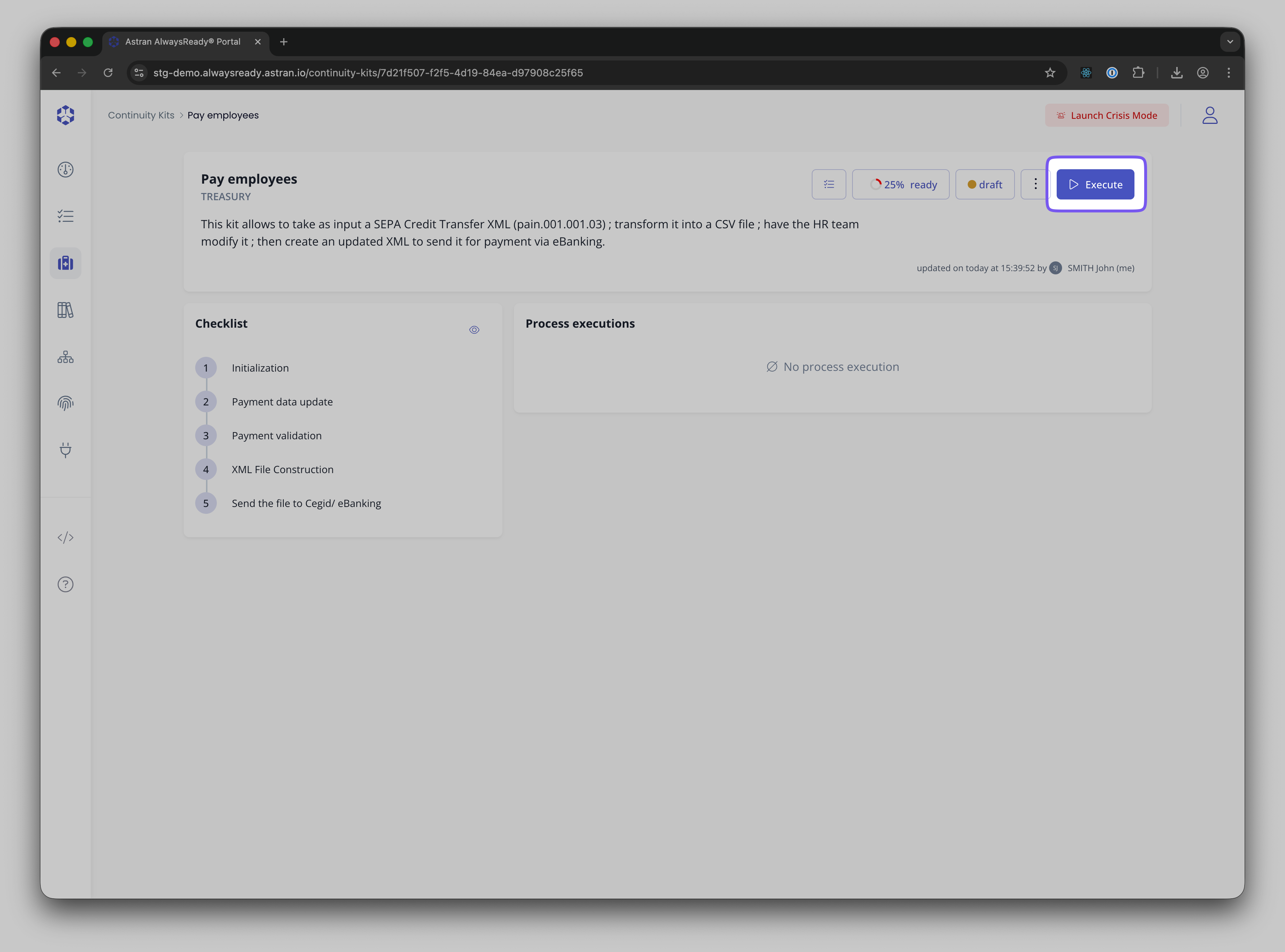
When no execution has yet been done, you'll see the following:

- Click on the
Executebutton - According to your kit's configuration, you'll be prompted to fill users by roles, see here
- You can change the name of the execution according to your needs

Resume an execution
- If there are any already existing checklists, they will be listed
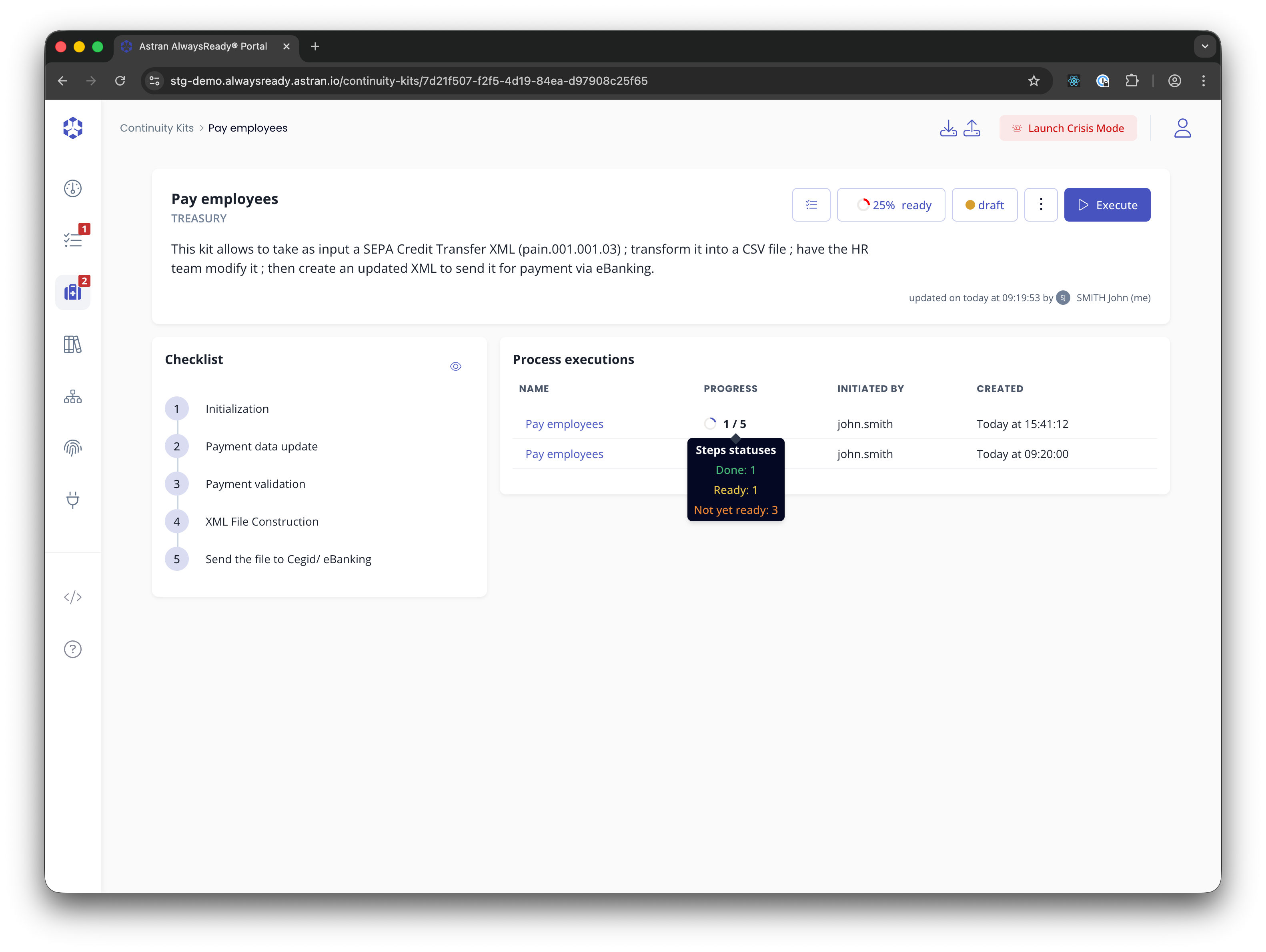
- Click on one of them to resume the checklist.
Fill the steps
You'll be able to see the number of steps of the checklist and where you currently are. To fill a step, once you have executed the required tasks and provided the requested inputs, click on the checkbox.
In case some mandatory fields are missing or some data does not match the requested format, you will not be able to check the step.
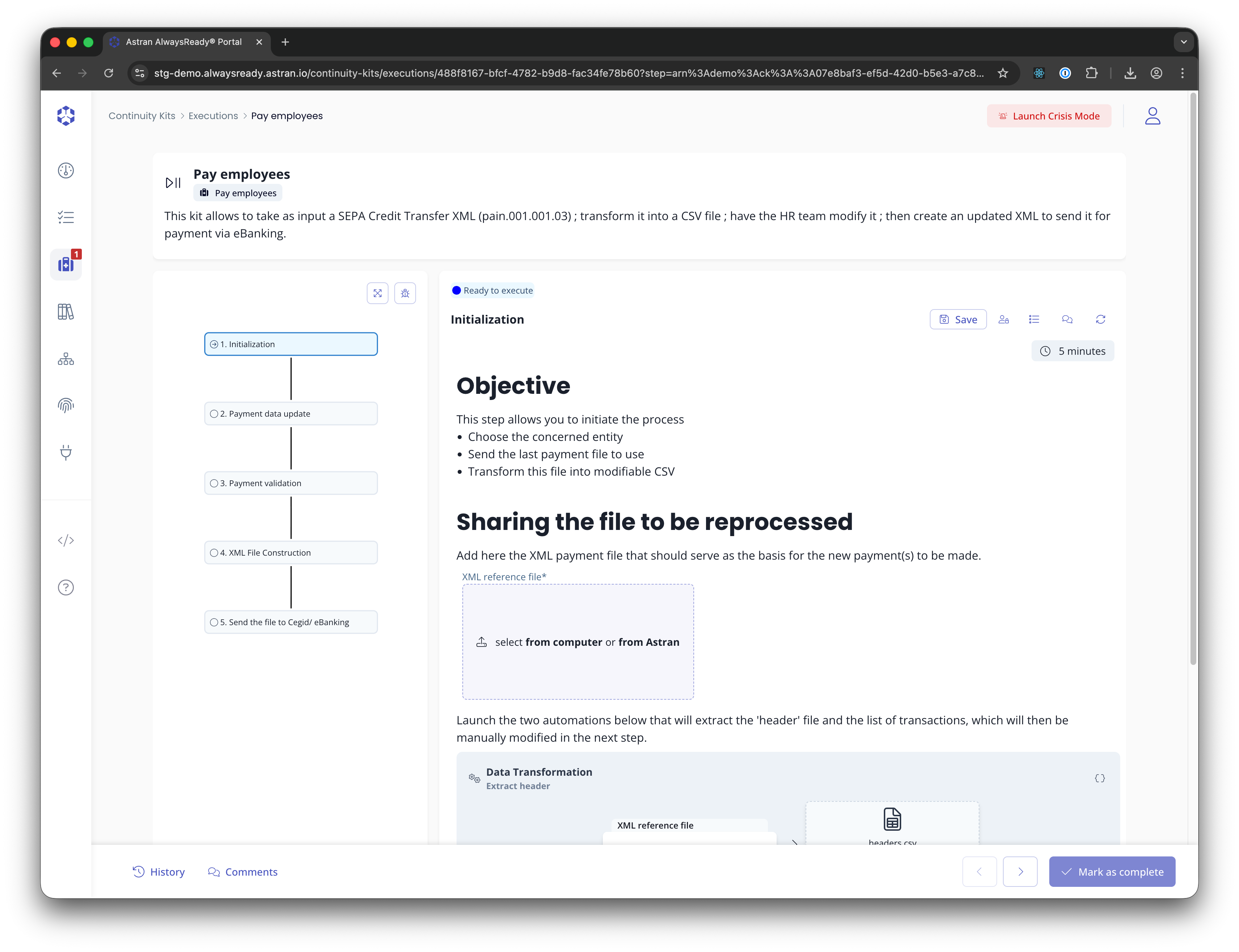
Filling file inputs
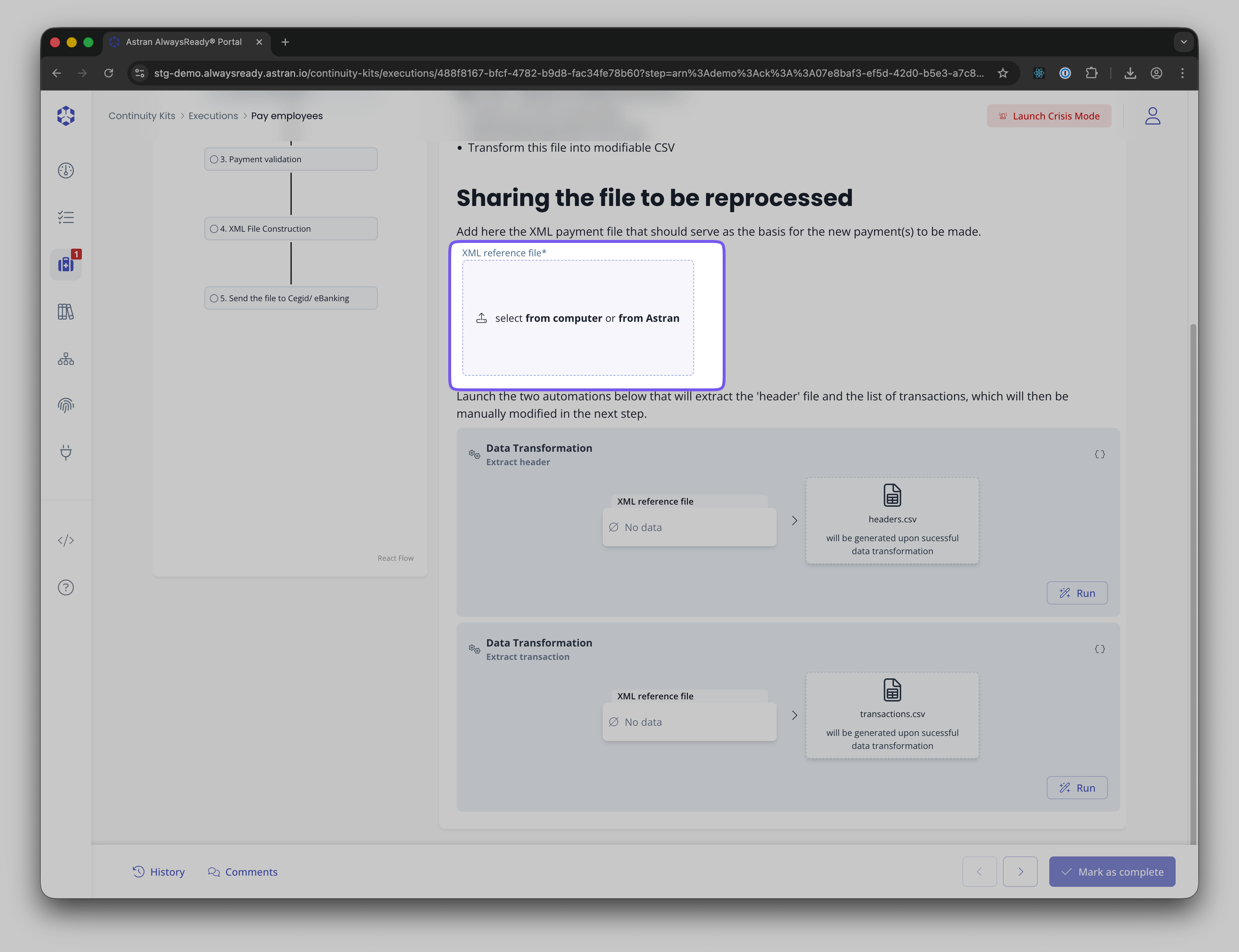
When you have a file to input, you can either select a file from your computer or directly from Astran. You can only select files in Astran for which your administrator granted you the access rights.
To select a file from Astran, simply click on "From Astran" in the file input.
Then browse the explorer tree and select your file.
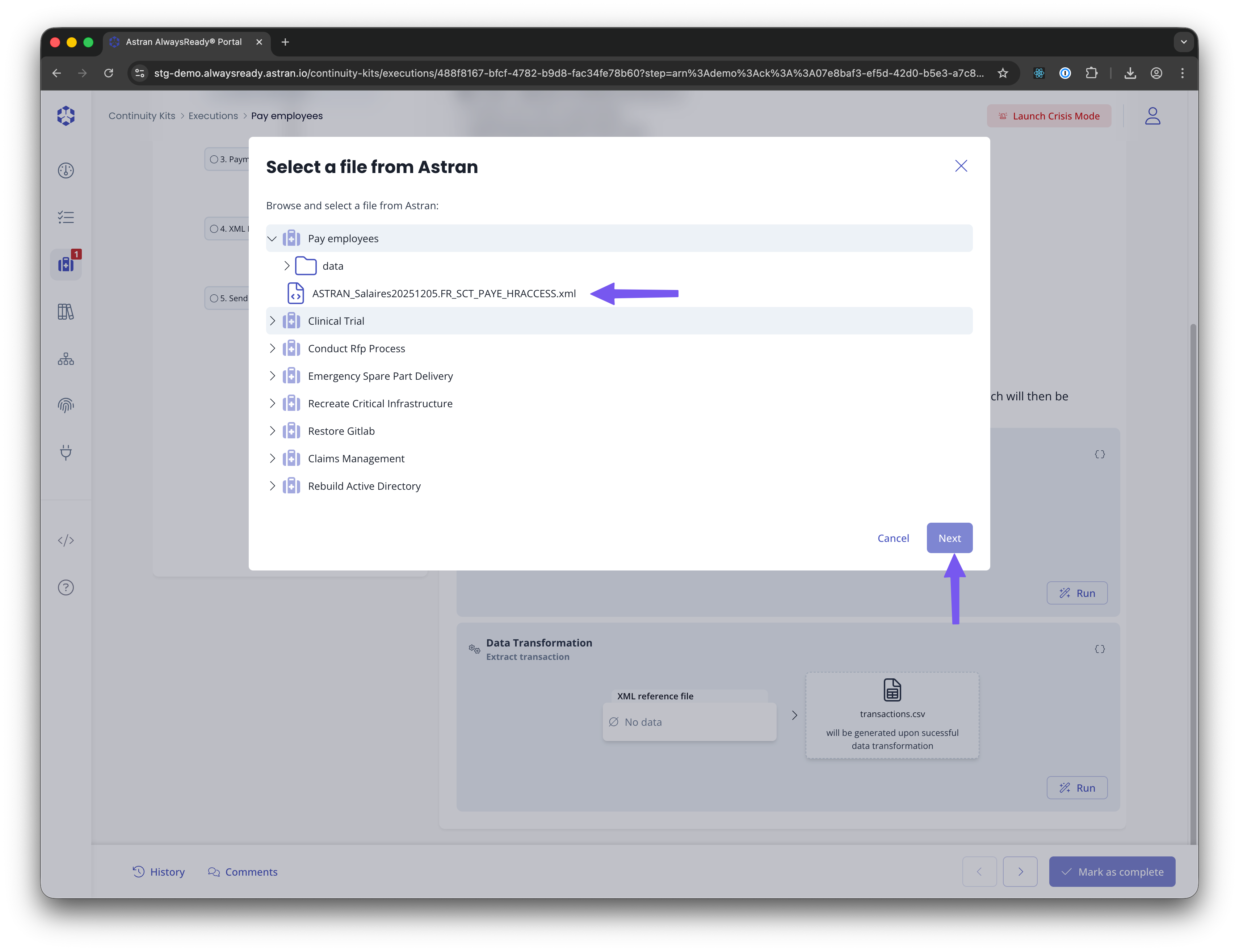
You'll be asked to select also the version you want to use.
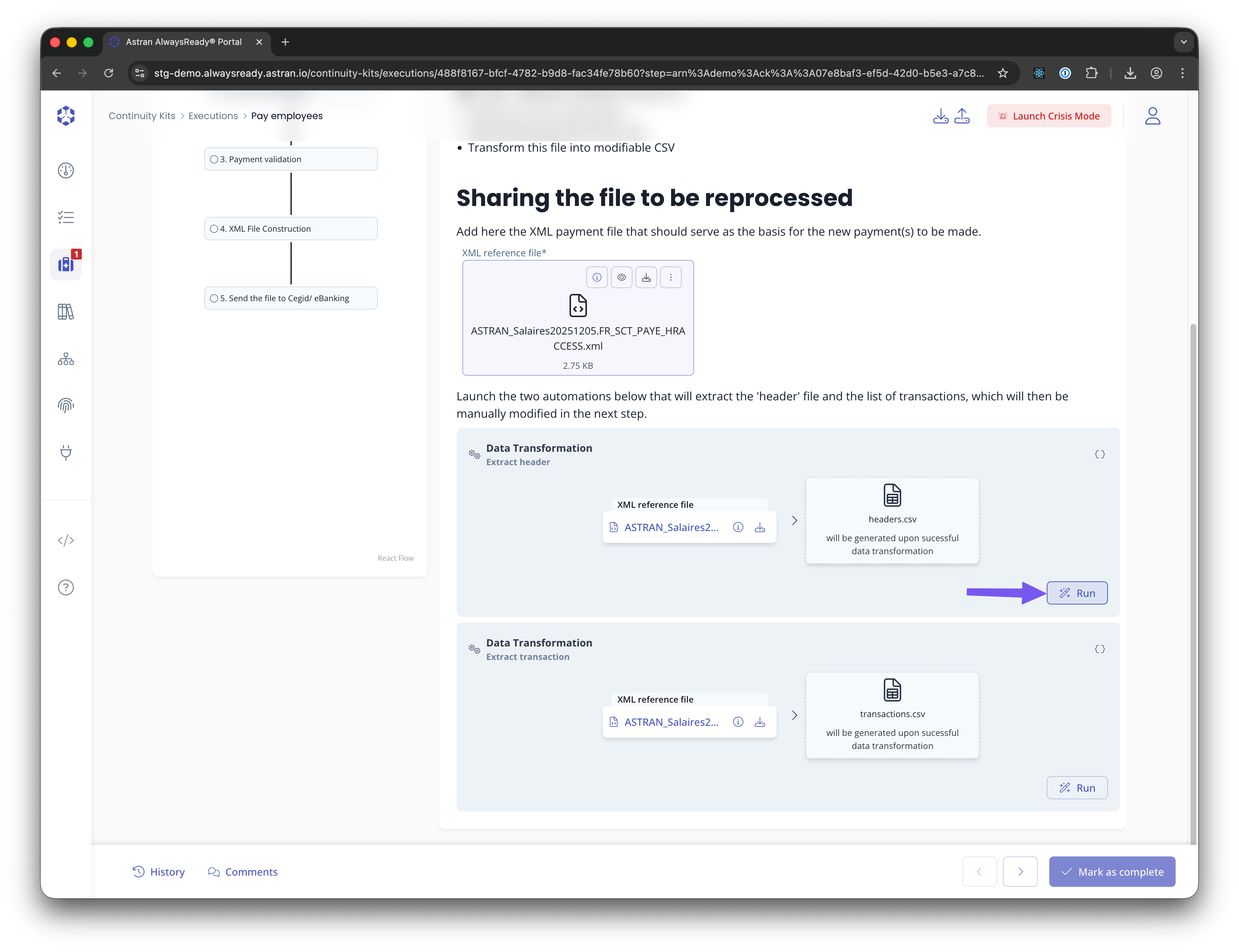
Running automations
When automations are defined, you can simply click on 'Run' to launch them. Their status will be refreshed regularly, though you can use the 'Refresh' button at the top right of the step to manually refresh it.
Saving & marking as complete
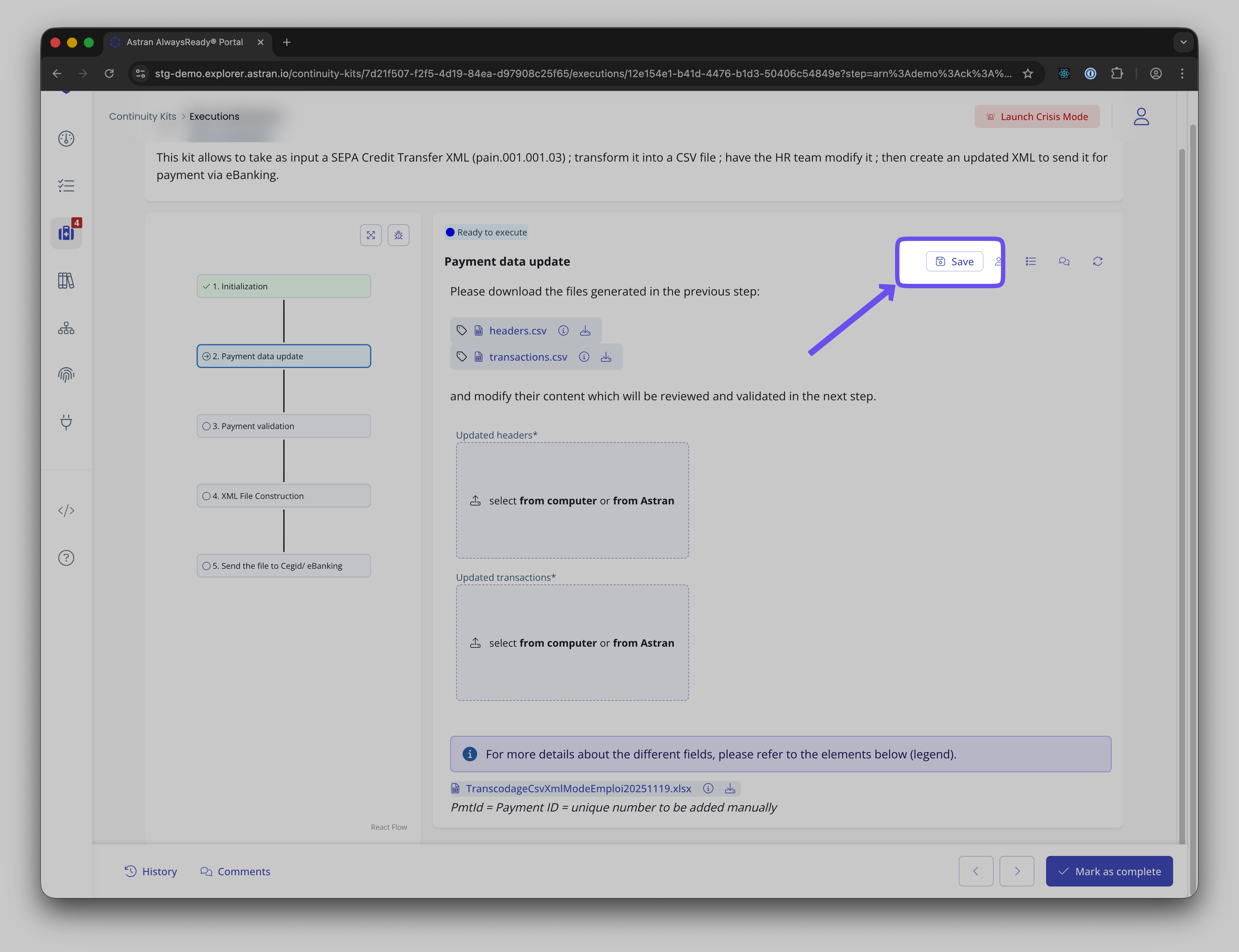
- You can click on the 'Save' button to save the execution without marking the step as complete It will save your current changes without any validation
- You can click on 'Mark as completed' to try to mark the step as completed This will run all the validations on the forms
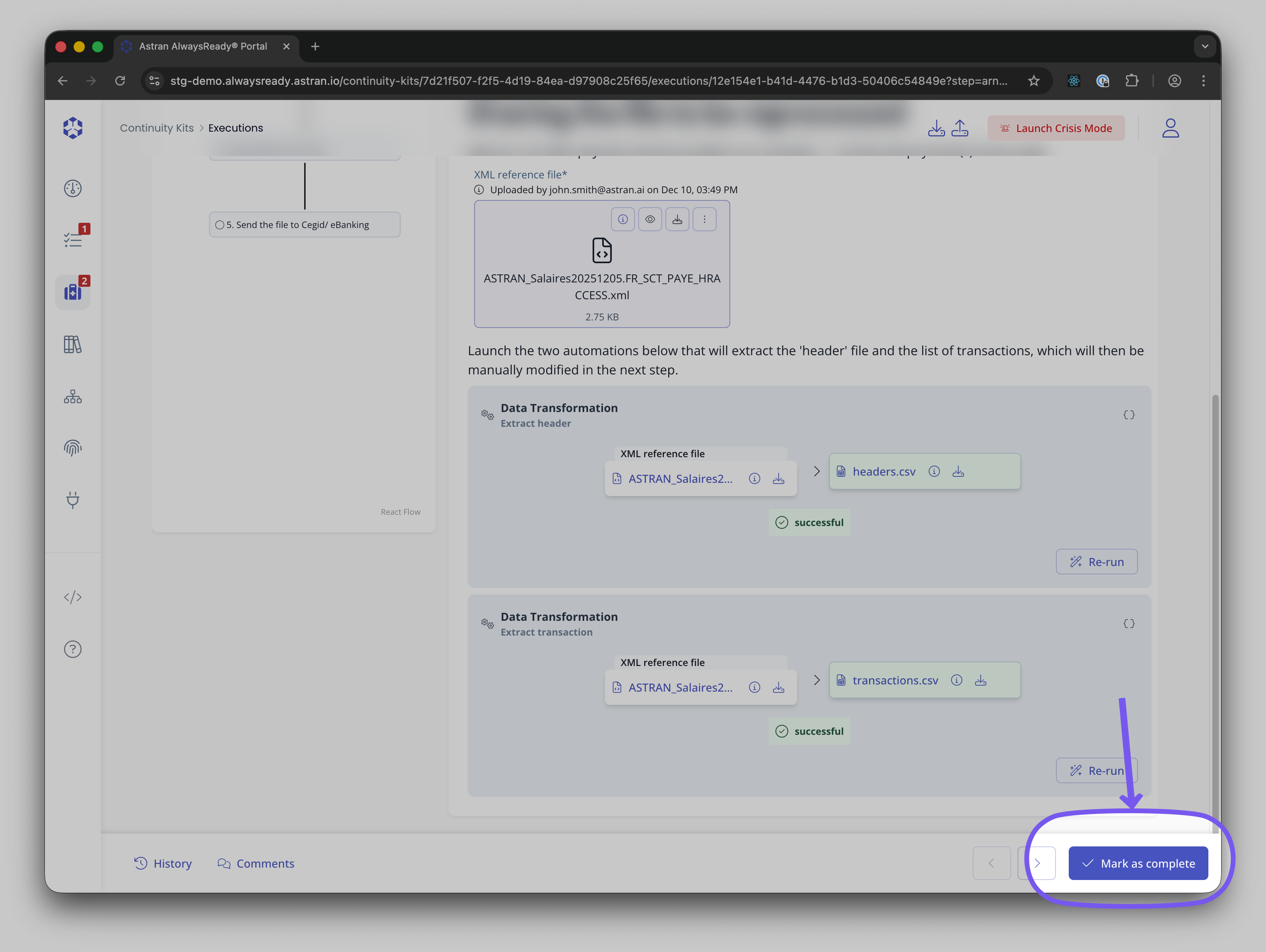
Beware that until a step is marked as completed, all steps depending on it will not be available for edition.
Skipping
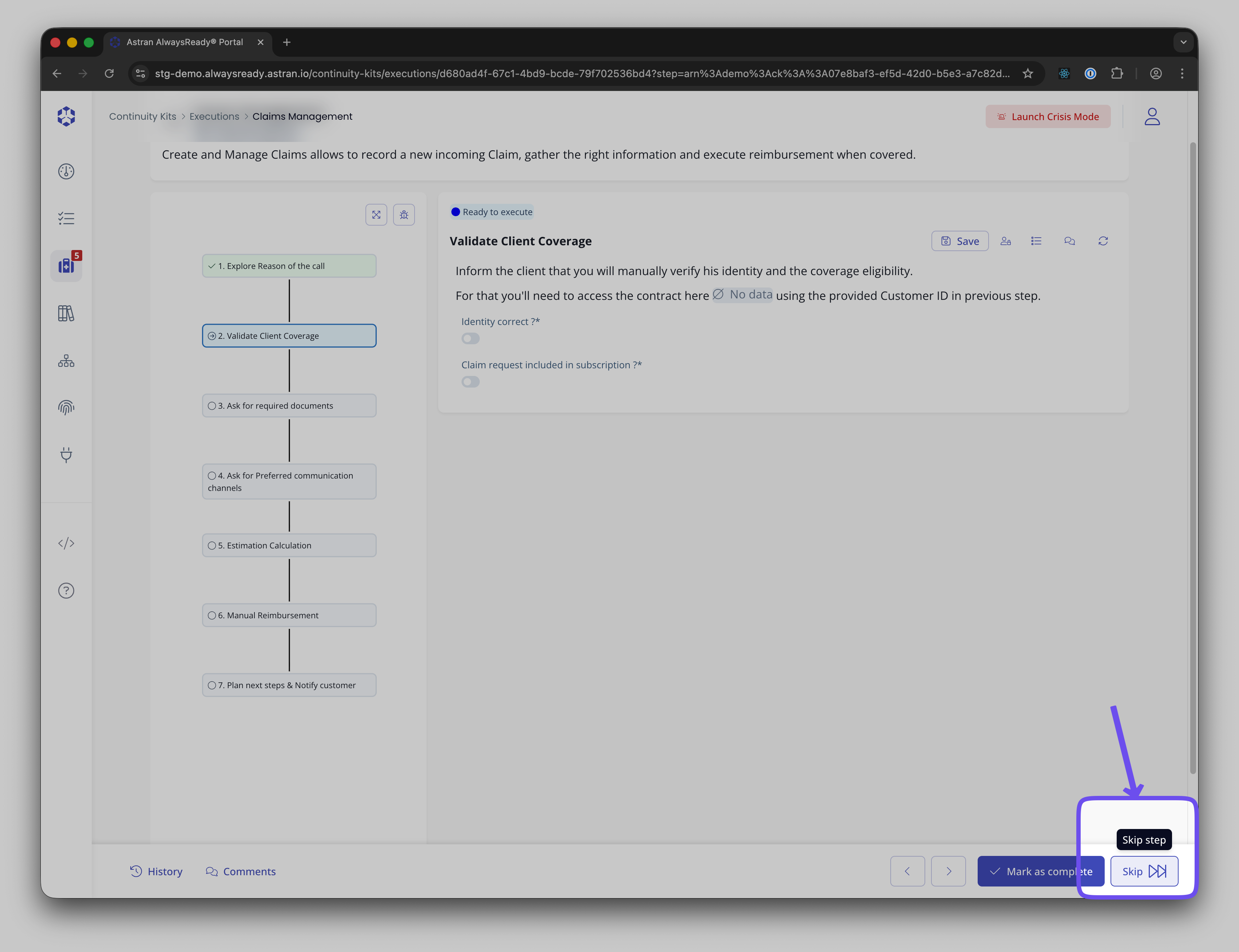
If a step has been marked as 'skippable', you can click on the 'Skip' button to mark the step as skipped and move to the next one
Reworking a step
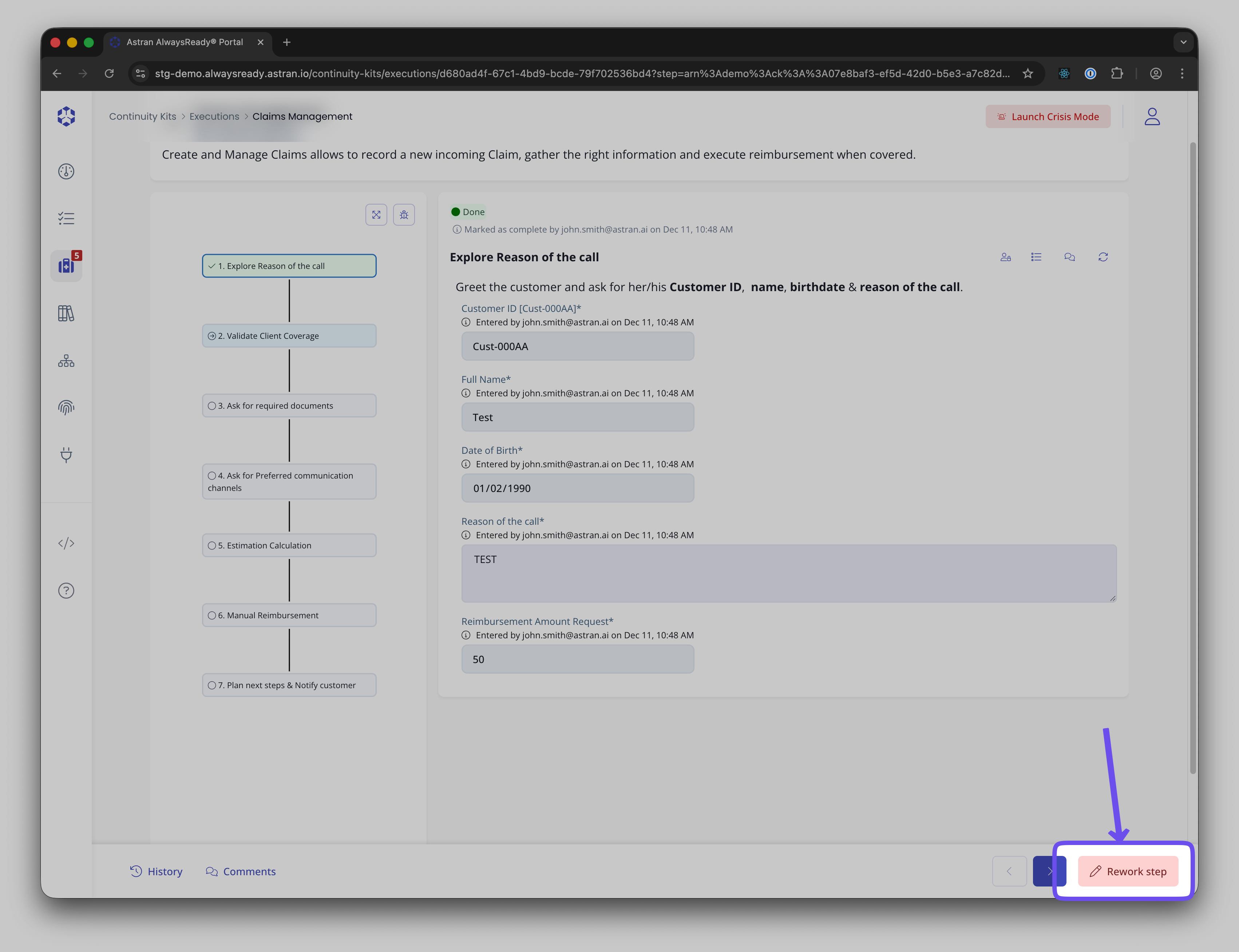
Managers and Contributors can click on 'Rework step' when a step is failed or done. This will set the step's status back to 'Ready' and thus any Manager or Contributor will be allowed to edit content (form, file inputs, automations) again.
History
You can access the history of an execution by clicking on the History button. In case you have access to only some steps, you'll only be able to see the history associated to theses steps.

Comments
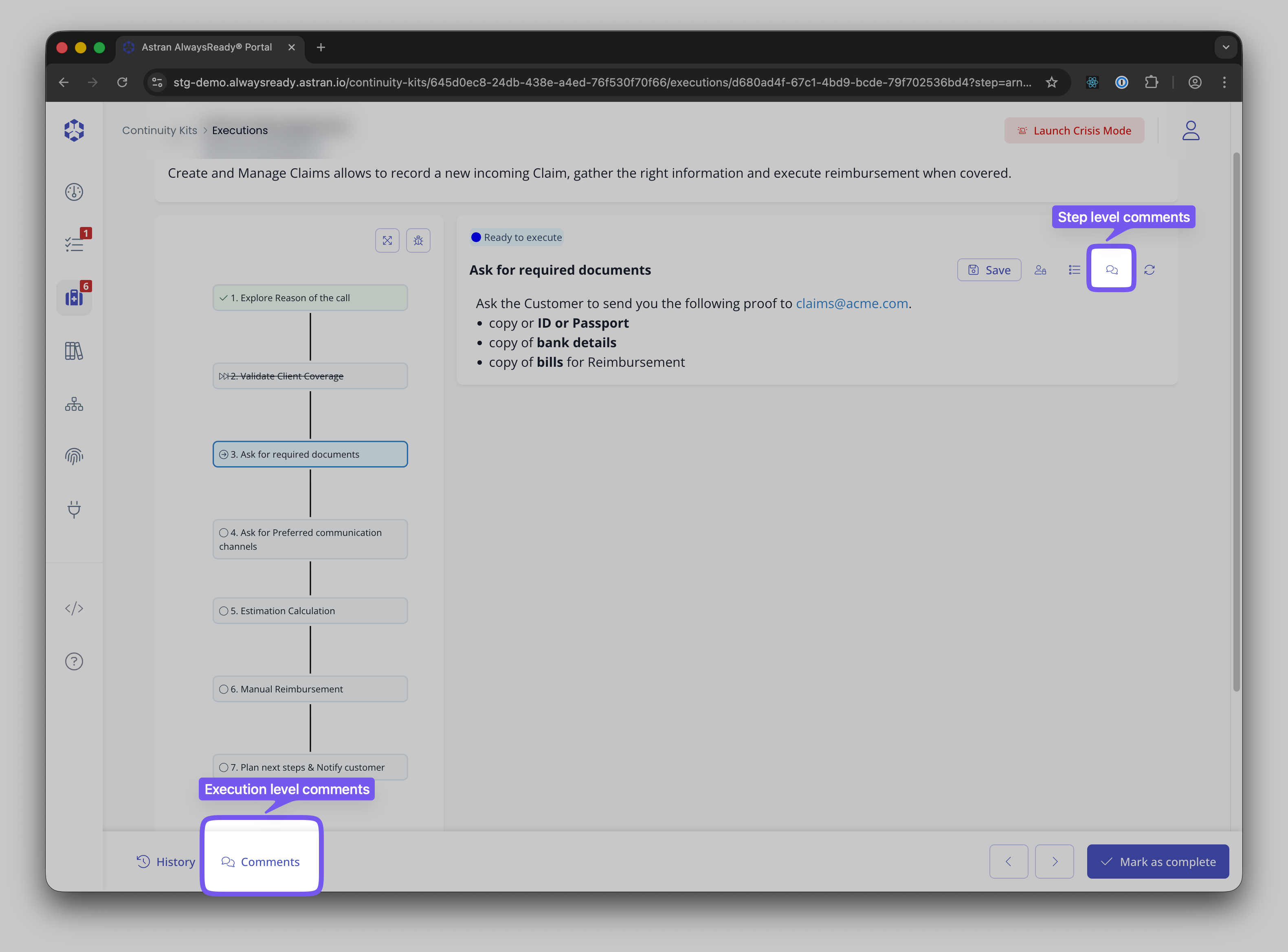
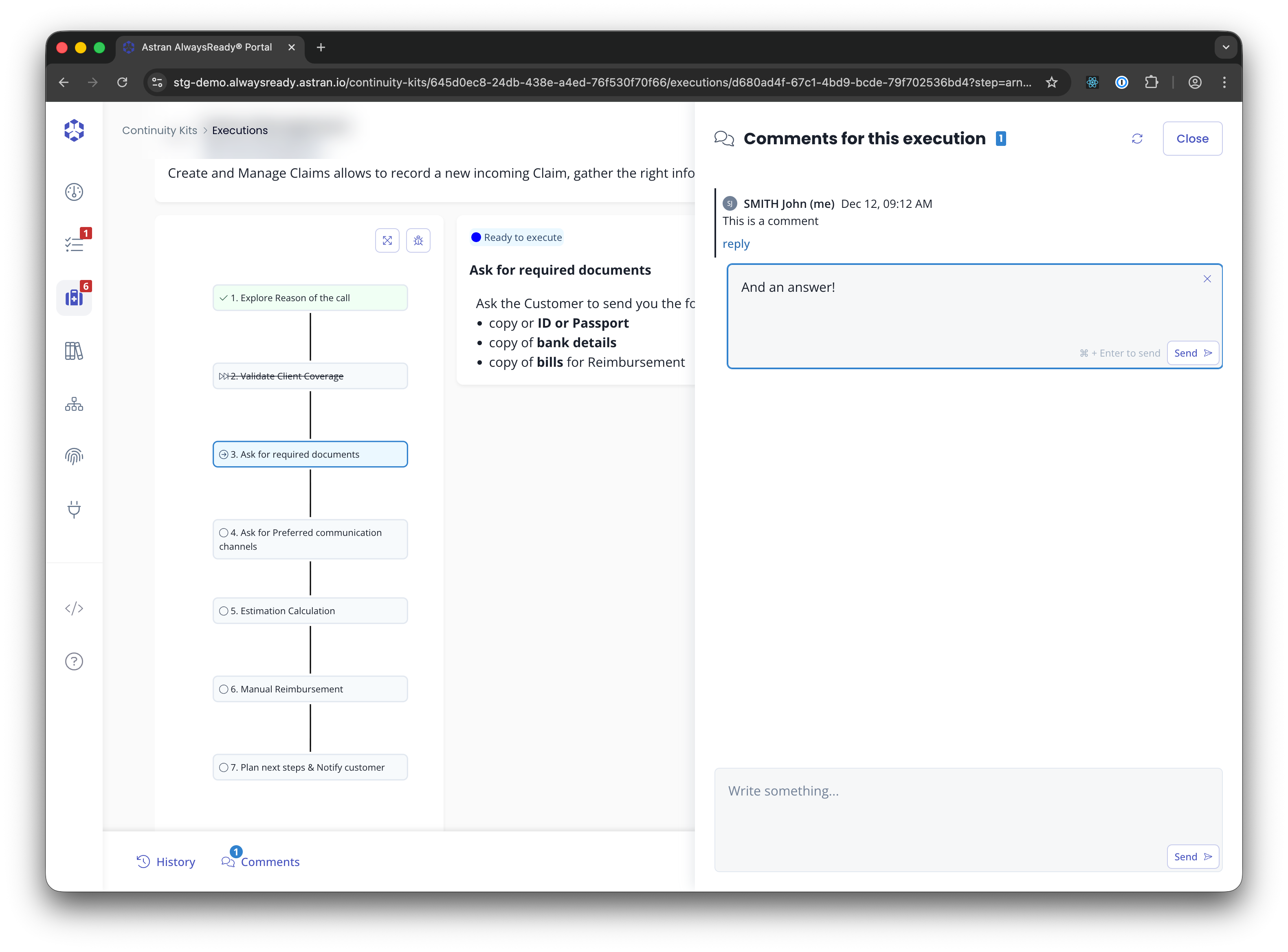
You can add comments at execution or step level.