Editing an existing kit
Entering edit mode
- From the
Continuity Kitslanding page, accessible from the left menu, click on one of your existing kits - You'll be redirected to this kit summary

- Click on
Edit
Kit editor
Summary
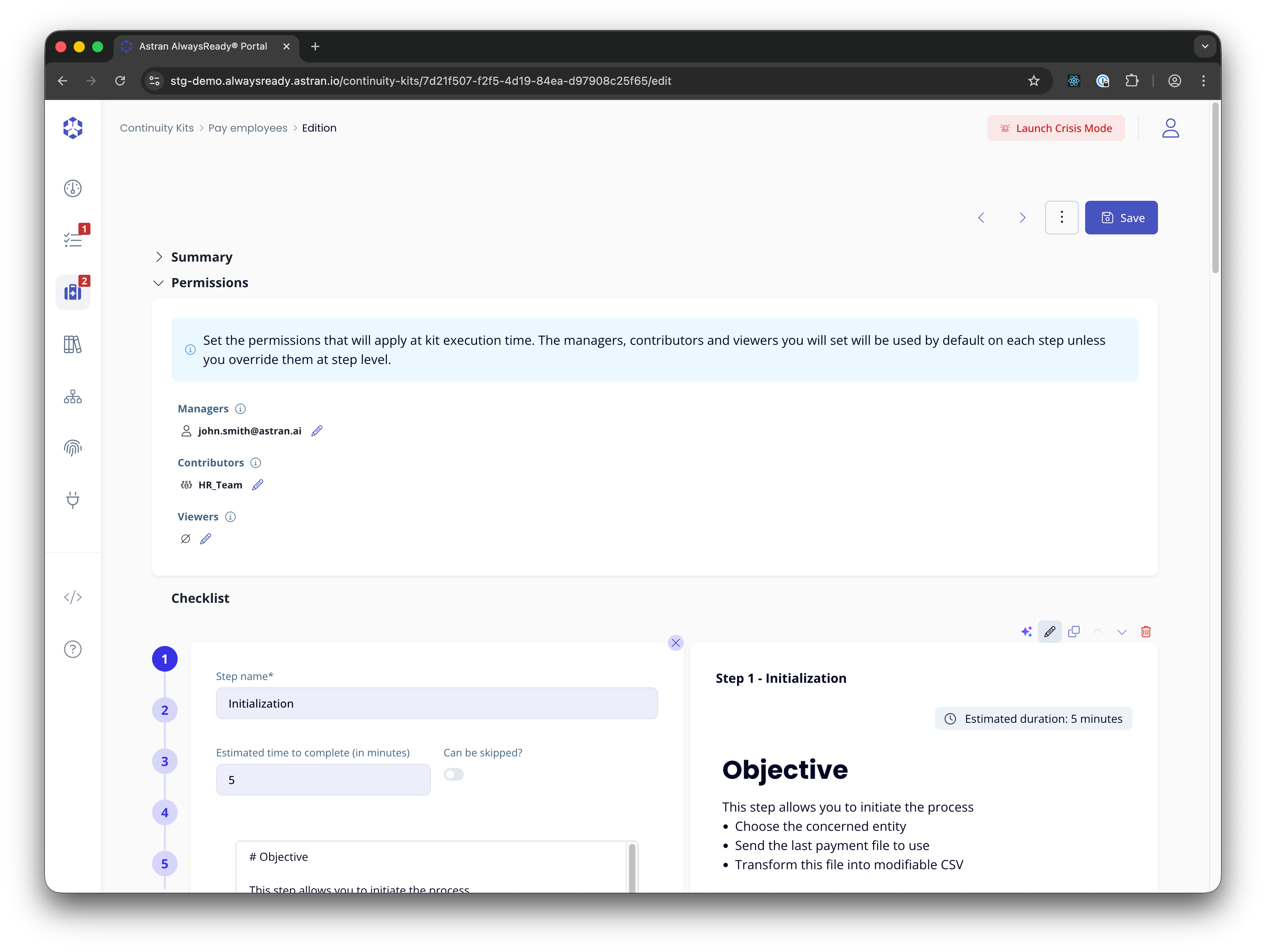
Permissions
Please refer to the Permissions for more info.
Kit level permissions
You can edit kit level permissions in the Permissions section.
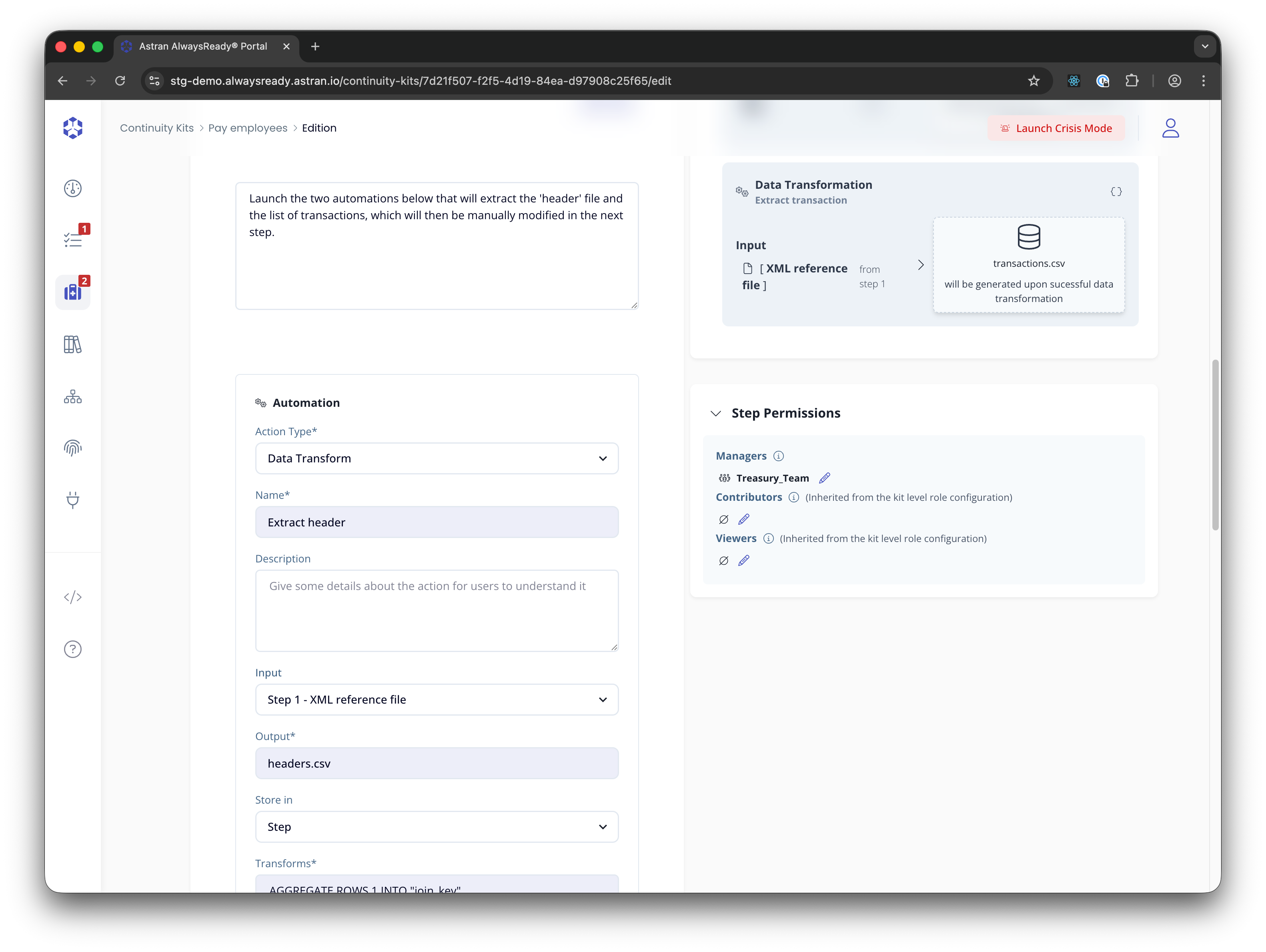
Step level permissions
Step level permissions can be edited at the step level directly
The summary contains textual information about your kit. We recommend you use it to explain the purpose of this kit.
Steps
A checklist is made of steps.
Each step contains a Step name (mandatory), a free text for the description of the step and user inputs.
You can add a new step by click Add step at the bottom of the step listing on the left side of the page.
Skippable and parallel steps
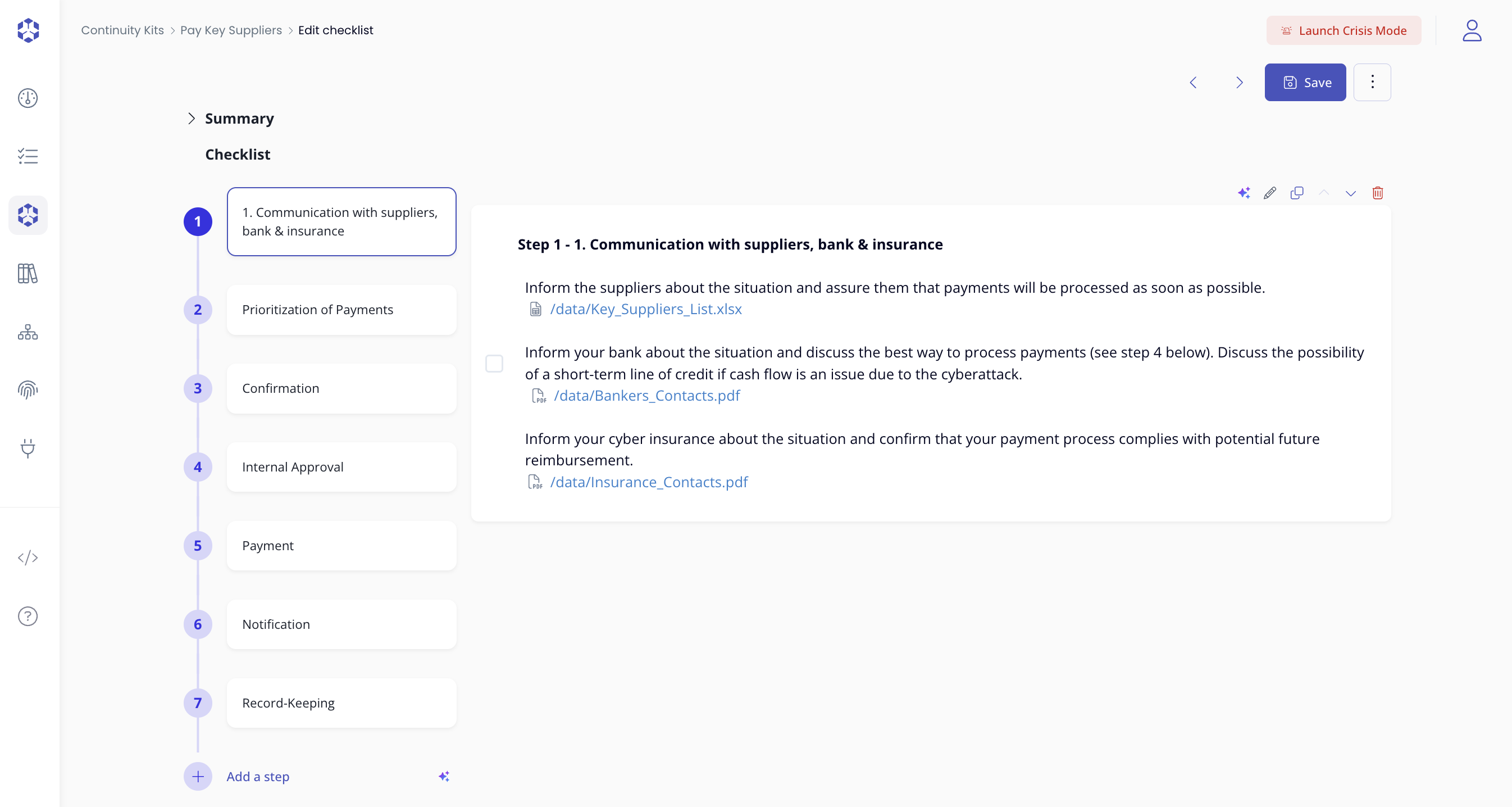
You can define steps than can be skipped and that can be executed in parallel. In case you set a step to 'parallel' it means that it can be executed as soon as all its dependencies as resolved. A step depends, in such case, on another step only if it references a value that comes from a previous step. If there's no such dependency, it means that the step can be run as soon as the execution starts.
Text editor
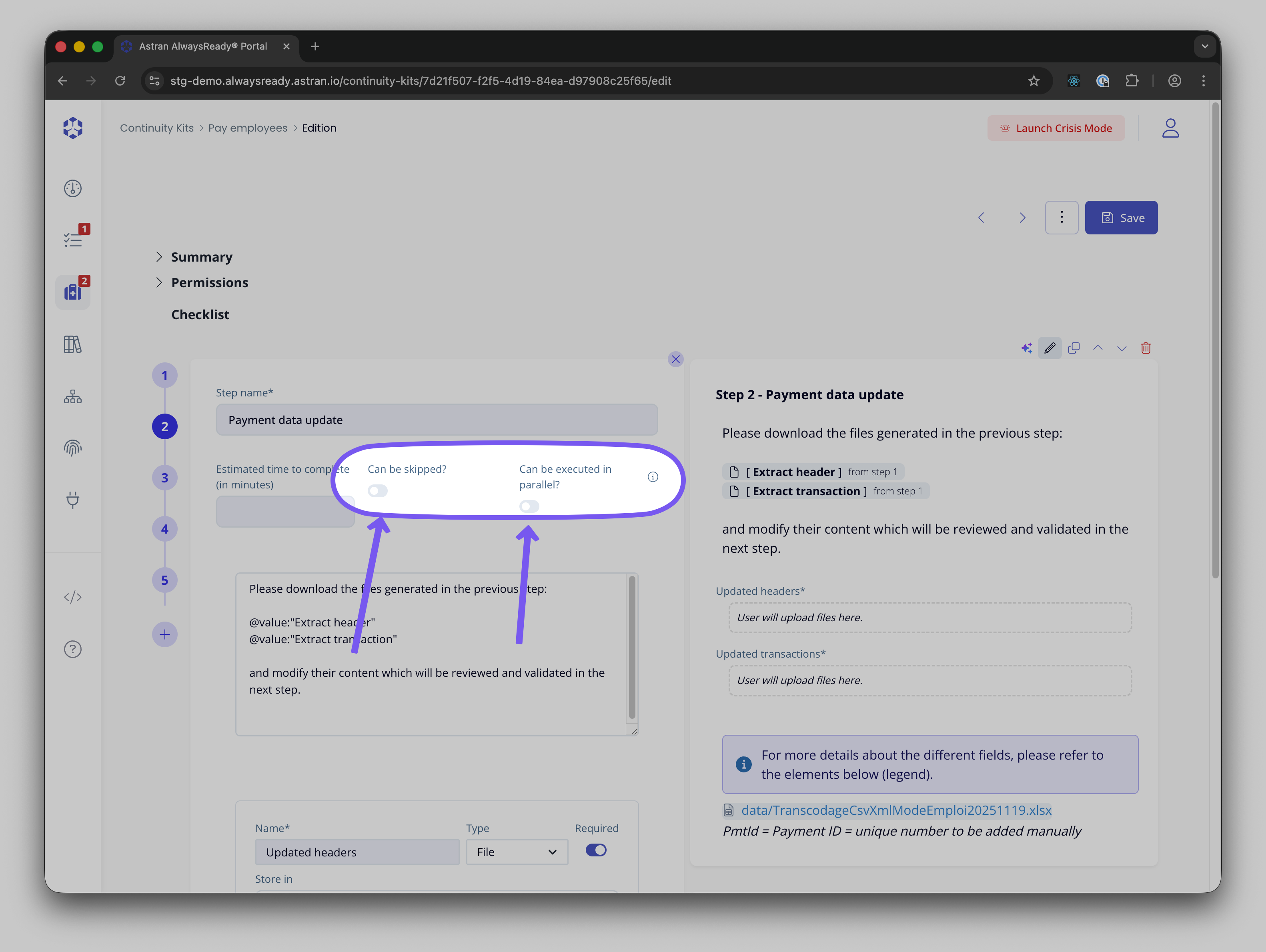
You can check the options offered by the text editor here
User inputs
To add a user input, click on the Add user input button.
Each input must have a name. In a step, 2 inputs cannot have the same name
The name you enter will be transformed in a technical key for storage.
Shall you have 2 names identical, except for a special character, you will have to change one of them.
e.g. you cannot have Is working and Is working? as 2 different inputs
User input types
Each input can be Required or Optional
You can add inputs of type
- Text can have a regular expression (Javascript compatible) in order to validate its format.
- Text area
- Date
- True / falseinfo
A true/false input that is
requiredmeans that the user must set it toYesto consider it valid. - File
Uniqueness of fields labels
Labels of fields must be unique across the kit. Shall this not be the case, at save time, the user will be prompted to either accept proposed changes or to modify the kit manually.
Reorganizing steps
You can reorganize steps by clicking on the up and down chevron that appear at the top right of a step when you hover it.
You can delete a step by clicking on the Delete icon. Beware, there's no confirmation required!
You can also drag and drop steps to reorganize them
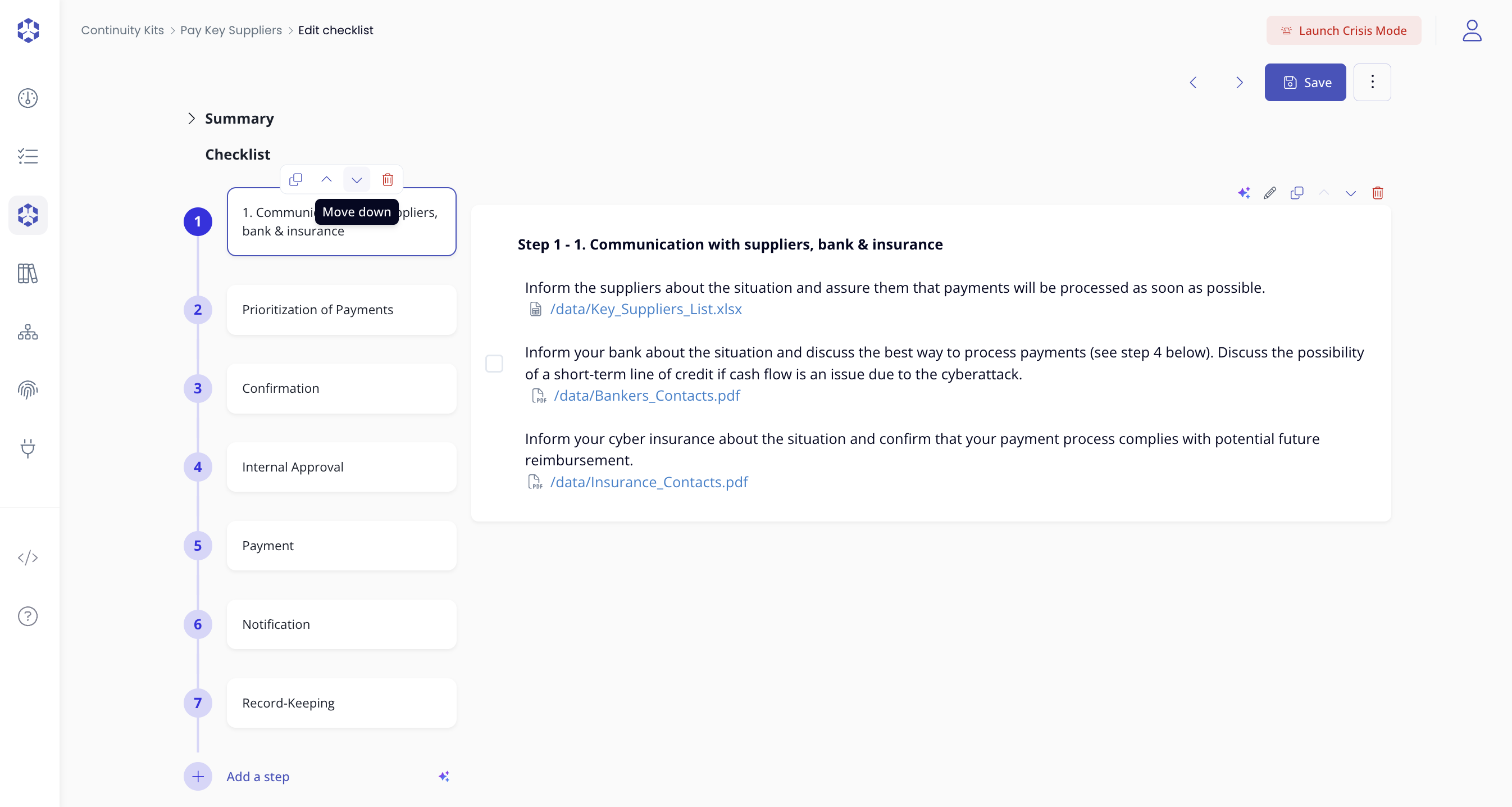
For convenience, you can also duplicate a step by clicking on the duplicate icon.
Saving changes
Once you're happy with you changes, click on Save at the top right of the page.
Shall there be any issue, your changes will not be saved.
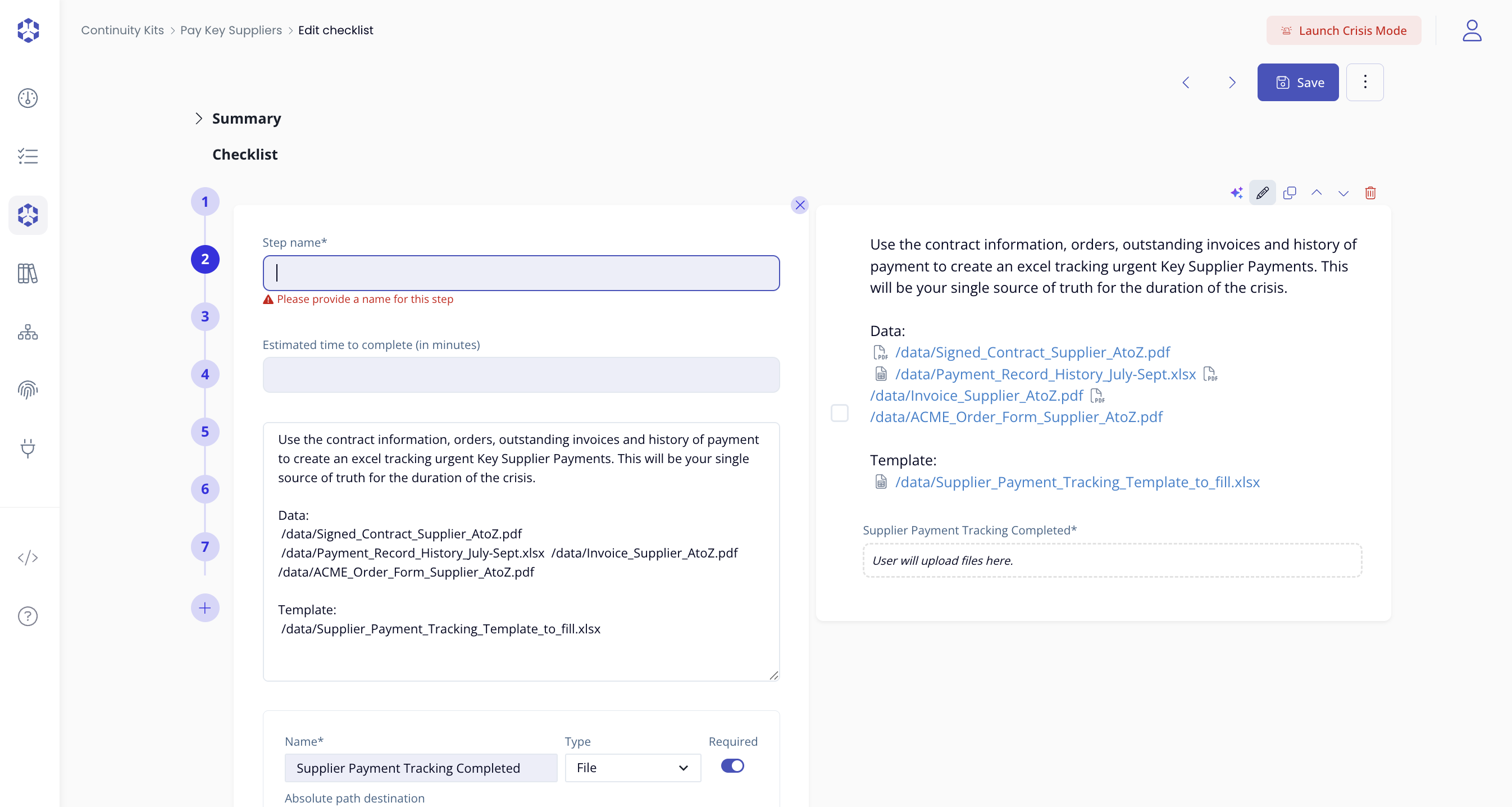
Correct the mentioned errors and Save again.
Expert mode
Checklists can be edited in a YAML format.
You can directly edit this, by clicking on the action menu ("three dots" button) and select "Expert mode". We do not recommend you doing that and we do not, at the moment, provide documentation on the expected structure.