Quick access
Quick access is a navigation modal that lets you jump to any resource or section of Astran AlwaysReady® without leaving the keyboard. Open it from anywhere in the application.
Opening Quick access
- Click the Quick Access button in the top bar, or
- Press Cmd+K (macOS) or Ctrl+K (Windows/Linux)
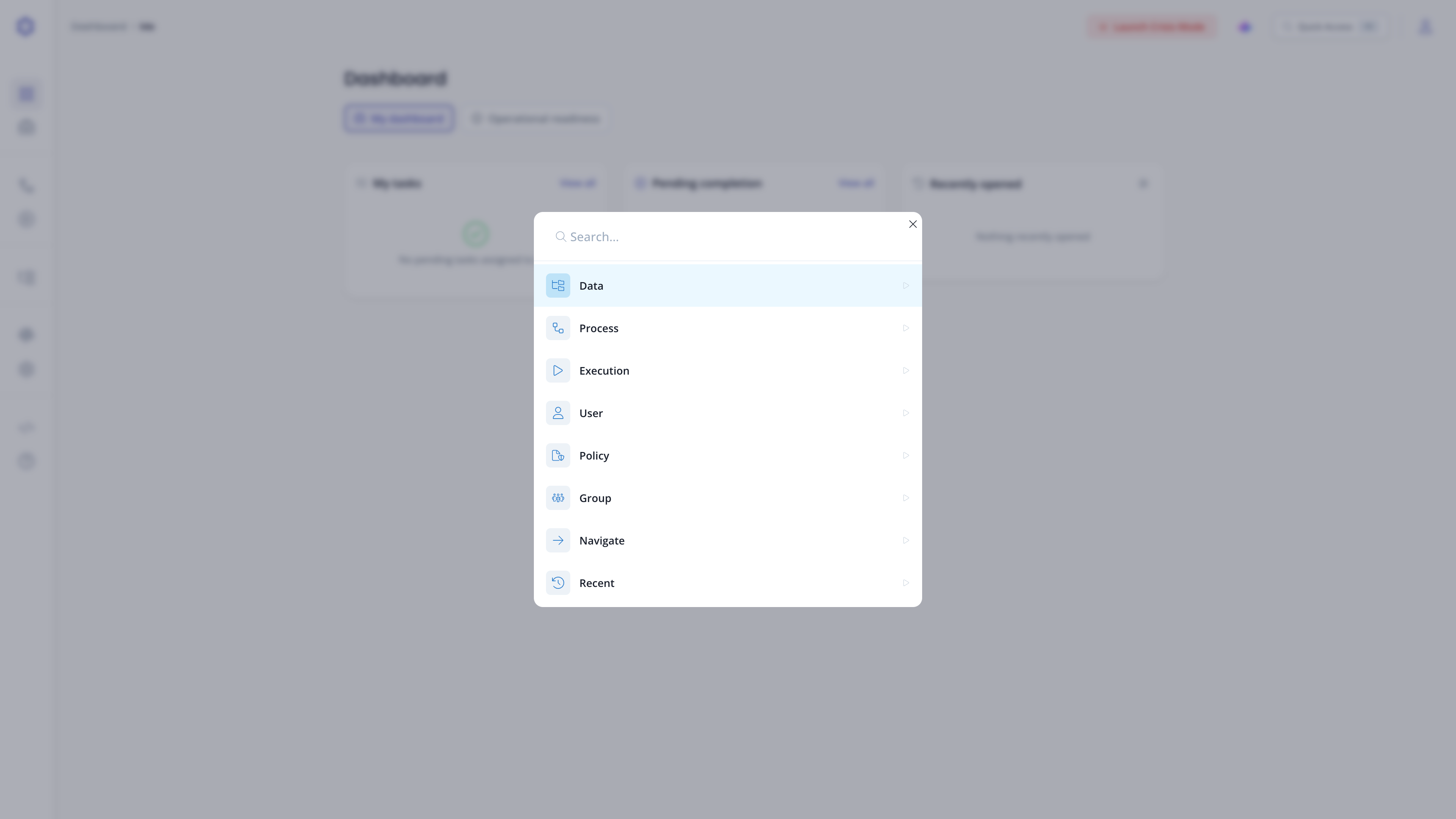 Quick access modal, type selection.
How it works
Quick access works in three steps:
- Select a resource type: choose what you are looking for (bucket, process, user, etc.)
- Filter within that type: type to filter the matching items
- Open or act on the result: press Enter to open, or use the available actions in the overview panel
Resource types
| Type | What it shows | Required permission | Without permission |
|---|---|---|---|
| Data | Buckets in the Data explorer | s3:ListAllMyBuckets and s3:ListBucketVersions; then s3:GetObjectVersion to view files | 403 Forbidden error replaces the list / Bucket still appears in the list with a lock icon and a No access badge; opening it shows a 403 Forbidden error |
| Process | All processes | ck:GetKit | 403 Forbidden error replaces the list (lock icon, message, Go back button) |
| Execution | Process executions | Process view access (ck:GetKit) | 403 Forbidden error replaces the list |
| User | Users | iam:ListUsers | 403 Forbidden error replaces the list |
| Policy | Policies | iam:ListPolicies | 403 Forbidden error replaces the list |
| Group | Groups | iam:ListGroups | 403 Forbidden error replaces the list |
| Navigate | Application sections (see below) | None | ; |
| Recent | Recently accessed items across all types | None | ; |
Navigate: jump to a section
Selecting Navigate gives you a list of application sections you can jump to directly:
- Dashboard
- Tasks
- Processes
- Executions
- Pending completion
- Data explorer
- Users
- Groups
- Policies
- Integrate
- Audit logs
Selecting a navigation item brings you there immediately, skipping the overview step.
Data explorer navigation
When opening Quick access and selecting Data, you can easily navigate in a bucket and see the associated files and folders. This allows you to access files and open them directly, without losing the context on which you're currently working.
Recent items
The Recent type shows items you have accessed recently across all resource types. Each entry displays its type, the path or context (for example, bucket and folder for a file), and how long ago it was accessed.
Use the Clear history button at the bottom of the recent list to wipe the history.
Keyboard shortcuts
| Key | Action |
|---|---|
| ↑ / ↓ | Move through the list |
| Enter | Select type, select item, or open resource |
| Shift+Enter | Preview a file without opening it fully |
| Cmd+Enter / Ctrl+Enter | Open in a new tab |
| Backspace | Go back to the previous step (only when the search field is empty) |
| Escape | Close the modal (step 1) or go back to the previous step (steps 2 and 3) |