Tasks
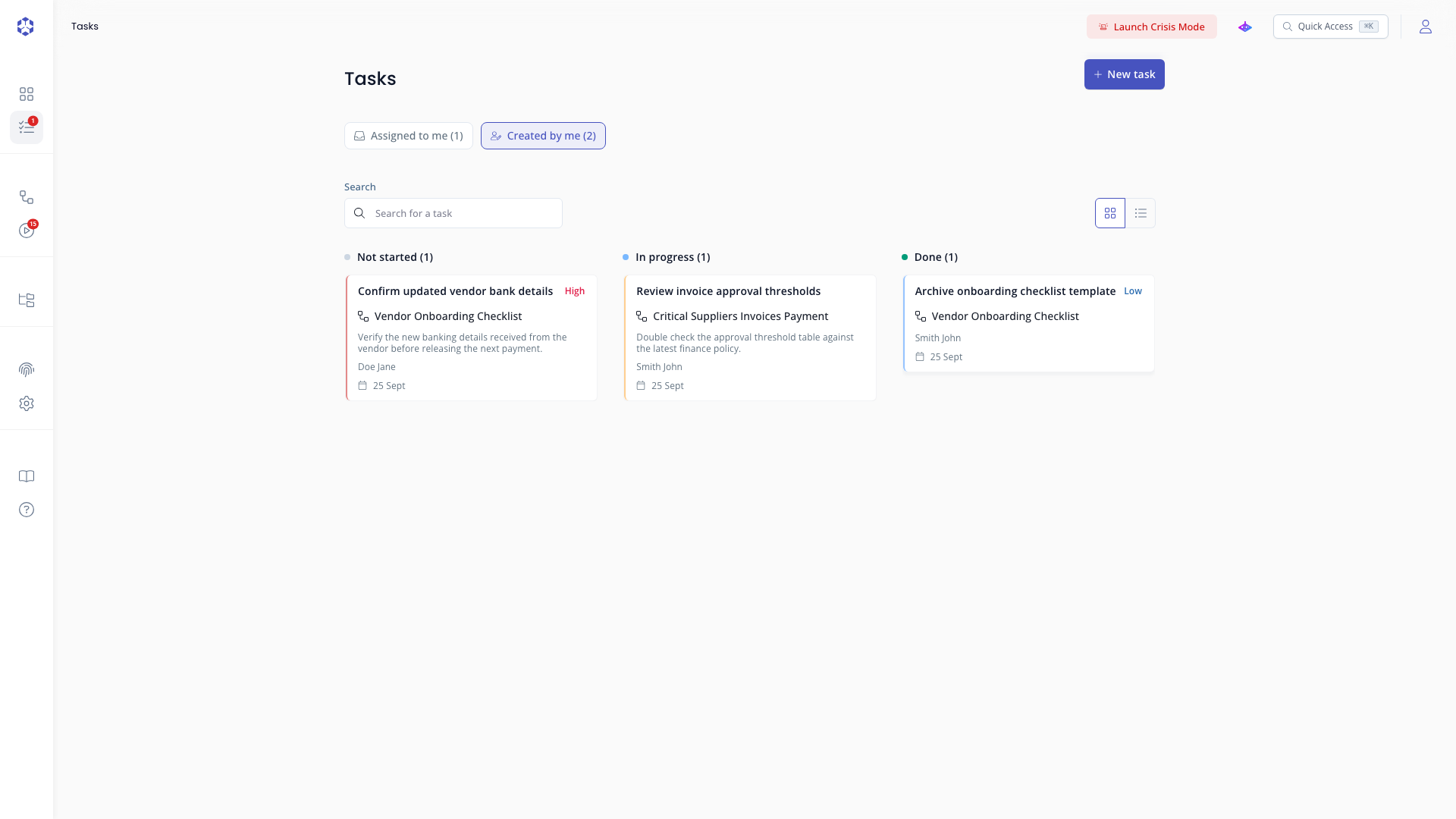
The Tasks page lists tasks that are relevant to you across all processes and executions. Access it from the left sidebar.
In the sidebar, the counter on the task icon indicates the number of 'Not started' or 'In progress' tasks that are assigned to you.
On each tab, the counter indicates the number of tasks that are 'Not started' or 'In progress'. Completed tasks are not counted.
Assigned to me
Tasks where you are the assignee, regardless of who created them.
Created by me
Tasks you created, regardless of who they are assigned to.
Task fields
| Field | Description |
|---|---|
| Link to process | The process the task relates to (required). Shown as Context on the task detail page. |
| Assigned to | The user responsible for the task (required) |
| Task name | Short label for the task (required) |
| Details | Optional description |
| Priority | Low, Medium, or High |
| Due date | Target completion date (required) |
| Status | Not started, In progress, or Done |
Creating tasks
Tasks can be created from three places:
- Tasks: click the New task button at the top of this page. Fill in the process to link the task to, the assignee, a task name, optional details, a priority, and a due date, then click Assign task.
- A process: see Manage a process.
- A step during an execution: see Running an execution.
When the task is successfully created, the user assigned to the task will receive an email.
Viewing task details
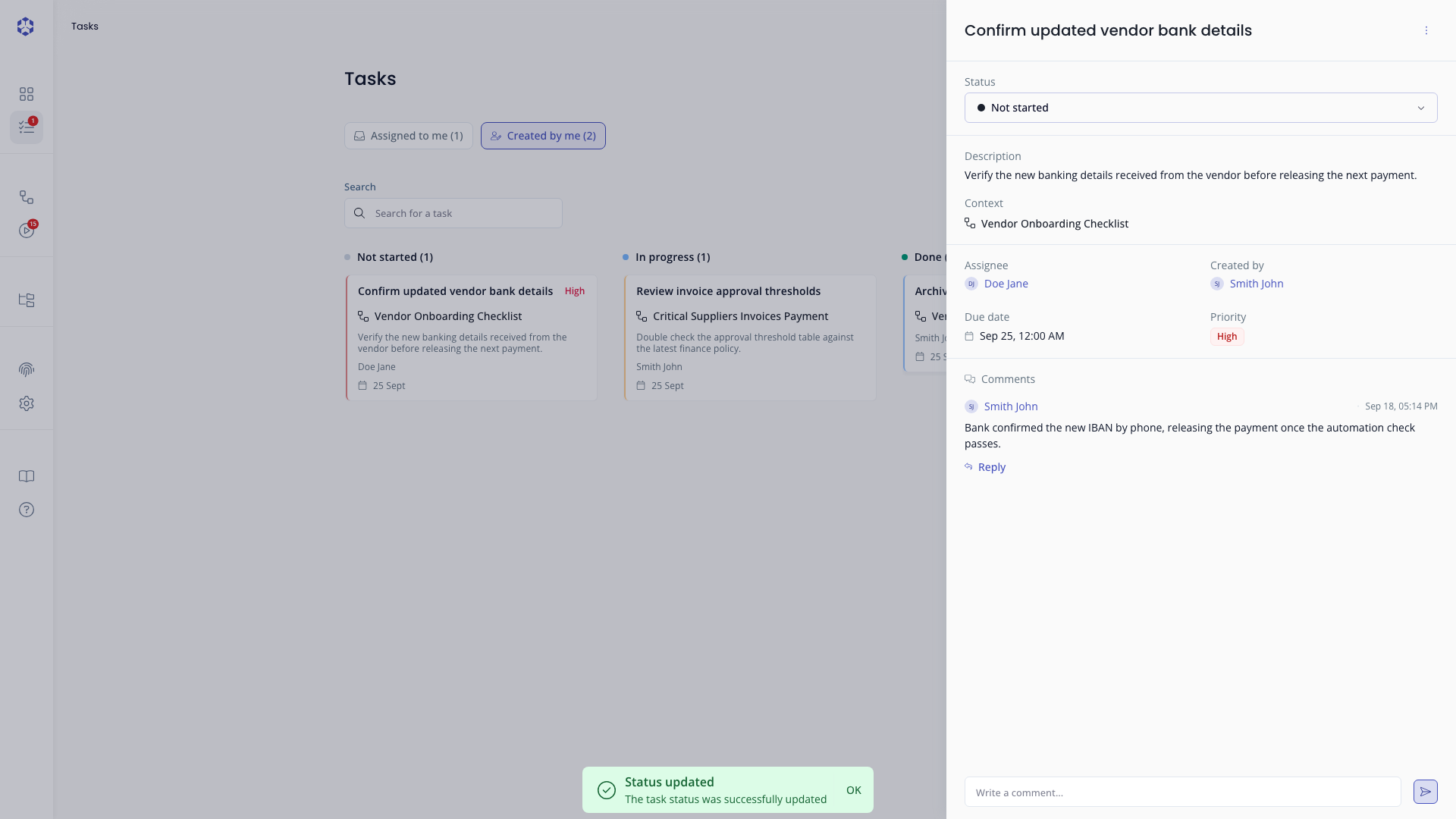
Click any task to open its detail page, which shows all fields, the linked process or step, and the comment thread.
Editing a task
Open a task, then click the ⋮ menu (top right of the detail page) and select Edit. This opens the Update a task modal, where you can change the assignee, task name, details, priority, and due date. If the task is linked to a process, that link is locked and shown as read-only.
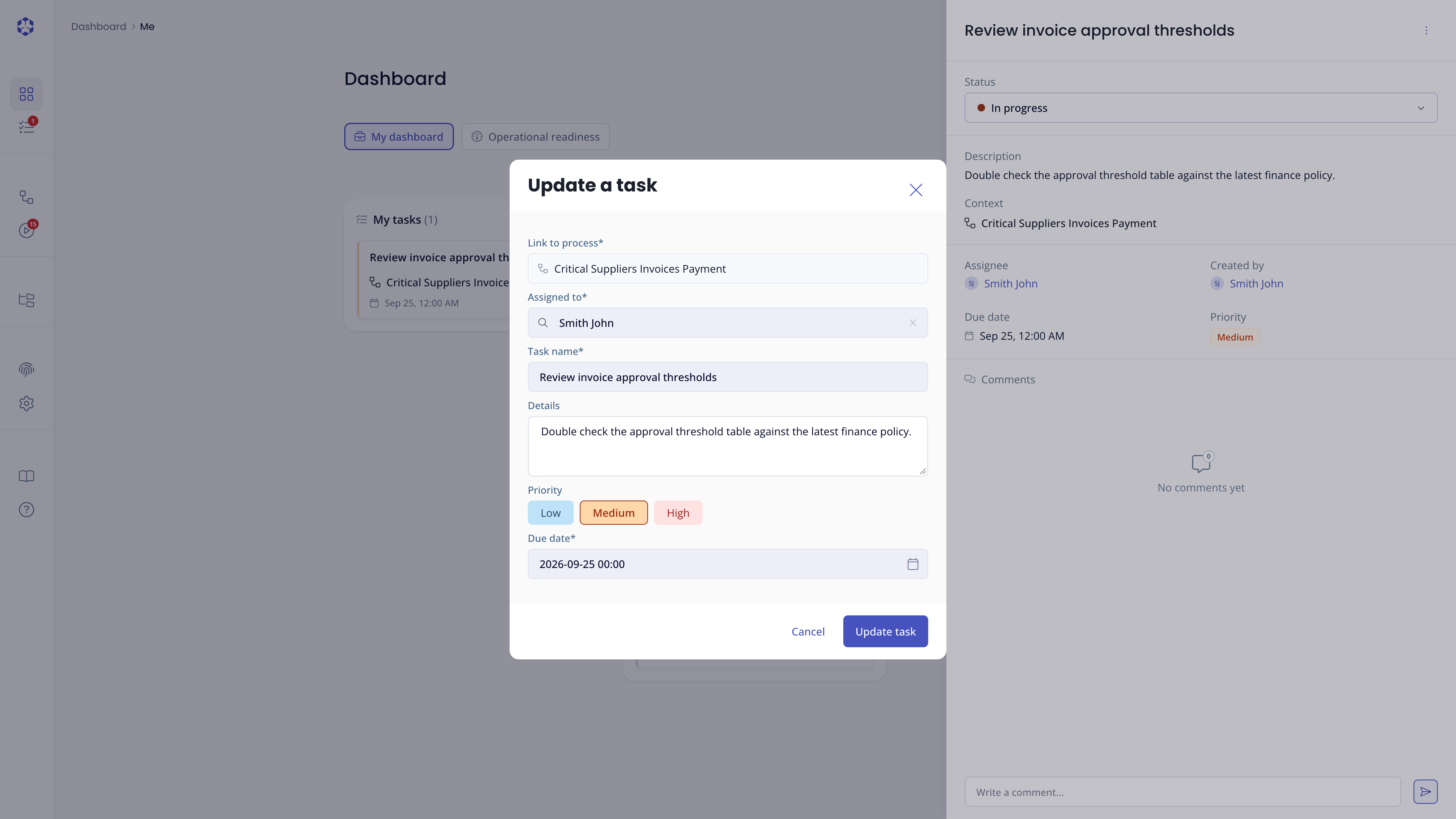 Update a task modal
See Changing status for changing status directly from the detail page without opening this modal, and Reassigning a task for the assignee-only shortcut through this same modal.
Comments
In the Comments tab of the task detail page, type your comment and click the send button.
Reassigning a task
Click the More actions (⋮) button and select Edit; you can then change the assignee and save.
Changing status
Click the status and select the new status. In the card view, you can drag and drop the cards to move their status. Changing from "Completed" to another status will require user's confirmation.
Deleting a task
Click the More actions (⋮) button and select Delete. A confirmation popup will appear.