Personal dashboard
No specific permission is required to access the personal dashboard. The tasks, pending steps, and recently opened items shown are filtered to your own assignments automatically.
My Dashboard gives you a personal, at-a-glance view of everything assigned to you across processes.
Click the dashboard icon (grid icon, first item) in the left sidebar to open the Dashboard page, then click the My dashboard tab if it is not already selected.
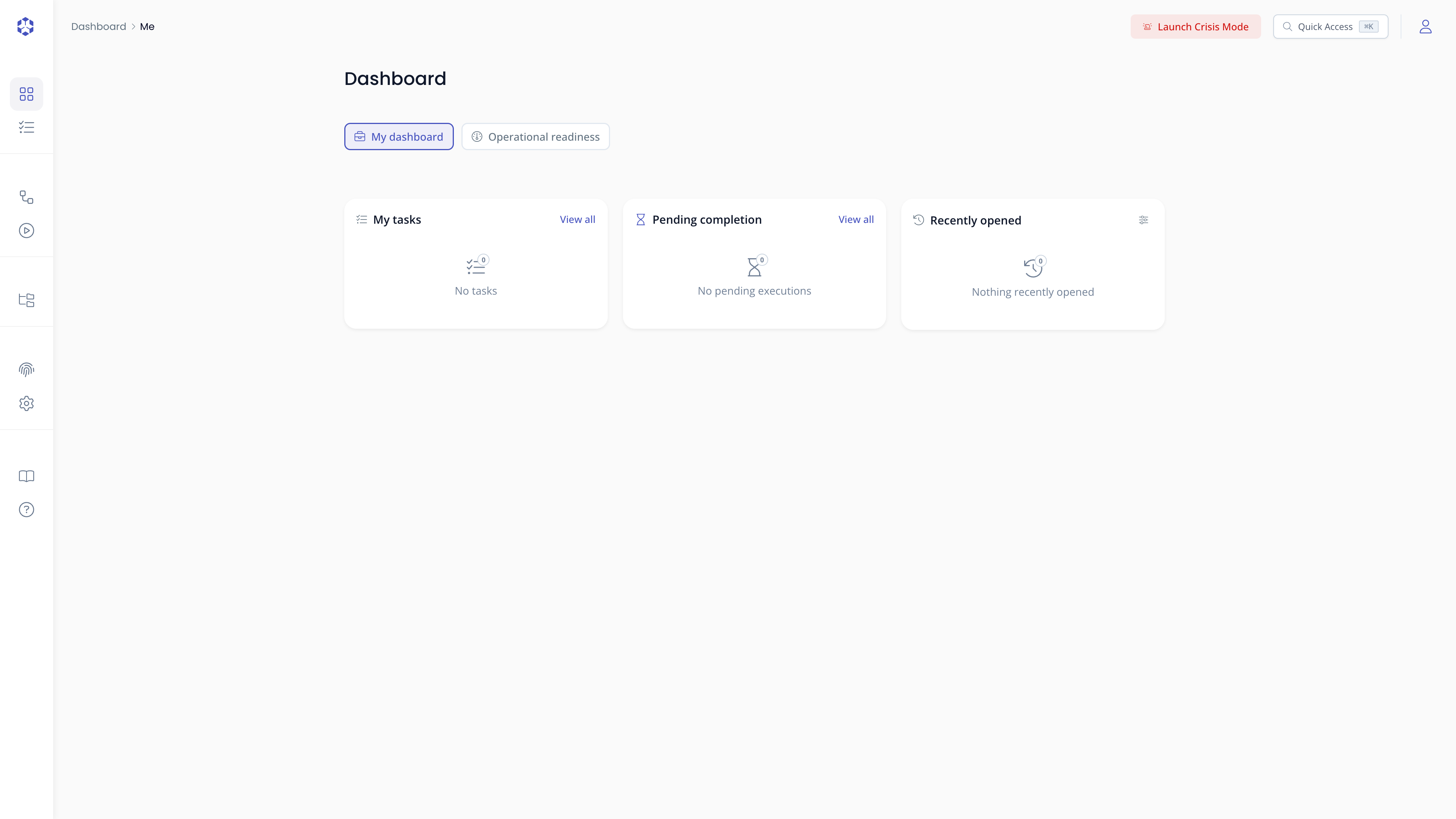
If nothing is assigned to you yet, all three panes show an empty state instead:
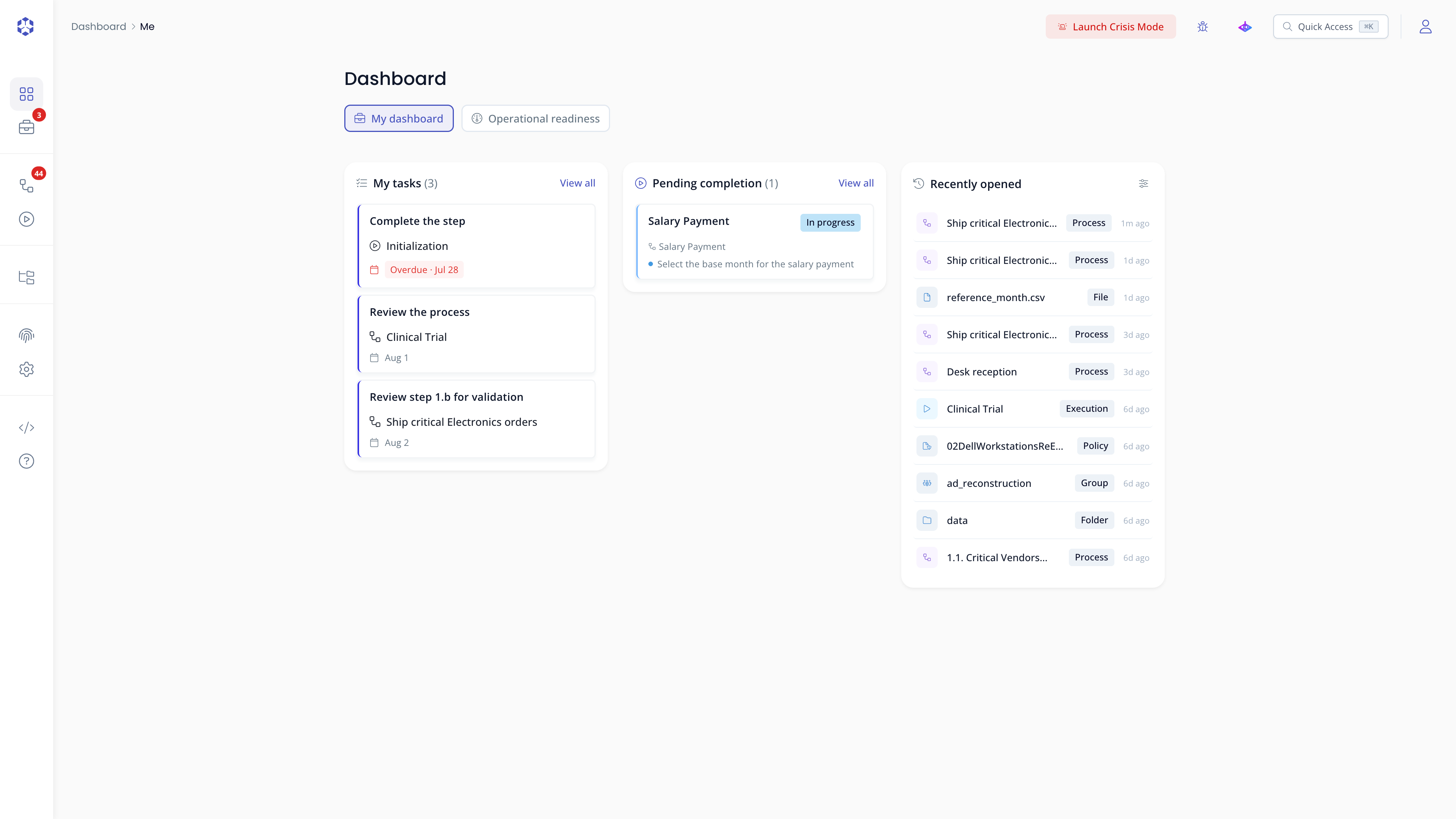
 Personal dashboard showing three panes: Tasks (top 5 pending tasks with due dates), Pending executions (up to 5 execution groups with pending steps), and Recently opened (last 10 accessed items).
Tasks assigned to you
The Tasks pane shows up to 5 of your pending tasks, sorted by due date (most urgent first).
Each task displays:
- Its title and the process it belongs to
- Its due date, highlighted when overdue or due today
- Its priority level
Click any task to open its detail drawer. To see all your tasks, click View all at the bottom of the pane.
See Tasks for how tasks are created, commented on, reassigned, and closed.
Steps pending your action
The Pending completion pane shows up to 5 execution groups where you have steps awaiting action, as Manager or Contributor (directly or through a group).
Each entry shows:
- The process name
- The list of steps pending your action within that execution
- The execution status (
In progressor other active states)
Click an entry to navigate to the execution detail. Click View all to see every pending execution assigned to you.
See Listing executions for details.
Recently opened
The Recently opened pane shows your last 10 accessed items, which can be processes, files, or objects, each with a type tag and a relative timestamp.
Click any item to return directly to it. Click the sliders icon in the pane's top right corner to open the Recently opened history window. From there you can remove a single entry with its trash icon, or click Clear all history to remove every entry. This history is stored in your browser only, it is never sent to Astran's servers.