Set up a Passkey
A passkey is a passwordless, phishing-resistant authentication credential. Unlike a password, it never leaves your device; the private key is stored securely in your password manager or device, and only a cryptographic signature is sent to the server. This means there is nothing to steal, leak, or brute-force.
- No password to remember or type
- Immune to phishing: the key is bound to the exact domain
- Supports biometric unlock (Face ID, fingerprint) via Apple Passkeys or compatible devices
- Works with password managers like 1Password, Bitwarden, Dashlane, and more
Where is the key stored? Your private key stays inside your password manager vault or your device's secure enclave (e.g. Apple Keychain). Astran only stores the matching public key.
Setting up a passkey
When logged in to the AlwaysReady® portal, click on your user icon at the top right of the screen.
Select Account settings, click on Account security to expand it, then click on Signing in.
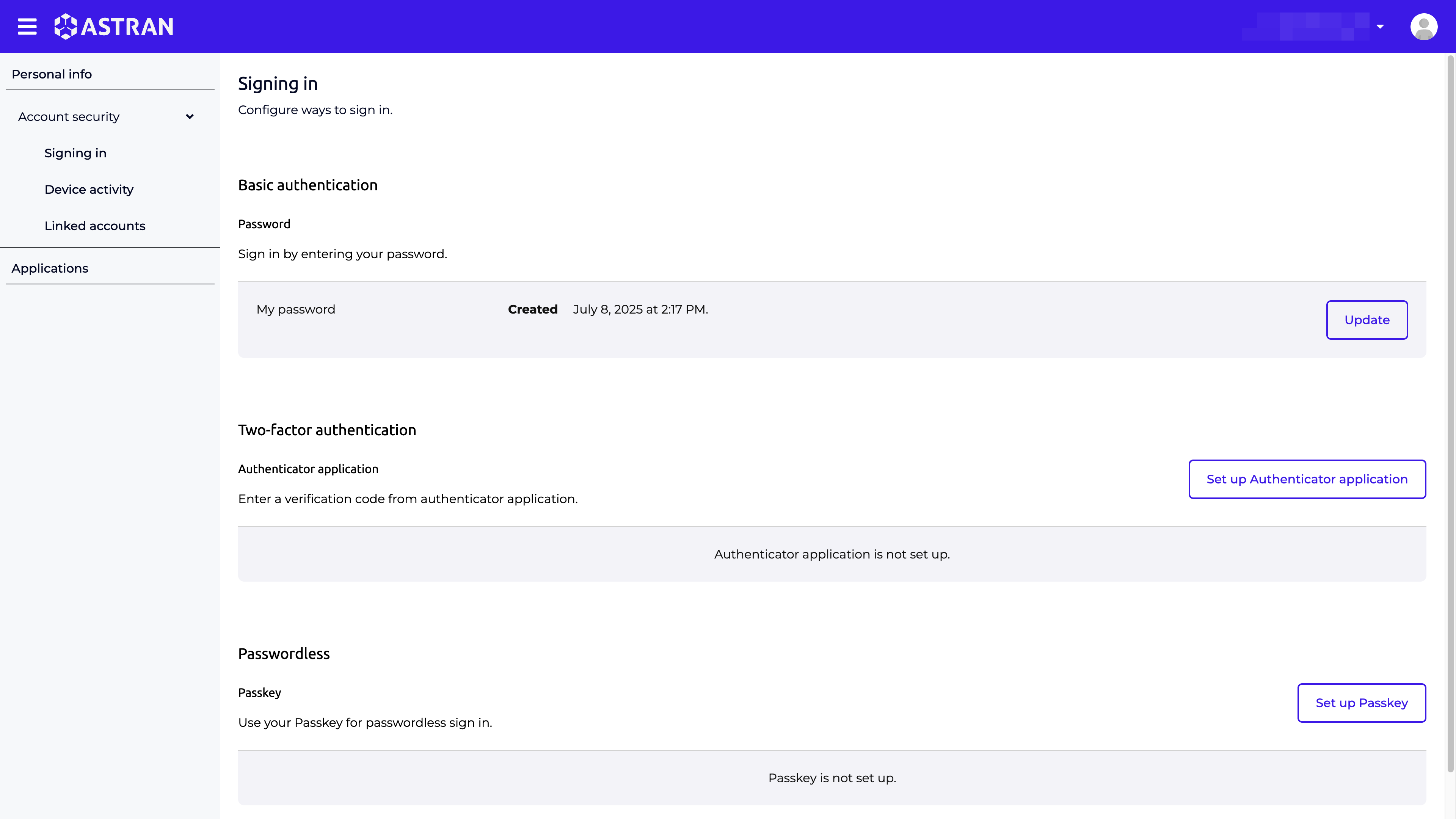
Scroll down to the Passwordless section and click Set up Passkey.
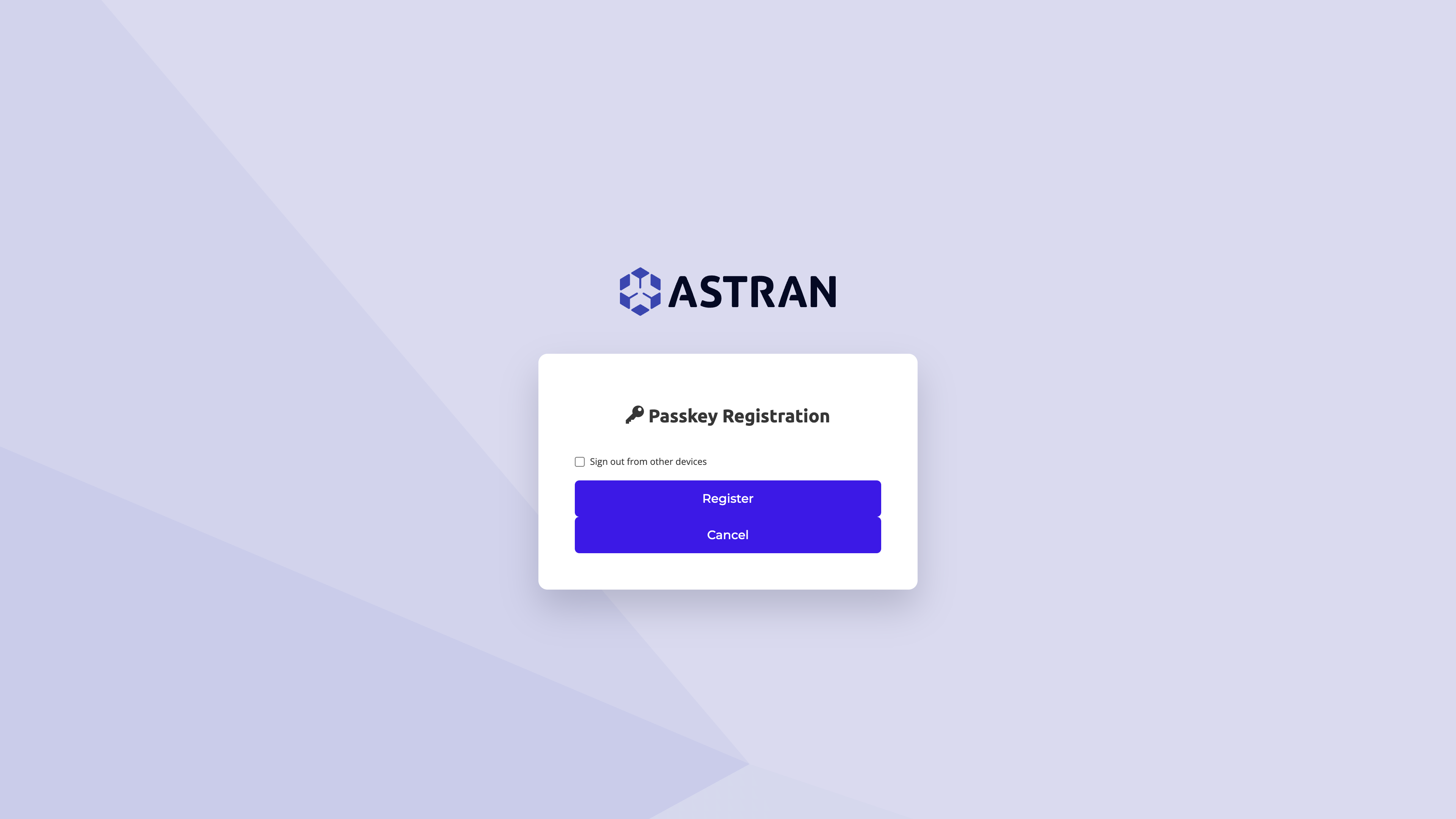
You are redirected to the Passkey Registration page. Click Register.
Your browser will prompt you to save the passkey. In this example, 1Password intercepts the request and offers to store it; click Save (or the equivalent button in your password manager).
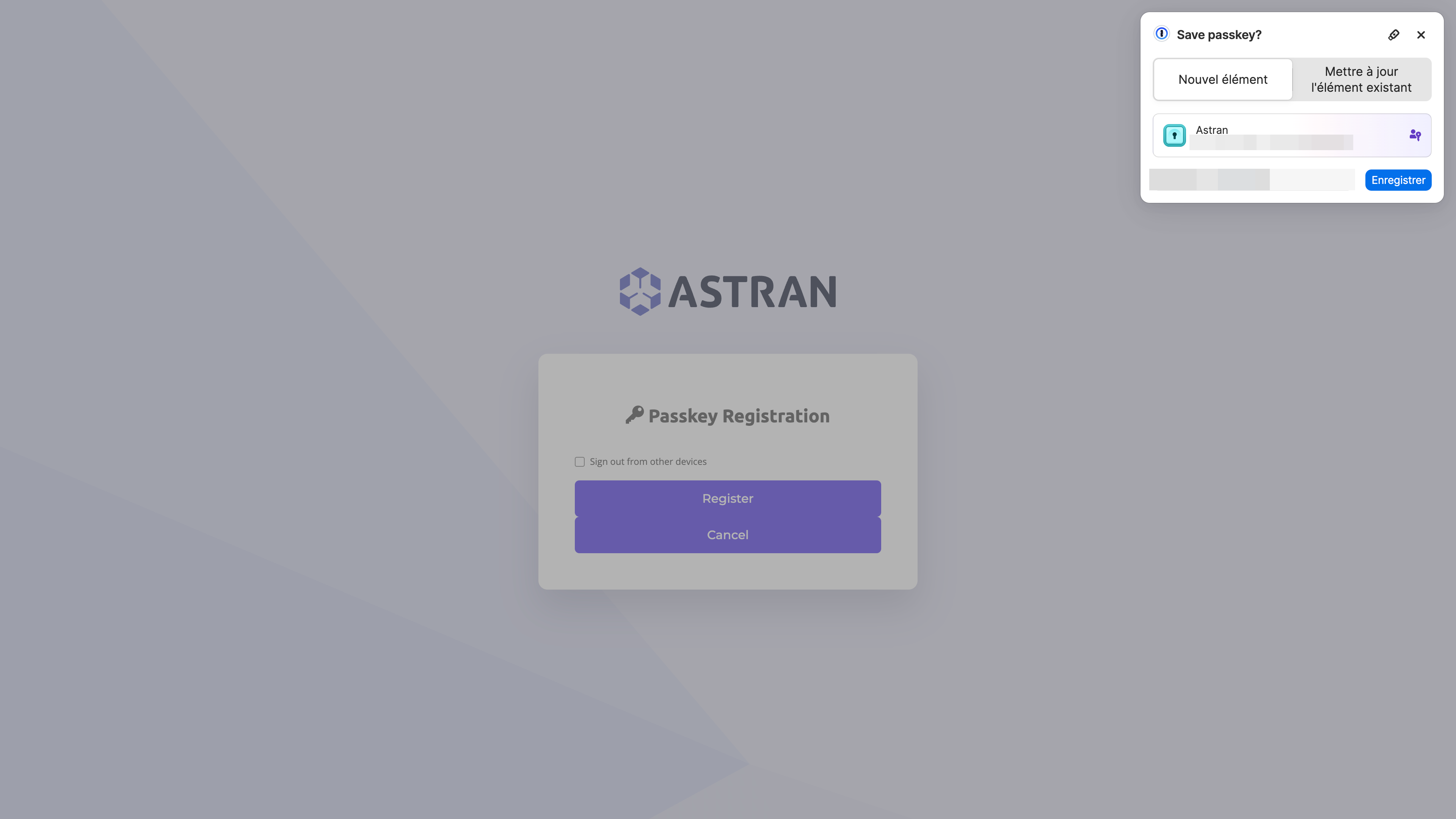
Any WebAuthn-compatible manager works: Apple Passkeys (iCloud Keychain) lets you authenticate with Face ID or Touch ID on Apple devices. Bitwarden, Dashlane, Google Password Manager, and hardware keys (YubiKey) are also supported.
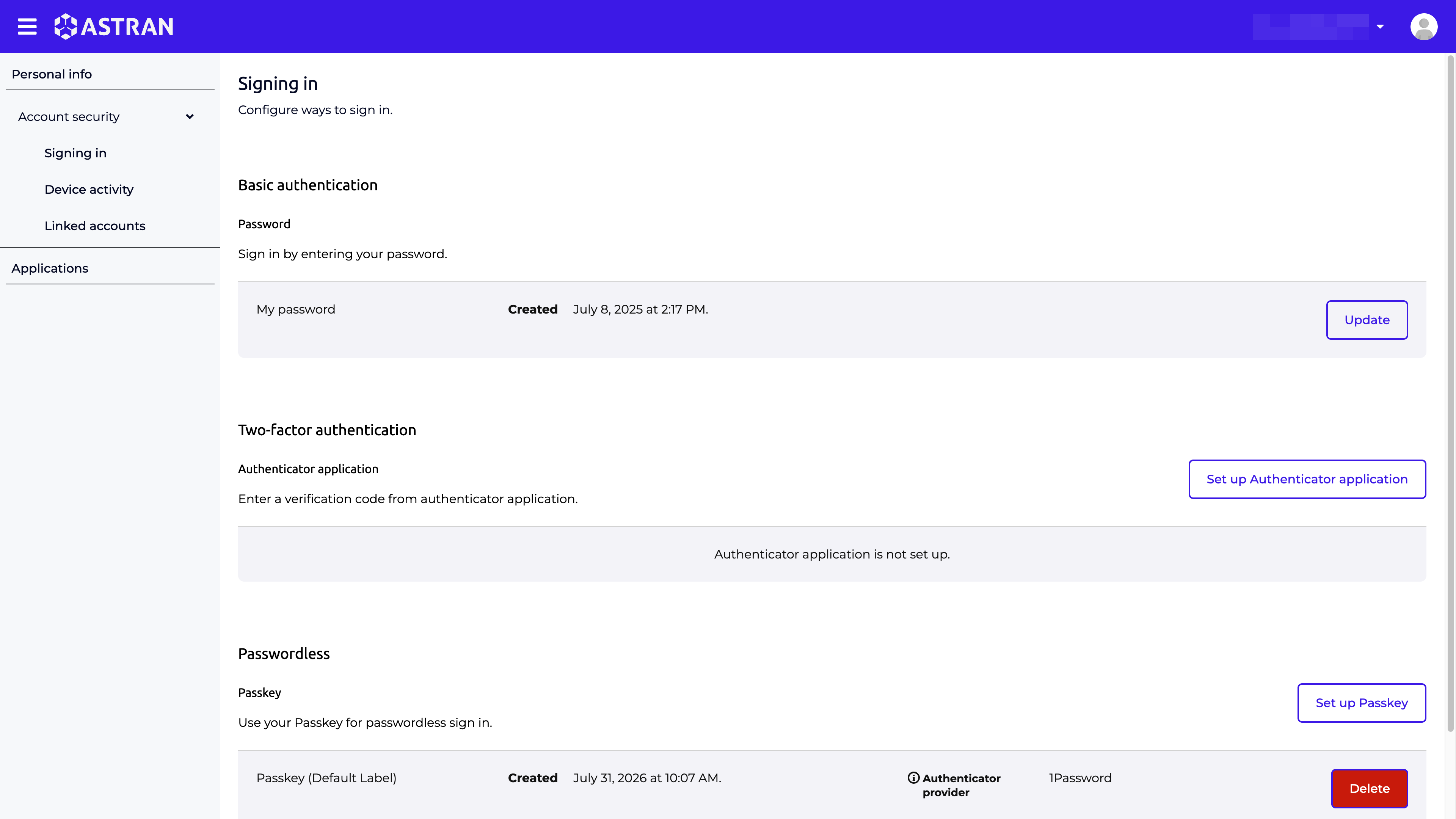
Once saved, you are returned to the Signing in page. Your passkey is now listed under Passwordless with its creation date and authenticator provider.
Login with a passkey
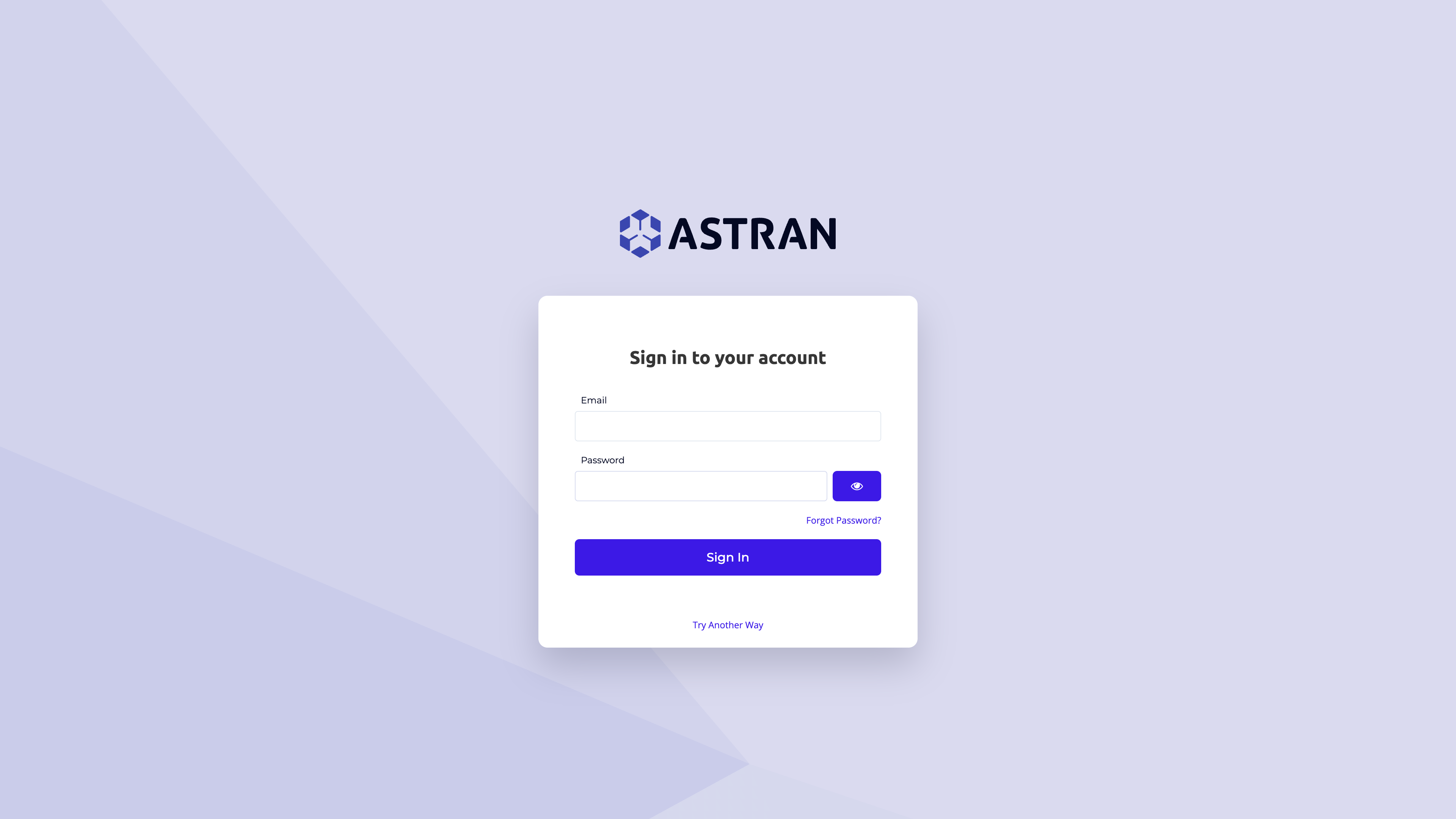
On the login page, click Try Another Way below the Sign In button.
Select Passkey from the list of available methods.
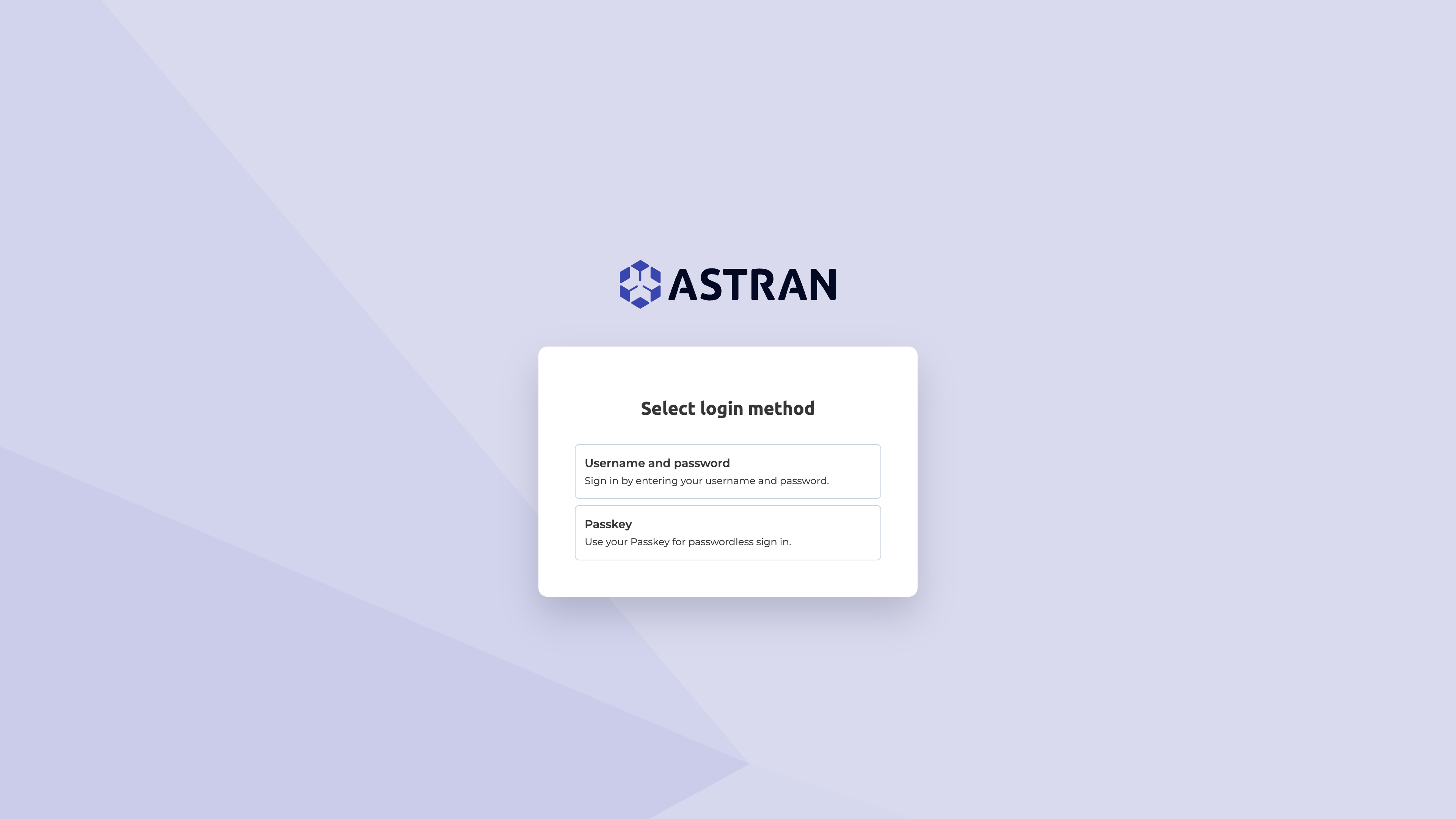
Your password manager (or device) will handle authentication: no code to enter, no password to type.