Data management
All of the following permissions are required to access the data management screen. If any one of them is missing, the screen shows an Access denied error instead of loading.
s3:ListBucketVersionson the buckets3:GetObjecton the bucket objectss3:GetObjectVersionon the bucket objectss3:DeleteObjecton the bucket objectss3:DeleteObjectVersionon the bucket objectss3:PutObjecton the bucket objects
Data management gives you a detailed view of all file versions inside a bucket, with tools to detect and remove redundant data. It is accessible from the bucket context menu by selecting Data management.
Data management works on buckets with or without versioning enabled. When versioning is disabled, all deletions are permanent; soft-delete and restore are not available.
Metrics
The top of the page displays a summary of the bucket's content:
- Unique files: number of distinct file paths in the bucket
- Total versions: total count of all stored versions across all files
- Total size: combined storage size of every version
- Current data size: size of the latest (active) version of each file only
- Duplicate versions: storage space that would be freed by removing duplicate versions (byte-identical versions of the same file, keeping the newest copy), with the file count shown underneath. Comes with a Clean up shortcut when there's something to reclaim.
- Soft-deleted files: combined storage size still occupied by soft-deleted files' version history, with the file count shown underneath. Comes with a Clean up shortcut when there are any.
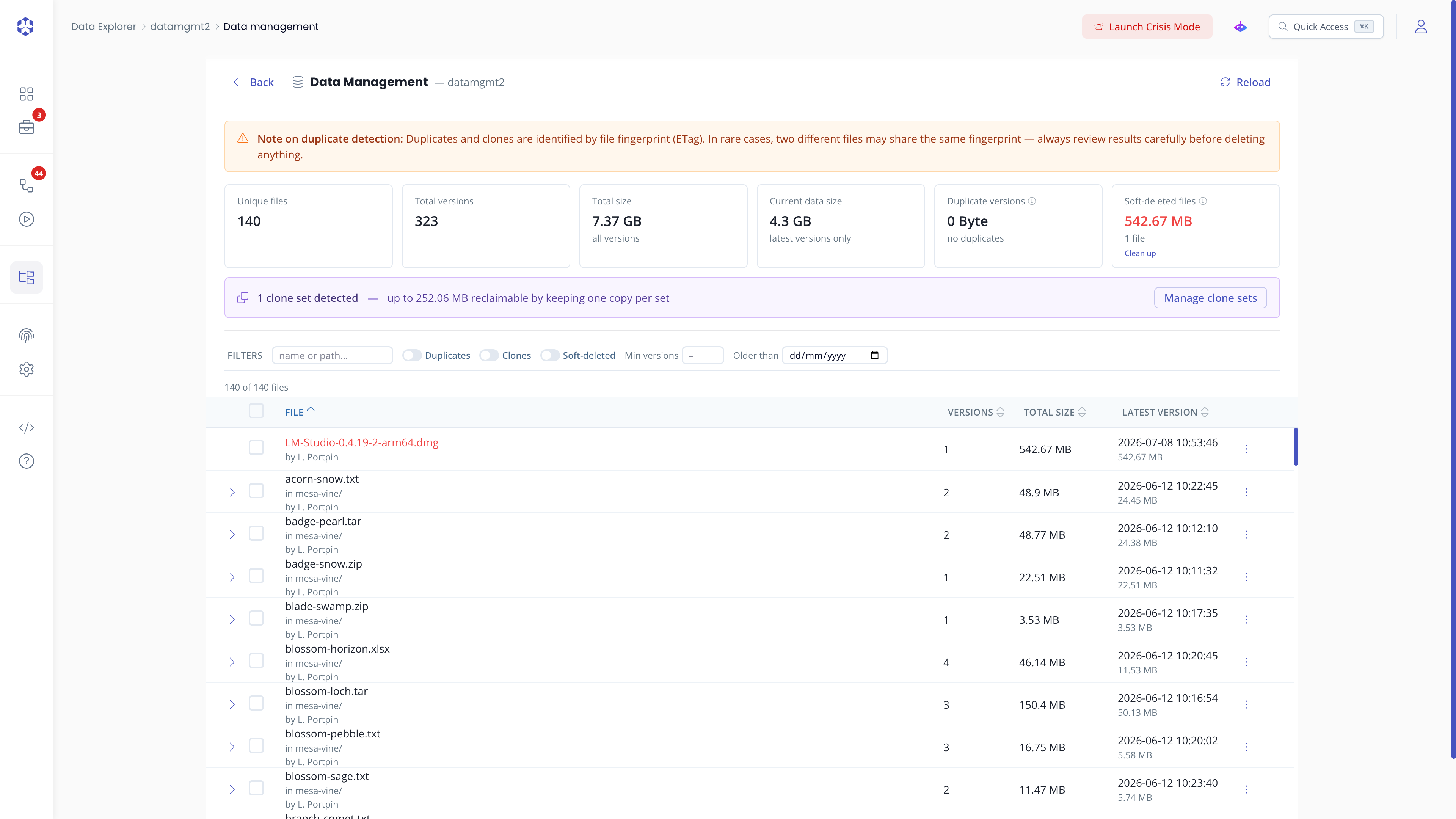 Data management page.
Viewing file versions
The file list shows every file in the bucket. Click on a file row to expand it and see all its stored versions. Each version row shows its version ID, size, last-modified date, and available actions (download, preview, copy ID, permanent delete).
Delete markers are shown inline in the version list and are marked as soft-deleted.
Filtering
Use the filters bar above the file list to narrow it down:
- name or path…: filter by file name or path
- Duplicates: show only files that have duplicate versions (byte-identical versions of the same file)
- Clones: show only files that share identical content (same ETag and size) with another file at a different path. Only shown when the bucket actually has clones.
- Soft-deleted: show only files currently soft-deleted (latest version is a delete marker). Only shown when the bucket actually has soft-deleted files.
- Min versions: show only files with at least N stored versions
- Old versions before: show only files that have a non-active version older than the selected date
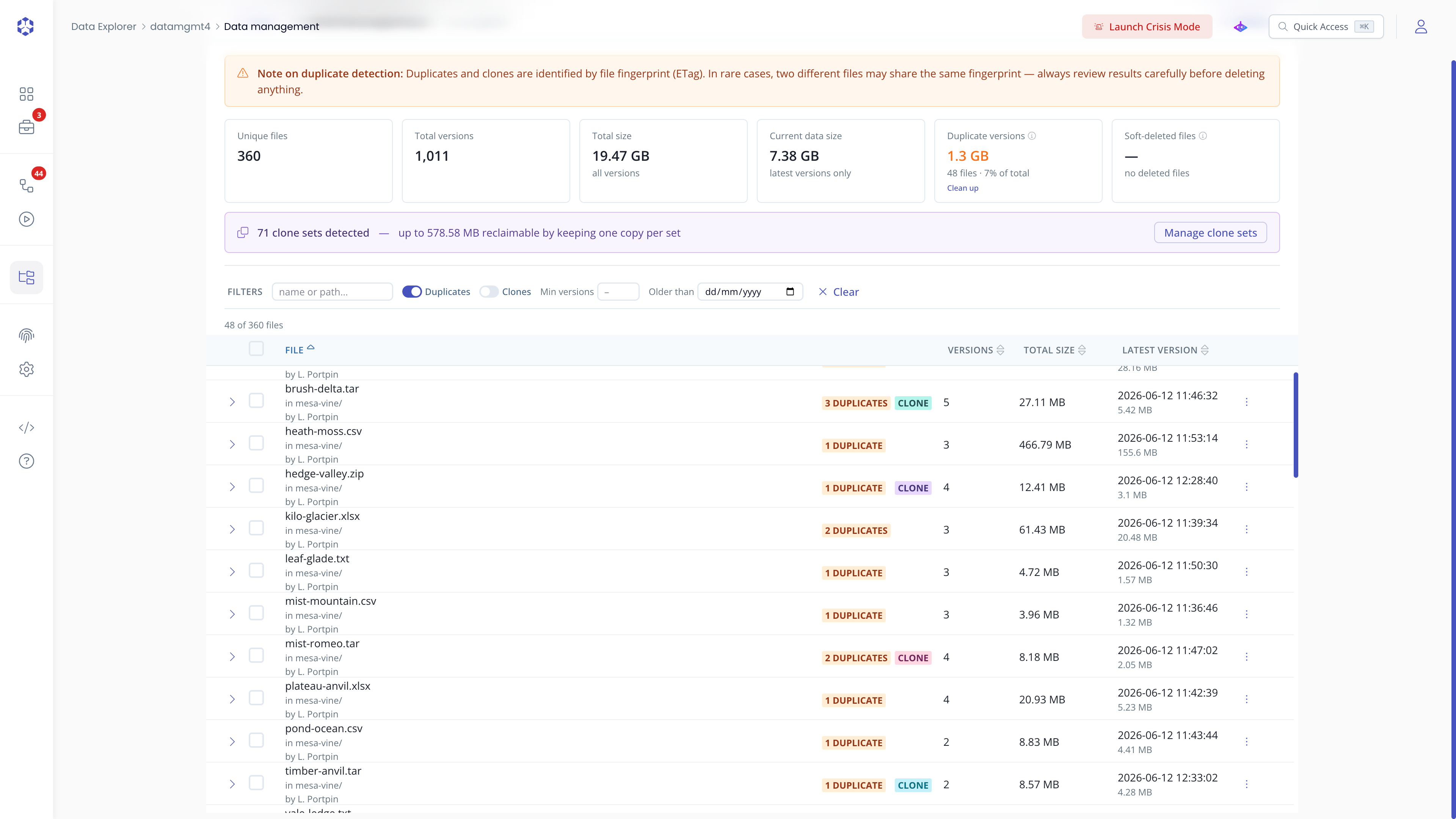 Data management filters bar.
Cleanup actions
Select one or more files in the list to reveal an action bar with the following actions. Each button's label includes the count of affected items.
Remove duplicates
Duplicate versions are versions of the same file that are byte-identical to another version of that file. Keeping them wastes storage without providing additional recovery value.
Click Remove duplicates (N) on a selection. This permanently removes the redundant versions while keeping the newest copy.
Remove non-latest
Click Remove non-latest (N) on a selection to permanently delete every version except the most recent one for each file. This is useful for files that have accumulated many versions over time.
Remove older than a date
Open the ⋮ (more actions) menu and select Remove older than… to remove every non-active version older than a date you pick in the dialog that opens. This is a single direct action, independent of the Old versions before filter above.
Remove (soft-delete)
Open the ⋮ menu and select Remove to soft-delete the selected files (mark them deleted without erasing their version history). Only available on buckets with versioning enabled.
Clean up deleted files
Open the ⋮ menu and select Clean up deleted files (N) on a selection of already soft-deleted files to permanently erase their version history and free the storage they still occupy.
Restore soft-deleted files
Select soft-deleted files (visible via the Soft-deleted filter) and click Restore (N) to remove their delete markers, making the files visible again in the standard file explorer.
Permanent deletion
Open the ⋮ menu and select Delete permanently to erase a selection outright. A confirmation modal lists exactly what will be destroyed and how much storage will be freed. This action cannot be undone.
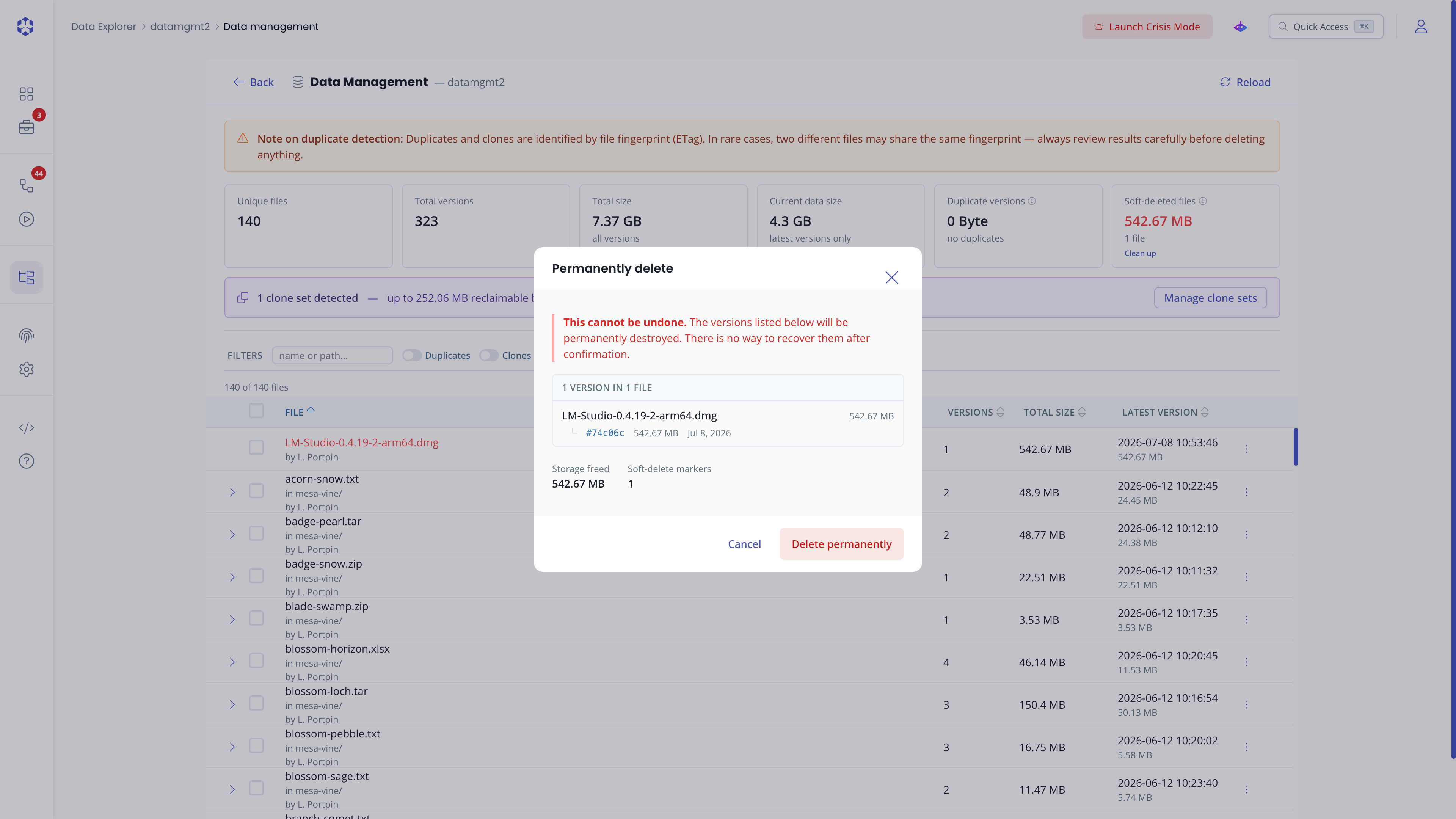 Permanent delete confirmation.
Clone management
Clones are files at different paths that share identical content (same ETag and size). They take up storage space for each copy even though the data is the same.
ETag matching is a strong signal but not an absolute guarantee of identical content. On rare occasions, two different files may produce the same ETag. Verify the files before deleting any clone.
The Clones filter surfaces these files. The clone management panel groups them by content and lets you decide which path to keep. Deleting clones keeps at least one file per content group.
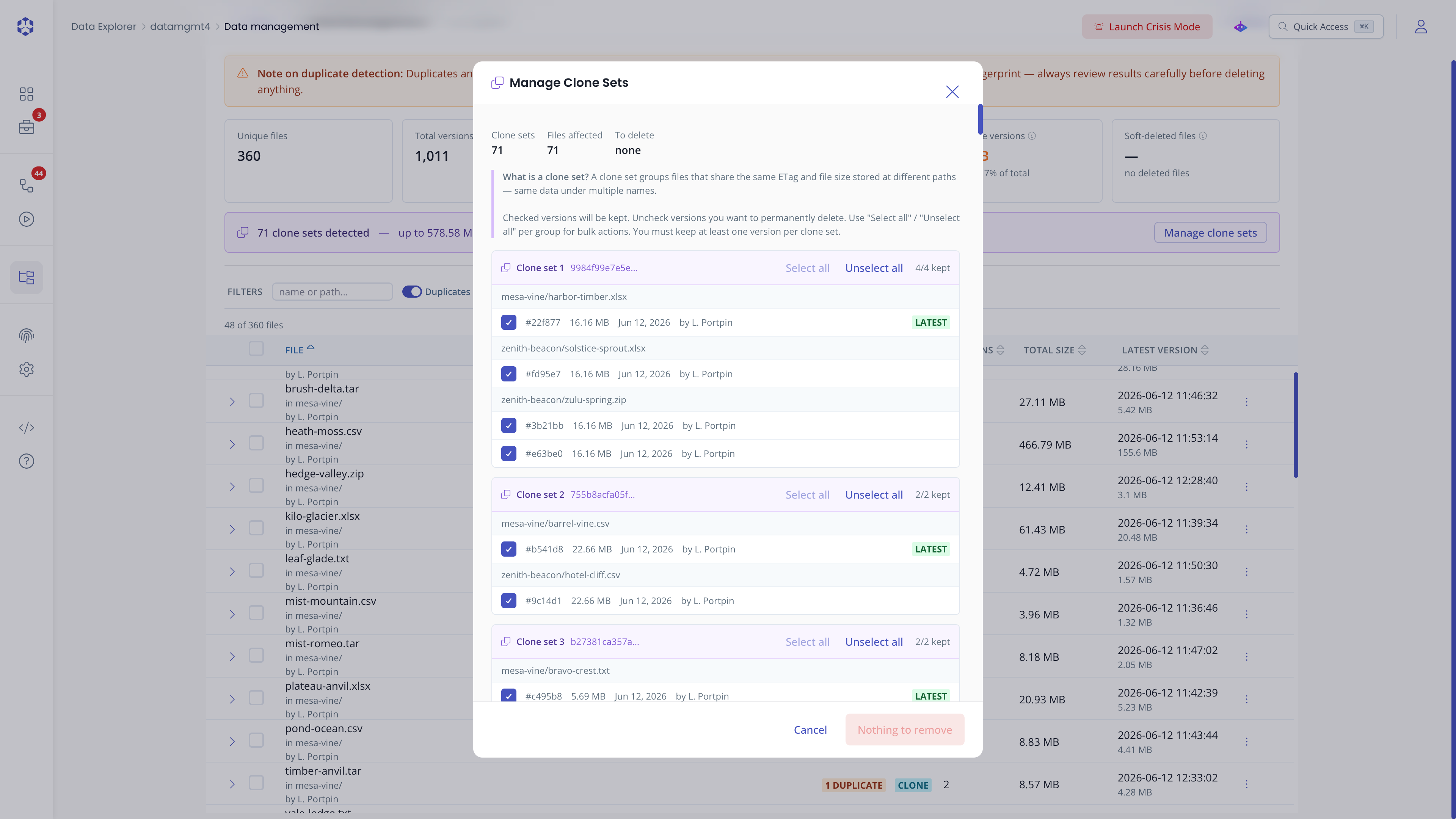 Clone management panel.