Manage a process
Clicking on a process from the list opens its detail page. It is the central hub for everything related to that process: reading its content, editing steps, tracking executions, managing tasks, browsing data, and controlling access.
Tabs
Overview
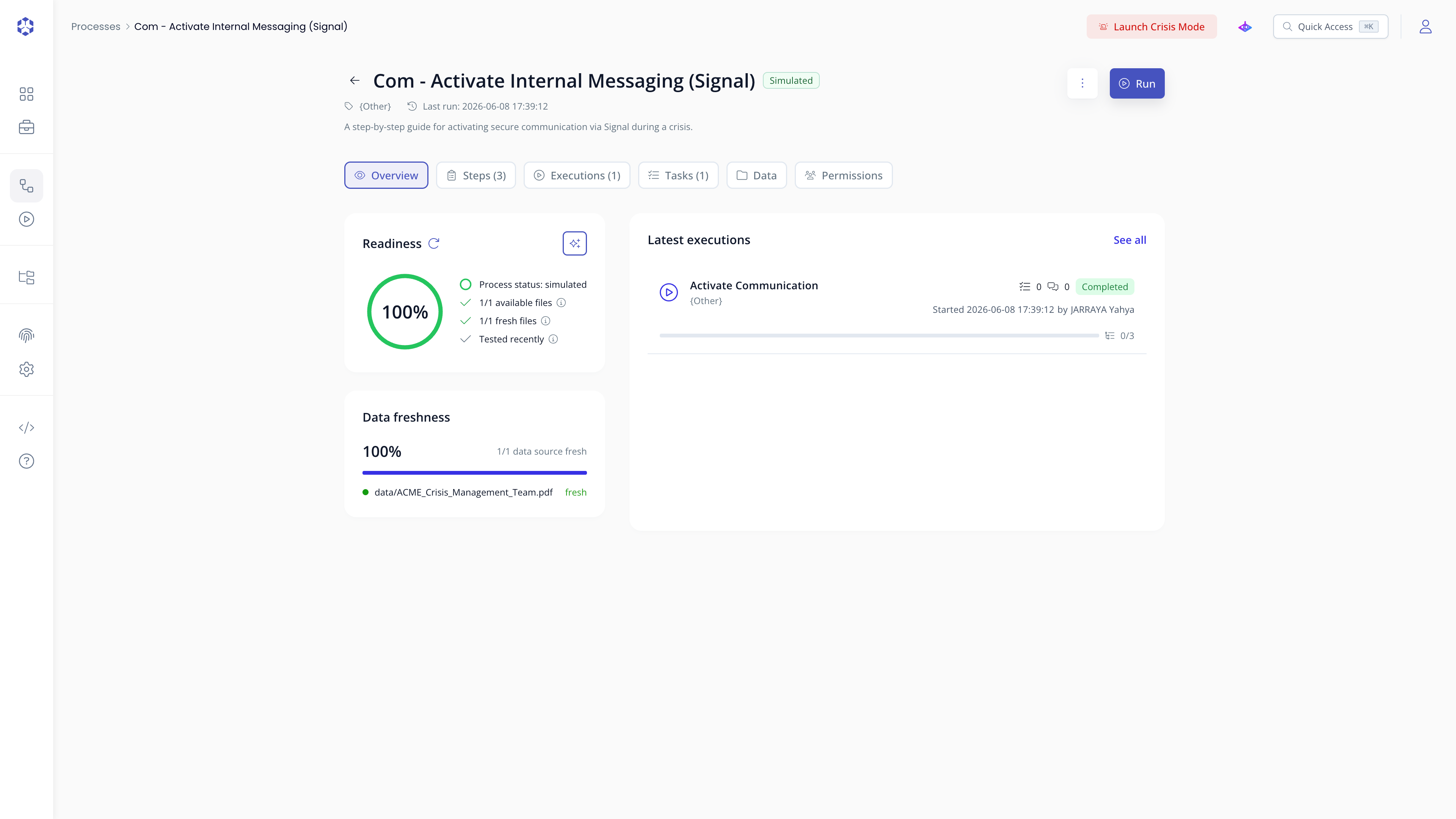
A summary of the process: name, category, description, status and key metadata.
Steps
A read-only preview of the steps that make up the process. Each step shows its name, description, and any configured automations or user inputs.
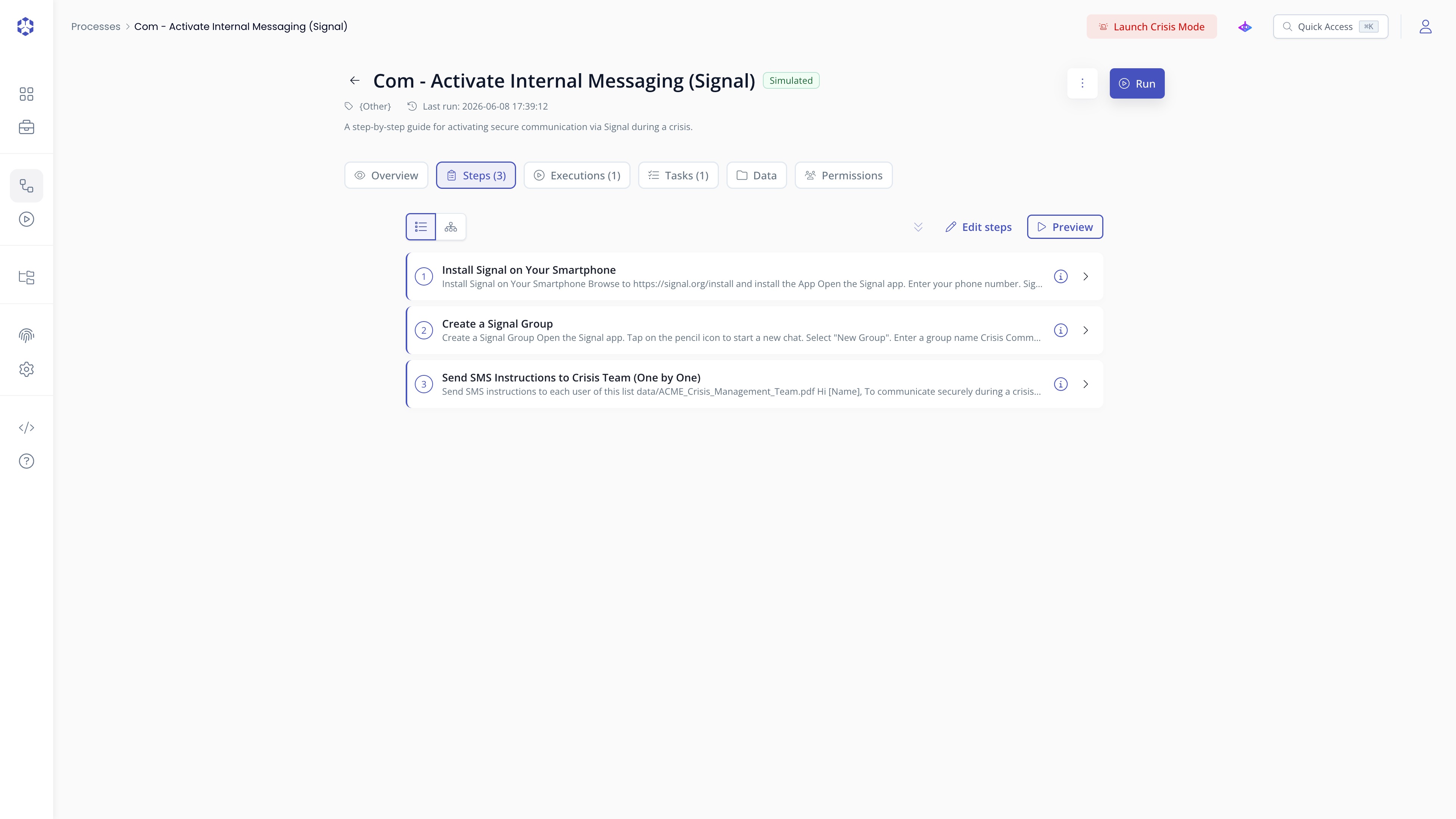
Click Edit steps to open the process editor and make changes. Refer to Editing an existing process for the full editing guide.
Executions
The history of all executions started from this process. Click any row to open or resume that execution.
Refer to Running an execution for details on how to start and work through an execution.
Tasks
A kanban board showing all tasks linked to this process, organised in three columns:
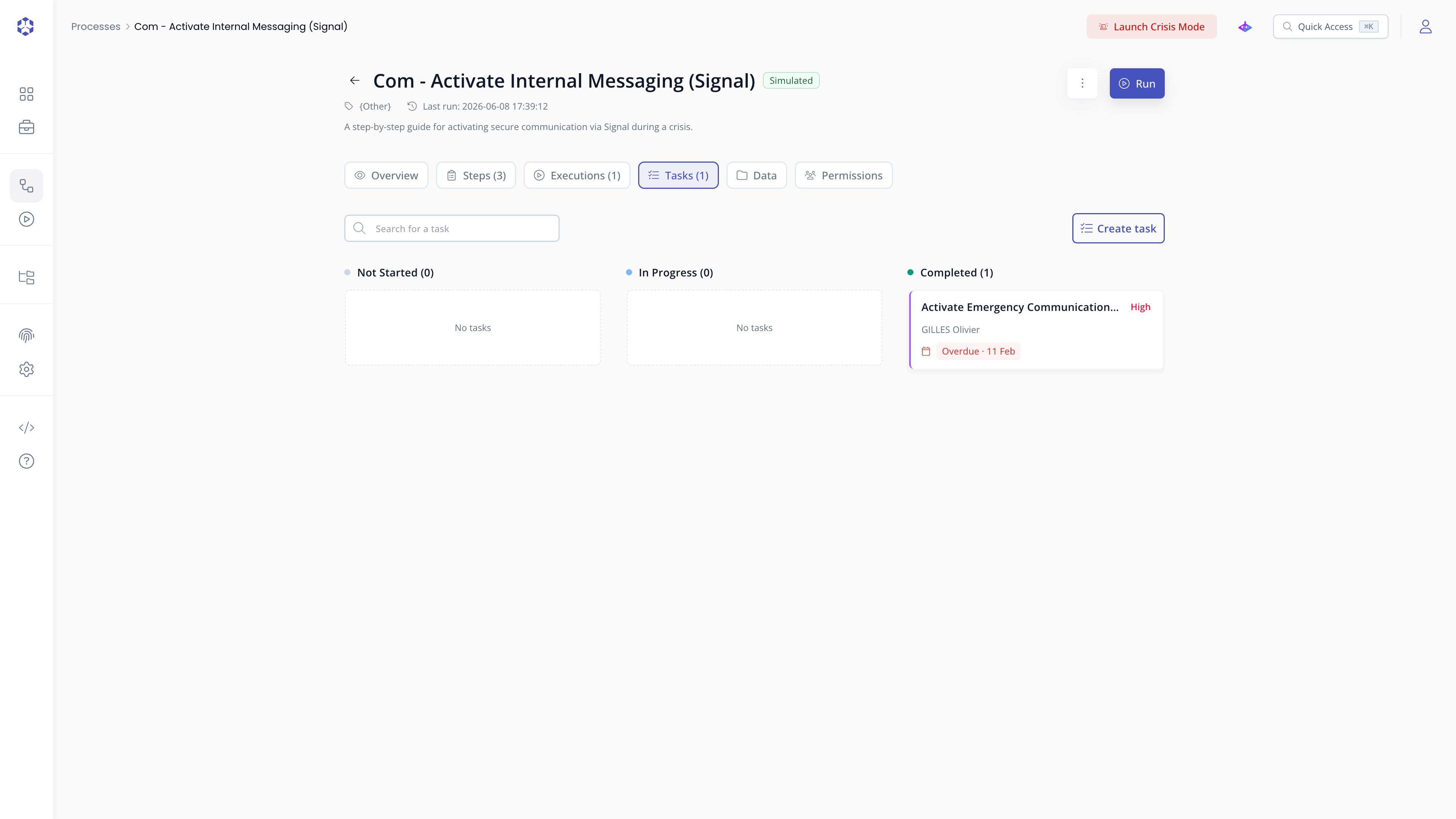
| Column | Status |
|---|---|
| Not Started | Not started |
| In Progress | In progress |
| Completed | Done |
You can drag and drop a task card between columns to update its status. Use the search bar to filter by task name.
Creating a task
Click Create task at the top of the Tasks tab. A modal opens with the following fields:
| Field | Required |
|---|---|
| Name | Yes |
| Description | No |
| Assignee | Yes |
| Priority | No (defaults to Medium) |
| Due date | No |
The task is automatically linked to the process. It will appear in the Tasks page for the assignee.
Data
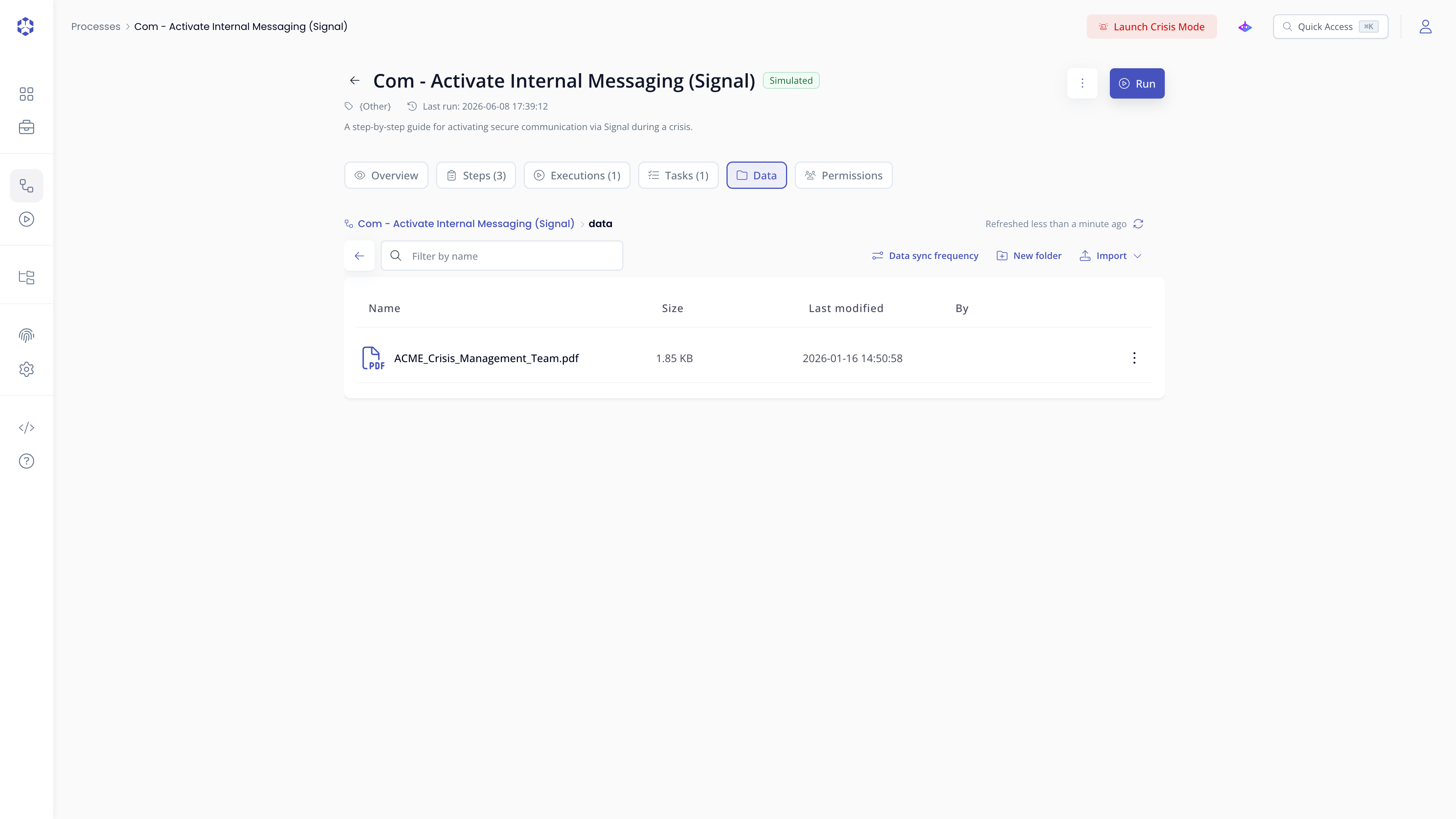
Browse the Astran S3 bucket associated with this process, which is the same storage used for file inputs and automation outputs. You can also refer to Data explorer.
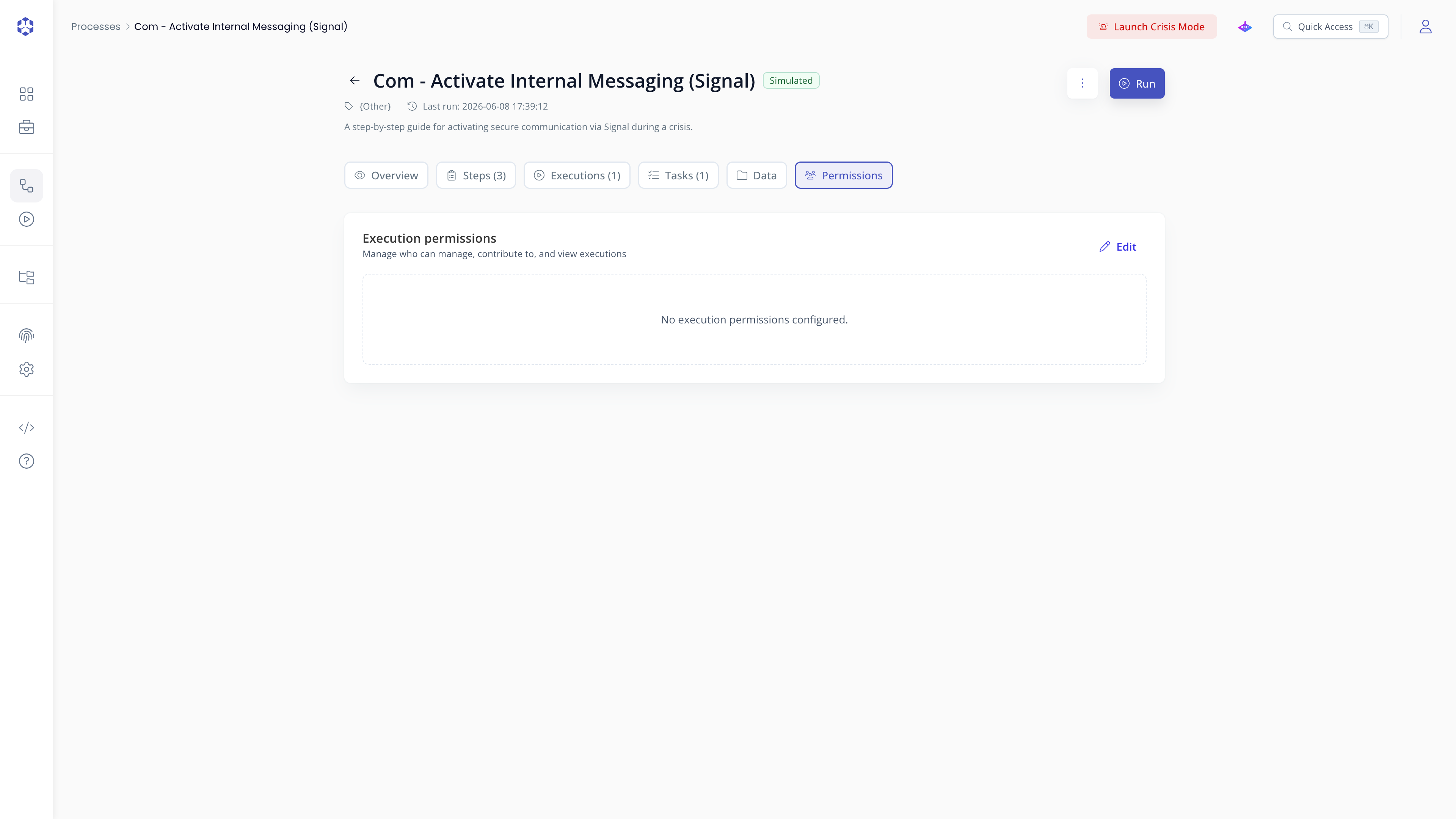
Permissions
Manage who can access this process and with what role. Refer to Process execution permissions for more details on the permission model.
Process actions menu
The more actions button (⋮), located next to the Run button at the top of the process detail page, gives access to the following operations:
Update process name, description, category
Click Edit process information and update accordingly.
Update status
Processes have a lifecycle status: Draft, In review, Validated, Simulated, or Archived.
Click Update status and select the new status. The status is visible in the process list and can be used as a filter.
Edit steps
Click Edit steps to edit the steps ; refer to Editing an existing process
Export process
Click Export process to download the process and its associated files as a .zip archive.
This archive can be imported into another account or used as a backup. We recommend keeping the filename unchanged, as it is used to pre-populate the name and category on import.
Exporting may take a few minutes if the process contains large files.
Export as PDF
Click Export as PDF to generate a PDF version of the process steps and their descriptions. The output is plain text; formatting and code blocks are not rendered.
Data freshness
Click Data freshness to configure freshness thresholds for files referenced in the process. For each referenced file, set the expected refresh rate (daily, weekly, monthly, or yearly).
Files that have not been updated within the configured window are flagged on the process overview. When a file is no longer referenced in the process, its freshness entry is removed automatically.
Open associated bucket
Click Open associated bucket to navigate directly to the S3 bucket that stores this process's data in the Data explorer. The bucket name starts with kit-<id> and is visible in the URL.
Technical information
Click Technical information to view the process ARN and its associated bucket ARN, and, if you have the rights to create policies, generate suggested access policies for it. See Process permissions for details.
Delete process
Click Delete process to permanently delete the process. This requires the ck:DeleteKit permission; without it, the item is not shown. A confirmation prompt appears before deletion.
Deleting a process also deletes its steps and associated bucket. This cannot be undone.