Editing an existing process
- Viewing a process detail page requires
ck:GetKit. - Editing steps and content requires
ck:GetKitandck:UpdateKit. Withoutck:UpdateKit, the Edit button appears as Forbidden. - Deleting a process requires
ck:GetKitandck:DeleteKit.
Open a process from the list to access its detail page. The detail page contains several tabs:
- Overview: description, metadata, data freshness summary, and latest executions
- Steps: a read-only preview of the process steps and their structure
- Executions: history of past executions for this process
- Data: data sources and files associated with the process
- Permissions: process-level role assignments
- Tasks: tasks linked to this process
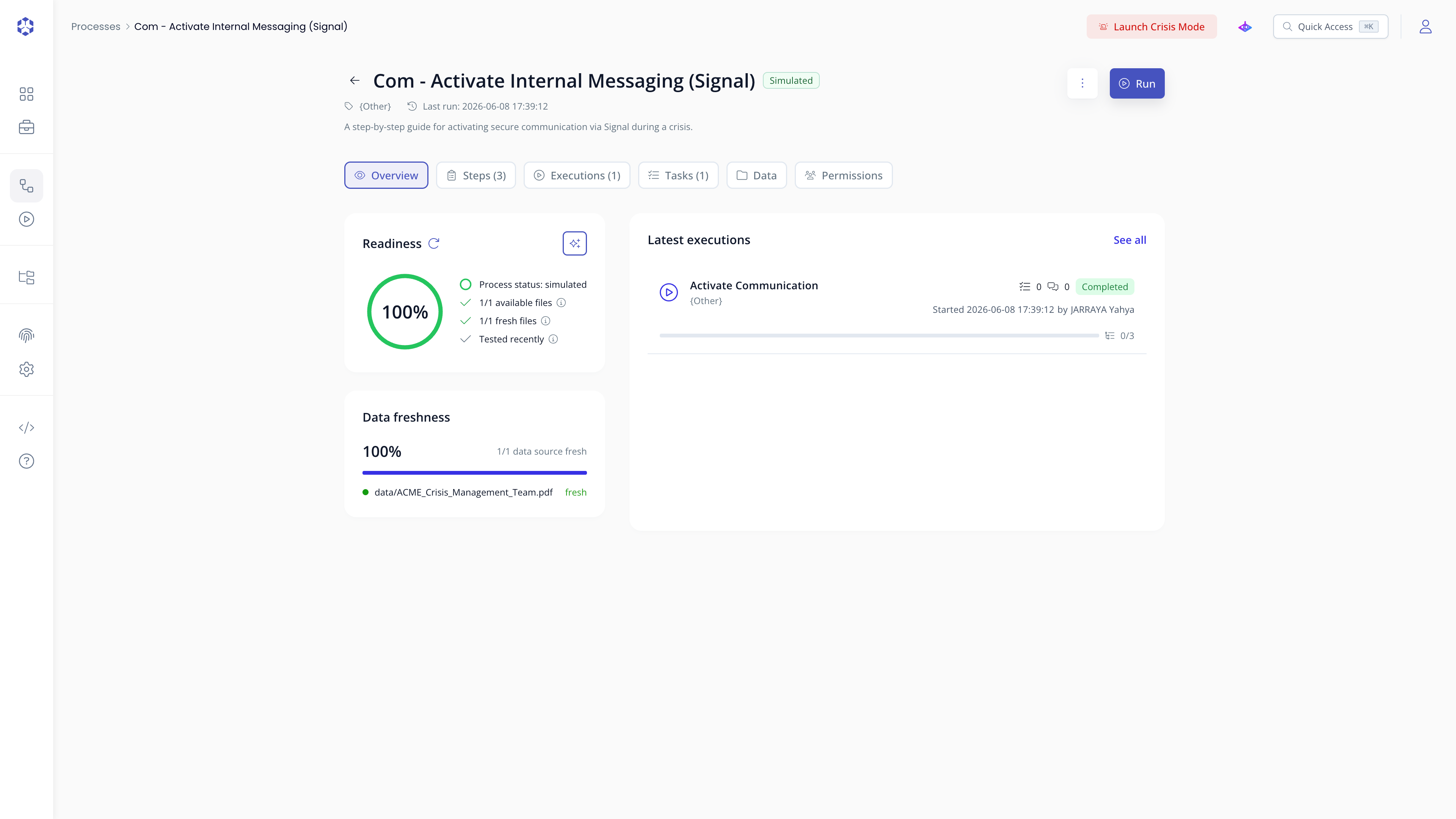 Process overview tab.
Editing process information
To update the process title, category, or description, open the ⋮ menu on the detail page and select Edit process information. A modal appears with three fields:
- Title ; the name displayed in the process header and lists
- Category ; groups the process within a business area (for example, Business Continuity)
- Description ; a short summary shown in the process header; this field is optional
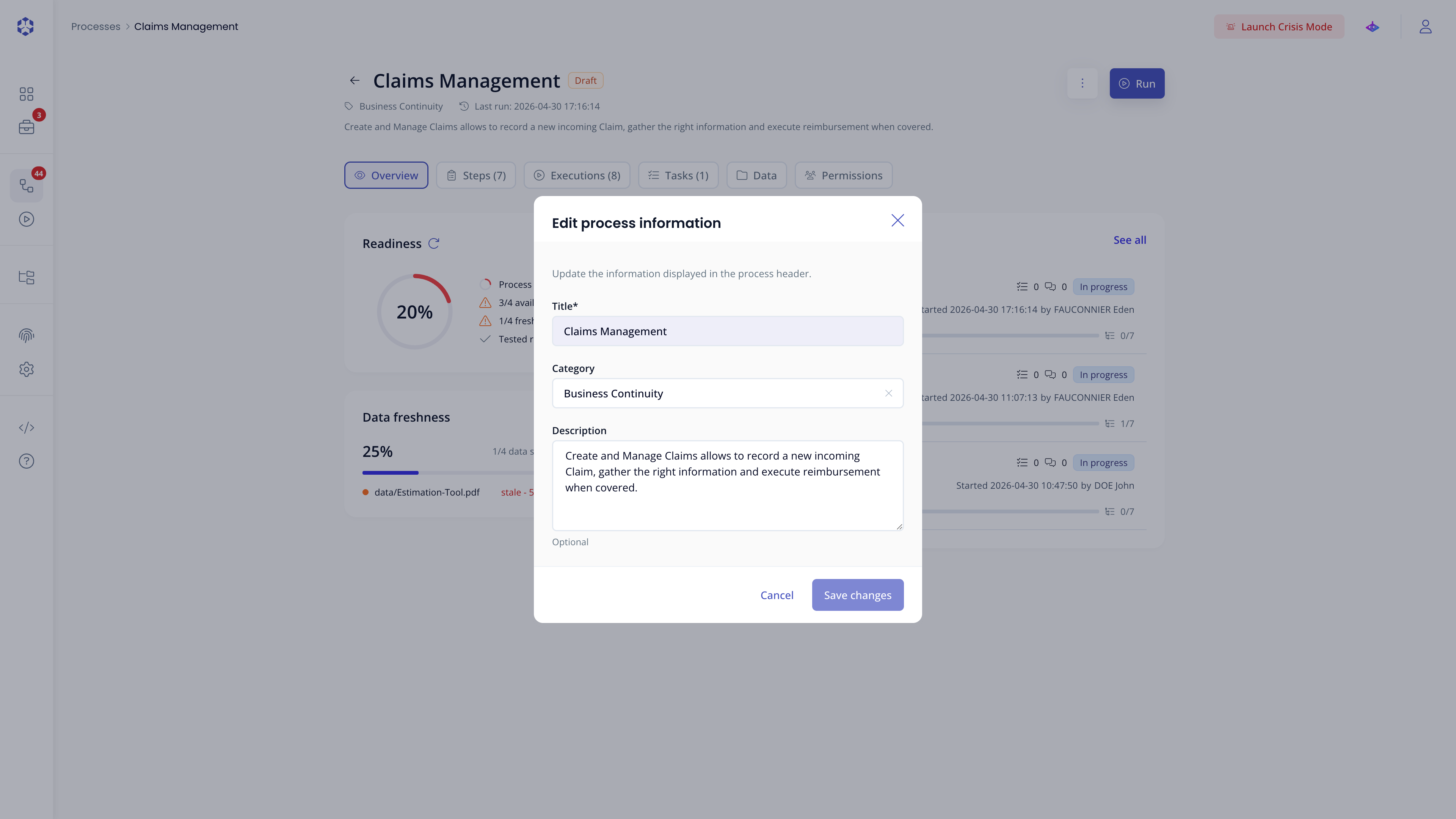 Edit process information modal.
Click Save to apply, or Cancel to discard.
Edit process steps
Click Edit from the steps tab. You are taken to the process editor, where you can modify steps and their content.
Draft auto-save
The editor automatically saves a local draft of your changes as you work. If you navigate away and return, a recovery modal appears offering to restore your unsaved draft or discard it. This is solely stored in your browser. Opening a session in another browser will not give you these recorded draft changes.
If the saved process changed remotely while a local draft existed, the recovery modal shows an additional warning, since restoring the stale draft risks overwriting those newer changes.