Process editor
Editing steps requires ck:GetKit and ck:UpdateKit.
The process editor is the main workspace for building and maintaining the steps of a process.
View modes
The editor offers two ways to view steps:
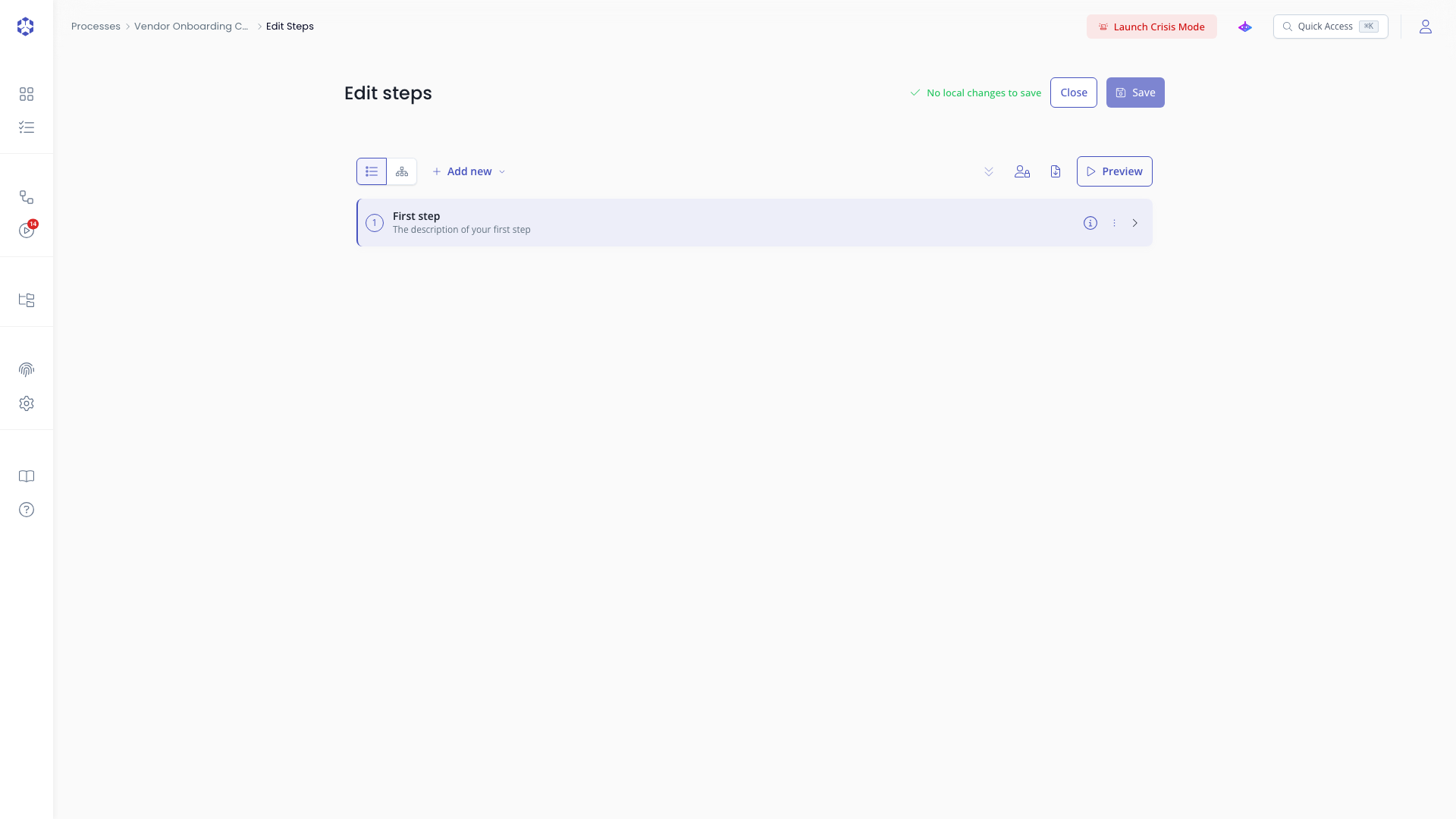
- List view: a vertical lists all steps and groups. Click a step to open it in the editor panel.
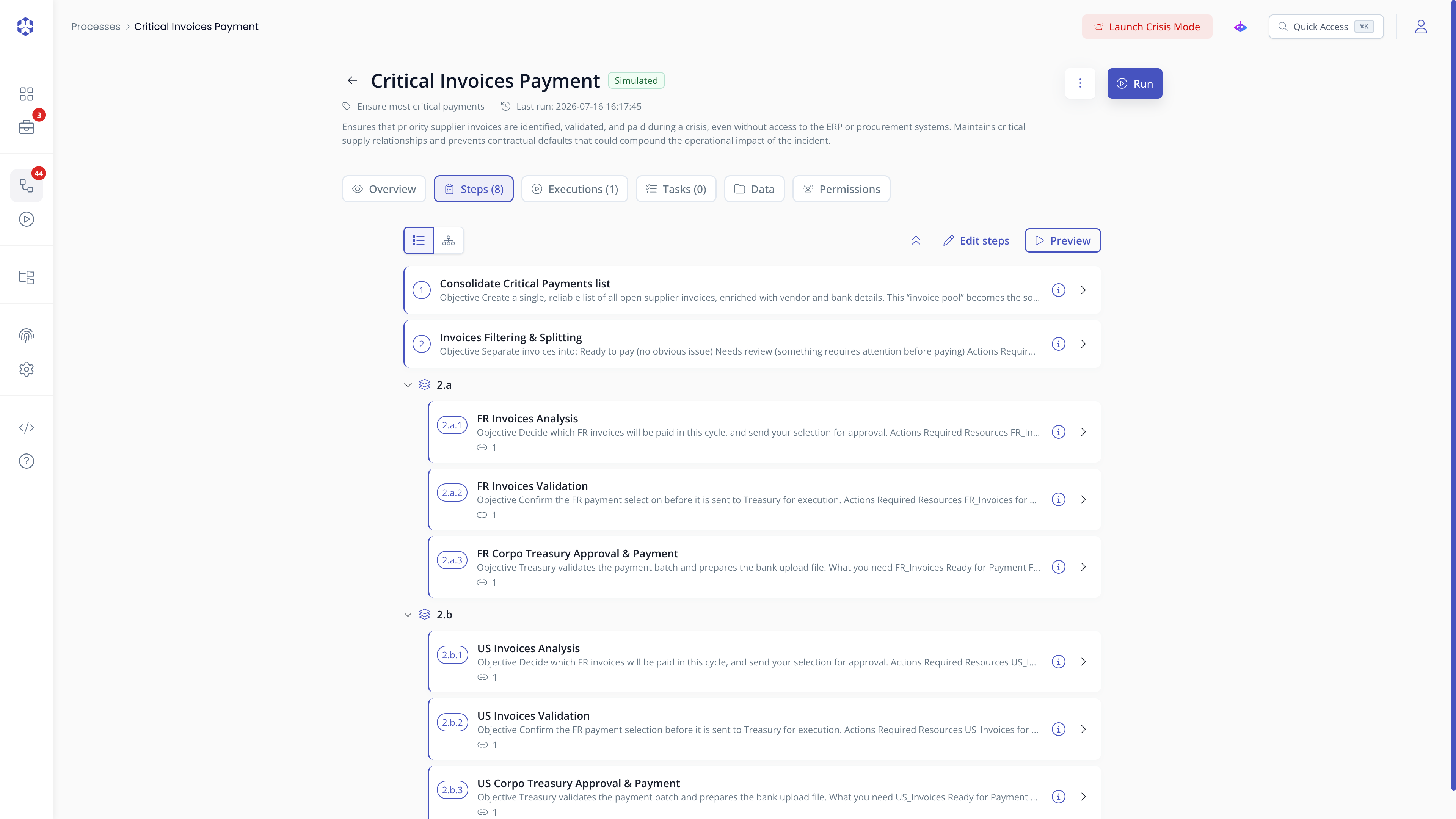 Process editor in list view.
- Graph view: a visual flow diagram shows steps as nodes connected by dependency arrows. Click any node to open it.
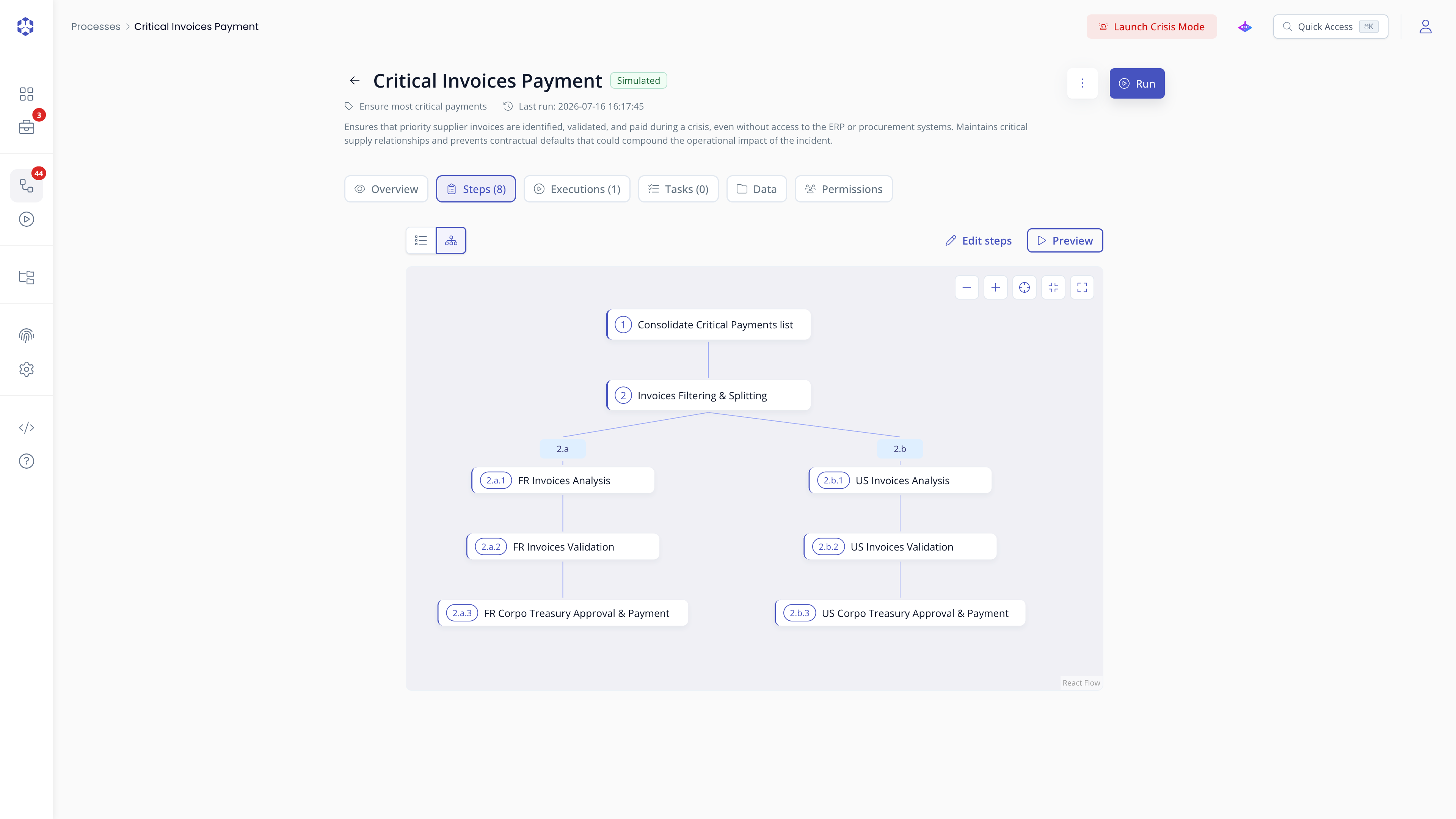 Process editor in graph view
Use the toggle at the top of the editor to switch between modes.
Previewing the process
Click on Preview to have a glimpse at the process. You can click on the double chevron icon to switch between the list of steps and the graph view
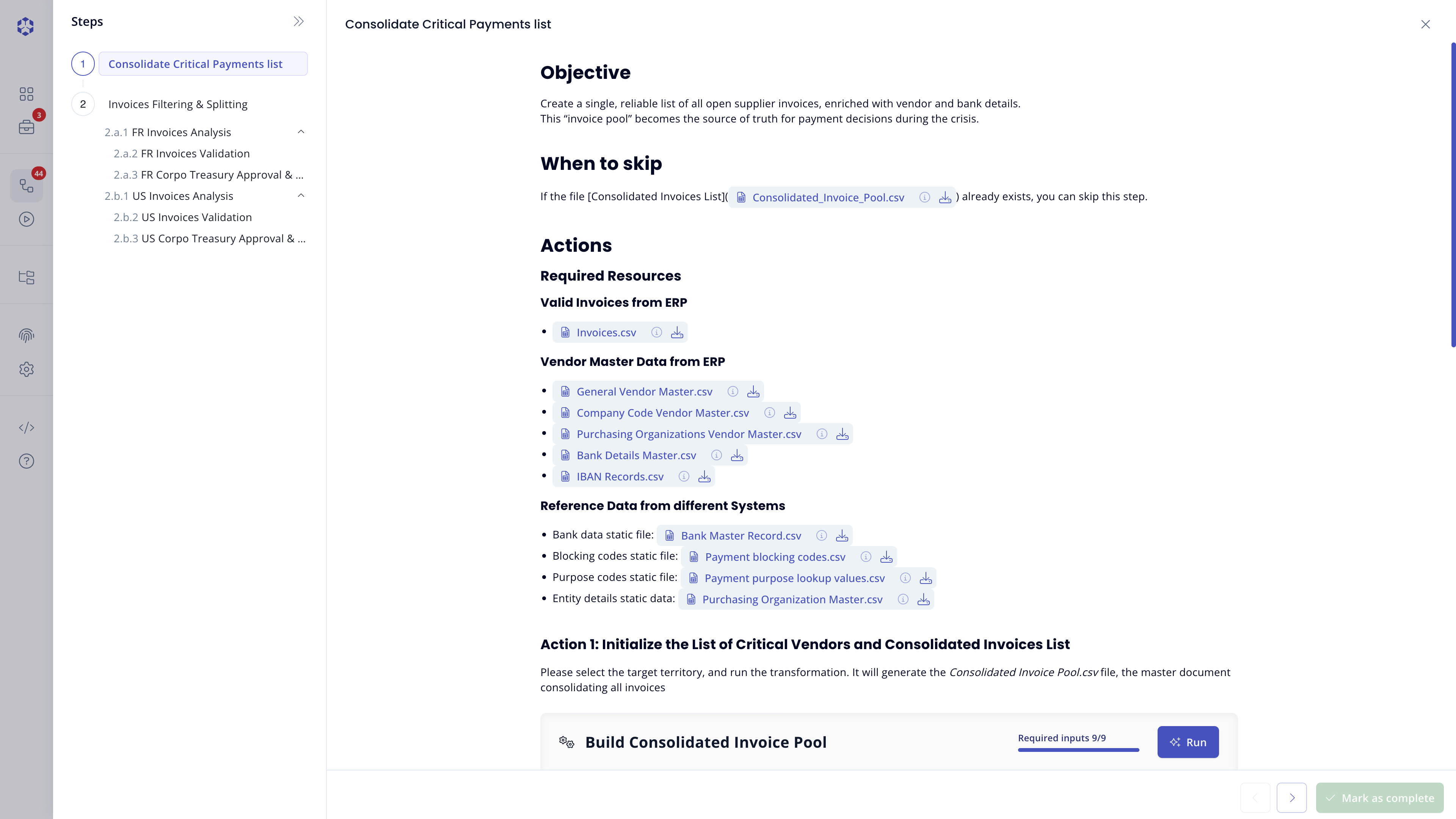 Process preview with steps listing.
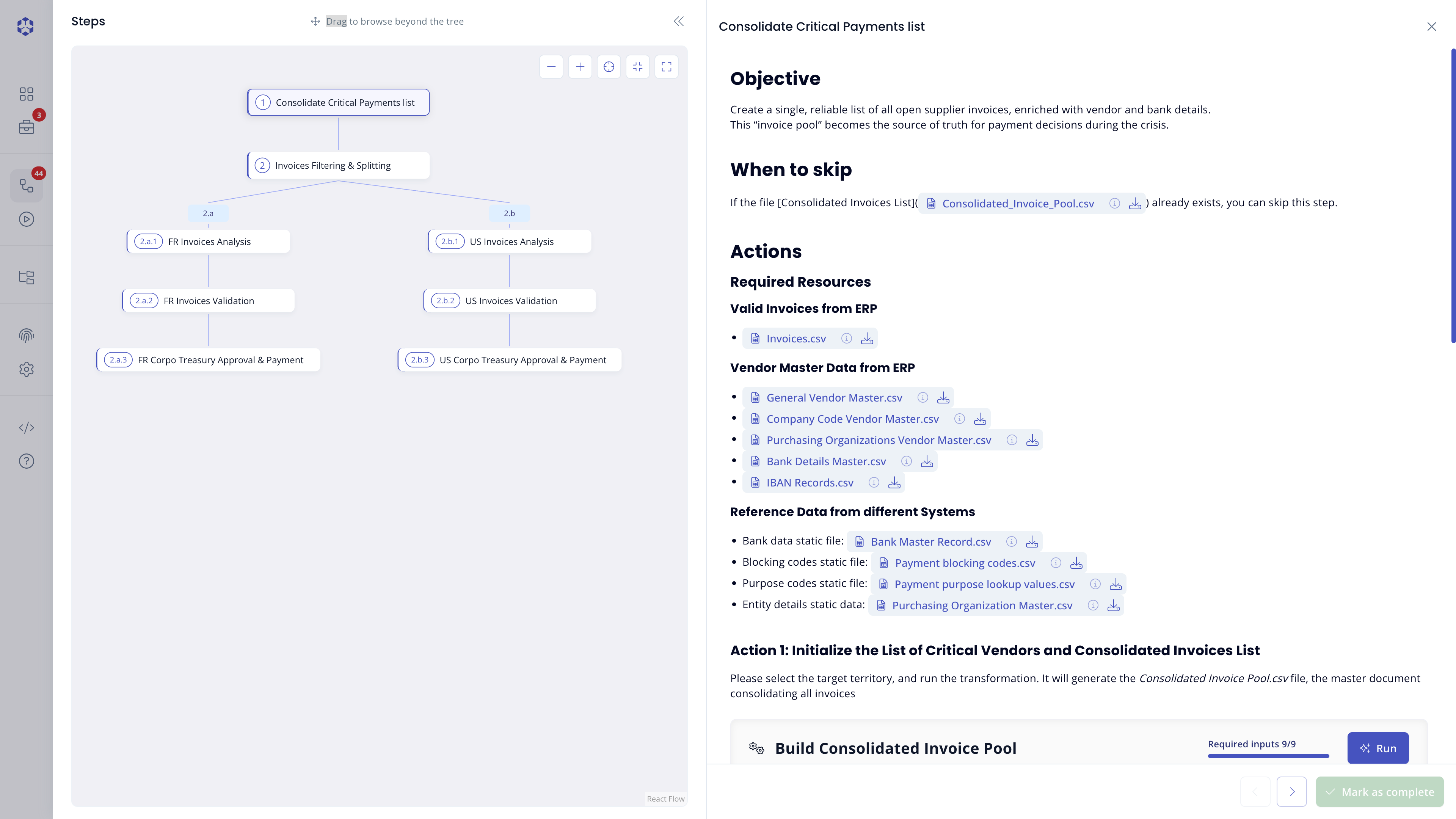 Process preview with graph view.
Step structure
Each step contains:
- A name (required)
- A list of dependencies
- Optional automations (see Automations)
Adding a step
Click Add new step at the bottom of the step list, or New step from the steps list view. You'll be asked where the new step goes ; see Adding a new step for that picker.
Step properties
For each step, you can configure:
- Can be skipped - set to false by default - when set to true, a Skip button becomes available on the step during execution, letting a Manager or Contributor bypass it without completing it
 Step settings: Skippable toggle.
- Fine-tune permissions: a switch (lock icon) that reveals the step's own permissions panel, letting you restrict this step's execution to specific roles instead of the process-level defaults. See Step-level permissions for details.
Dependencies
Implicit dependencies are induced when referring to values from previous steps using the @value selector, to reference a prior input.
A step cannot be completed before implicit dependencies are resolved. An implicit dependency being resolved implies the step at which it's defined is marked as completed.
Adding text
Click on Add text to add a text, usually supporting a description. You can refer to the Text editor documentation to view all the supported features.
Adding a form
Click Add form inside a step. Each input requires a name that is unique across the whole process. A warning will appear asking you to fix this issue in case you try to save without respecting this constraint.
Available input types:
| Type | Options |
|---|---|
| Text | Required toggle; Format ; optional JavaScript regular expression for format validation |
| Hidden text | Required toggle; Format ; optional JavaScript regular expression for format validation; value is masked in the interface but can be revealed by a click |
| Text area | Required toggle |
| Required toggle; input is automatically validated as an email address | |
| Date | Required toggle |
| True / False | Required toggle ; when enabled, the user must select Yes to mark the step as complete |
| File | Required toggle; Store in ; Step (file attached to the step) or Process storage (saved to the process data bucket); when Process storage is selected, an Absolute path destination field sets the target path in the bucket |
| Number | Required toggle |
| User | Required toggle |
| Value picker | Required toggle; Values ; define the list of selectable options as label / value pairs |
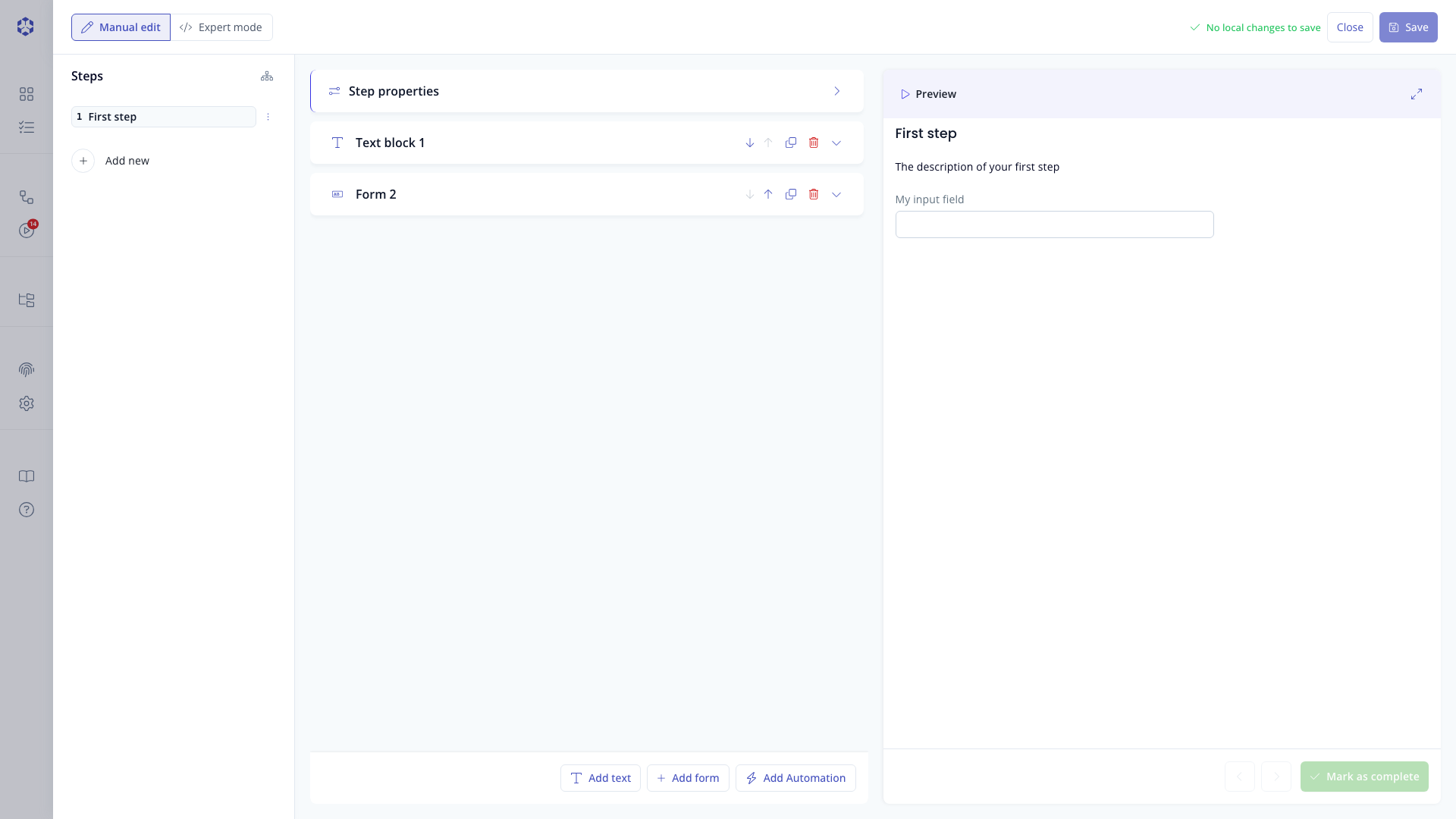 Text block and form block, with live preview.
Adding an automation
Astran allows you to transform data within processes to reduce the risk of errors, especially at crisis time. See Automations for more details.
Deleting a step
A step can be deleted from the steps list view, by clicking on the "..." menu icon and selecting Delete.
The same "..." menu also offers Duplicate step, which opens its own destination picker titled "Where should the duplicate go?", and Edit step permissions, a shortcut into the step's own permissions panel. See Step-level permissions for details.
Also, when the step editor is opened, in the Step properties, the Delete step button in the Danger zone has the same purpose.
Either path opens a confirmation popover before deleting. See Step operations for details.
Expert mode
The process can be edited directly as YAML or JSON by selecting Expert mode tab when a step content is displayed.
This is intended for advanced users only and is not officially documented. At the top right of the editor, a menu will allow you to switch between JSON and YAML edition, as well as edit either the whole list of steps or only the current one.
Saving changes
Click Save at the top right of the editor when satisfied with your changes.
If the process contains errors (for example, duplicate field labels across steps), a prompt describes the issue. Fix the errors and save again.