Process permissions
A process is composed of a process resource (ARN type: kit) and an associated bucket.
Process permissions are controlled through Policies.
Process execution permissions are controlled through roles.
Process management permissions
As an administrator, you can give various access rights to the process.
The list of permissions applicable to the process can be found here in the Processes section.
Generating process policies
You can generate policies by opening a process, clicking the more actions button (three dots) and selecting Technical information. From there, if you have the rights to create policies, you can generate suggested policies based on your needs.
This is a helper; you are free to modify the suggested rights according to your needs.
Execution time permissions
Execution overview
Roles
Astran offers 3 roles that will ultimately apply to the steps of your process.
Each role can be attributed to one or several groups and/or users.
Managers have the ability to do all actions on a step and edit the step's permissions at runtime. It is requested to have at least a manager per step. Managers defined at process level can change the execution's status and name.
Contributors can view a step, enter data, run automations, skip the step (if it has been configured as 'skippable'), rework the step. The sole difference with Managers is that they aren't allowed to modify the step's permissions.
Viewers can view a step. This means they can see the data entered, the history of the step, but also access any file that has been referenced in the step (even in case they do not have the underlying rights to access the associated file in the bucket).
This summarizes the list of actions that can be done by role:
| Action | Manager | Contributor | Viewer |
|---|---|---|---|
| View a step content | ✅ | ✅ | ✅ |
| View a file referenced in a step | ✅ | ✅ | ✅ |
| View the result of an automation | ✅ | ✅ | ✅ |
| View associated tasks and comments | ✅ | ✅ | ✅ |
| Create associated tasks and comments | ✅ | ✅ | ✅ |
| Enter data in a form | ✅ | ✅ | 🚫 |
| Upload a file in an input | ✅ | ✅ | 🚫 |
| Skip a step (if skippable) | ✅ | ✅ | 🚫 |
| Mark a step as complete | ✅ | ✅ | 🚫 |
| Rework a step | ✅ | ✅ | 🚫 |
| Edit step permissions | ✅ | 🚫 | 🚫 |
Also, a manager defined at process execution level is able to:
- Change a process execution's status (i.e. mark it as complete, cancelled or resume a completed/cancelled execution)
- Change a process execution's name
Inheritance
Roles can be defined in 4 places:
- At process level, in the process edition
- At step level, in the process edition
- At process level, when launching an execution (the process level already determined roles cannot be overriden)
- At step level, in an on-going execution
Configuration
Managing process execution permissions requires ck:GetKit and ck:UpdateKit. Without ck:UpdateKit, the Edit button on permission cards appears as Forbidden.
Process-level permissions
Open a process and go to the Permissions tab. Each role (Manager, Contributor, Viewer) is shown as a card listing the assigned users and groups.
Click Edit on a role card to open the permissions editor. From there, search and select users or groups to assign. Click the delete icon next to an entry to remove it.
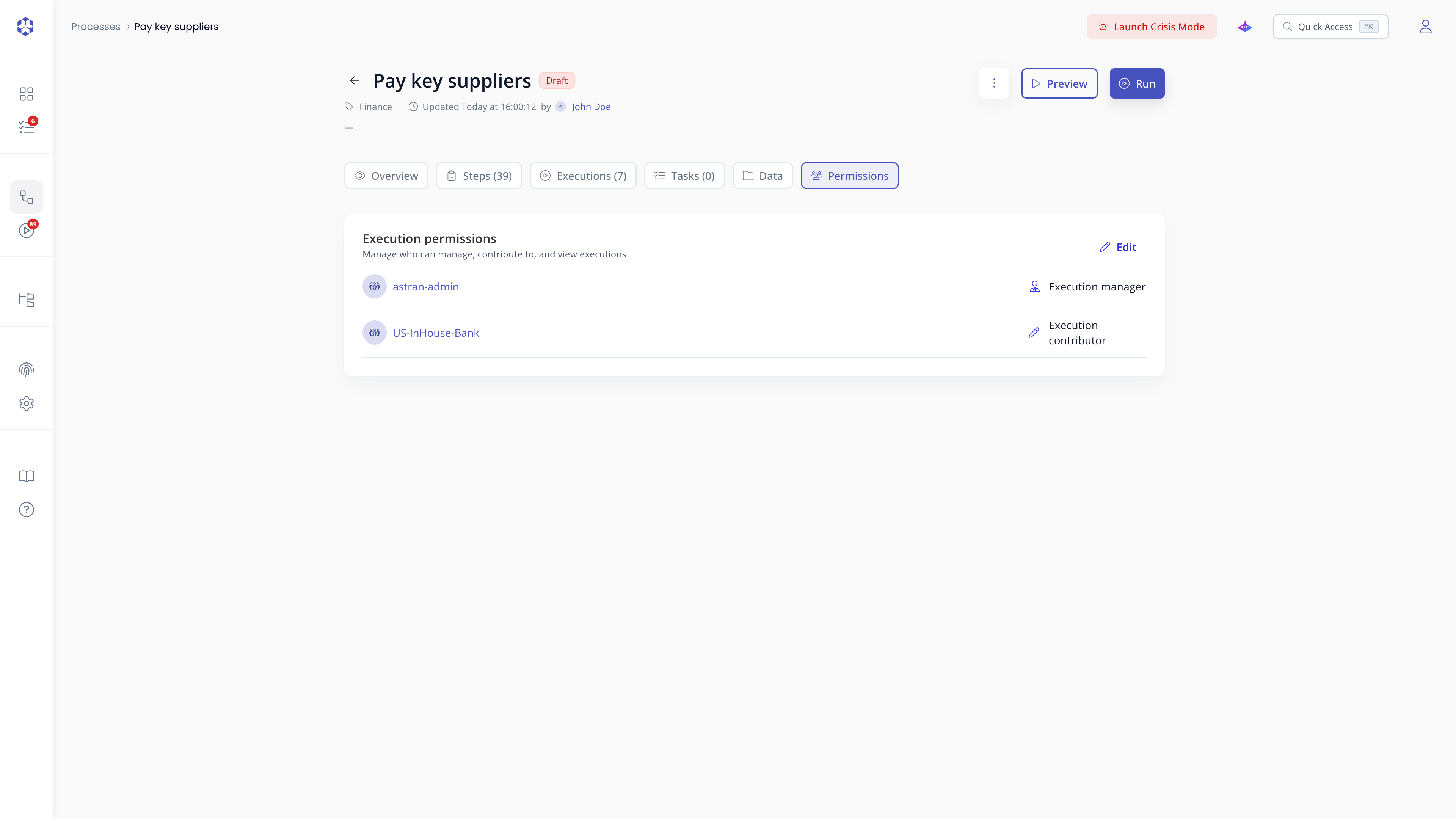 Permissions tab
We recommend configuring all users and groups at process level to reduce the setup required when launching an execution.
Step-level permissions
Step-level permissions can be set inside the process editor. Open a step, then in its properties turn on the Fine-tune permissions switch (lock icon). This reveals the step's own permissions panel. Roles defined at step level take precedence over those defined at process level.
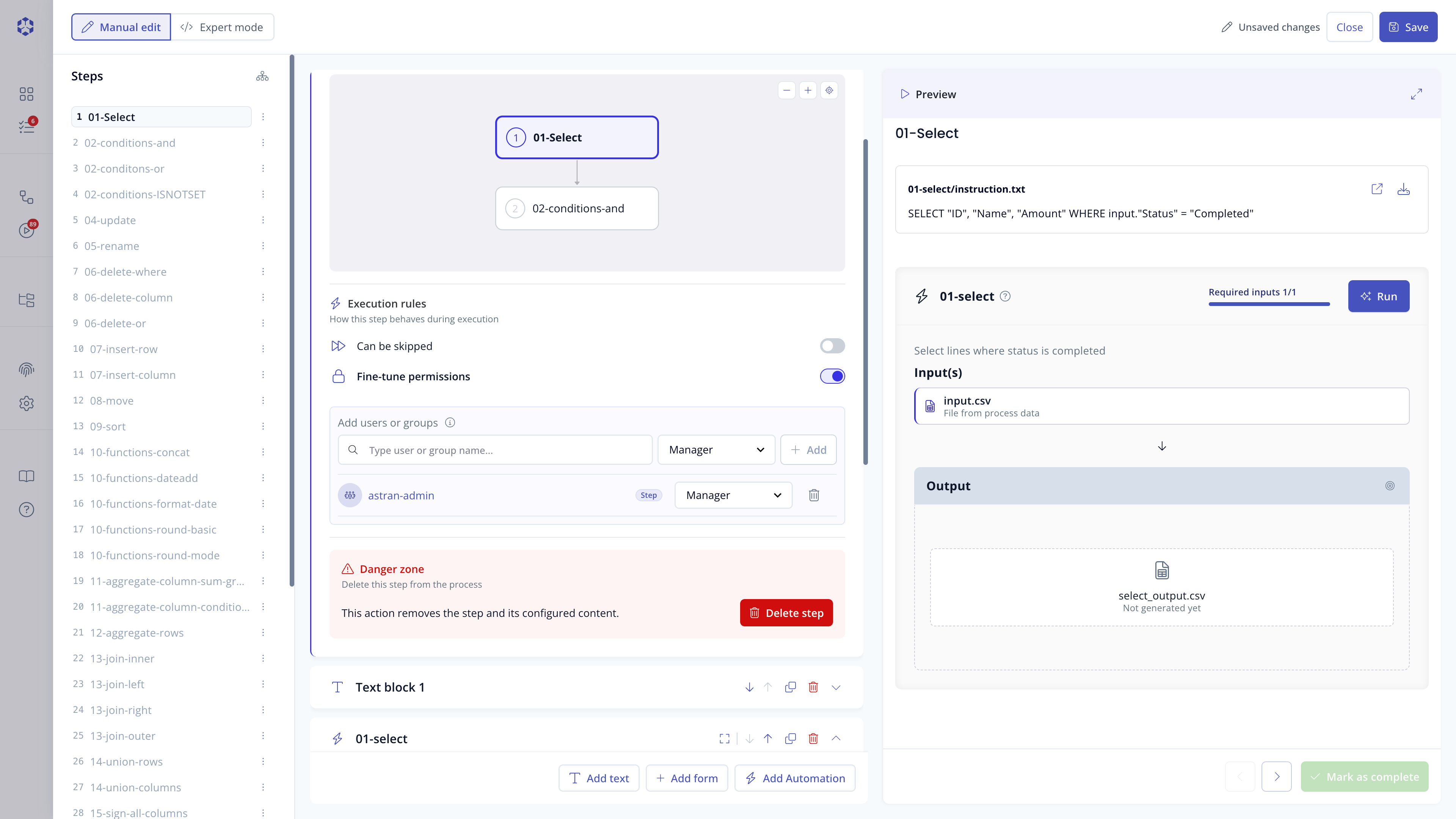 Step properties panel with the Fine-tune permissions switch turned on and the resulting step permissions panel visible underneath it.
Runtime
When executing a process, users can be prompted to define managers and other roles associated groups/users according to the following rules:
| Process level definition | Step level definition | What the user will be asked when launching the execution |
|---|---|---|
| Manager is defined | Manager is inherited | No user input: the manager defined will be used |
| Manager is not defined | Manager is defined in all steps | No user input: the manager defined will be used for each step |
| Manager is not defined | Manager is defined in some steps | User input needed to have manager in the steps which have no manager defined |
| Manager is not defined | Manager is not defined | User input needed to have manager in all steps |
| (Contributor or Viewer) is defined | (Contributor or Viewer) is inherited | No user input: the (Contributor or Viewer) defined will be used |
| (Contributor or Viewer) is not defined | (Contributor or Viewer) is defined in all steps | No user input: the (Contributor or Viewer) defined will be used for each step |
| (Contributor or Viewer) is not defined | (Contributor or Viewer) is defined in some steps | User can input (Contributor or Viewer) (optional) |
| (Contributor or Viewer) is not defined | (Contributor or Viewer) is not defined | User can input (Contributor or Viewer) (optional) |
A Manager of a step can update the permissions of this step once the execution has been created. This will affect only this execution.
Limitations
Administrator of the system
Users who have unrestricted access (either the root account or a member of the astran-admin group with no permissions boundary) will have the ability to perform all actions on all steps, even if they are not explicitly referenced in the process permissions.
We recommend redefining your own policies to restrict administrators' rights if this is considered necessary in your internal control policies.
Restrictions of users per role
You are not able to define a set of users at process level and then remove all of them on a given step. You can only decide to restrict the list of users/groups for a given role but you cannot reduce it to an empty set.
Execution and access to the process
It is necessary for a user who wants to execute a process to have access to this process. This means the user needs both ck:GetKit and ck:ExecuteKit actions to be allowed on the process.