Step operations
These operations are part of editing a process and require ck:GetKit and ck:UpdateKit.
Once a process has more than one step, the editor offers a destination picker for placing new steps, branches, and moved steps anywhere in the process graph, instead of only at the end of the list.
Adding a new step
When a process has a single step, clicking New step at the top of the editor appends the step directly as a child of the first one.
Once a process has more than one step, the same button becomes a dropdown labeled Add new. Its first entry, New step, opens a destination picker titled "Where should the new step go?". The picker shows the graph twice, side by side: Current on the left, and If applied on the right with the new step shown in green at the destination you last selected. Pick a destination, then click Add step.
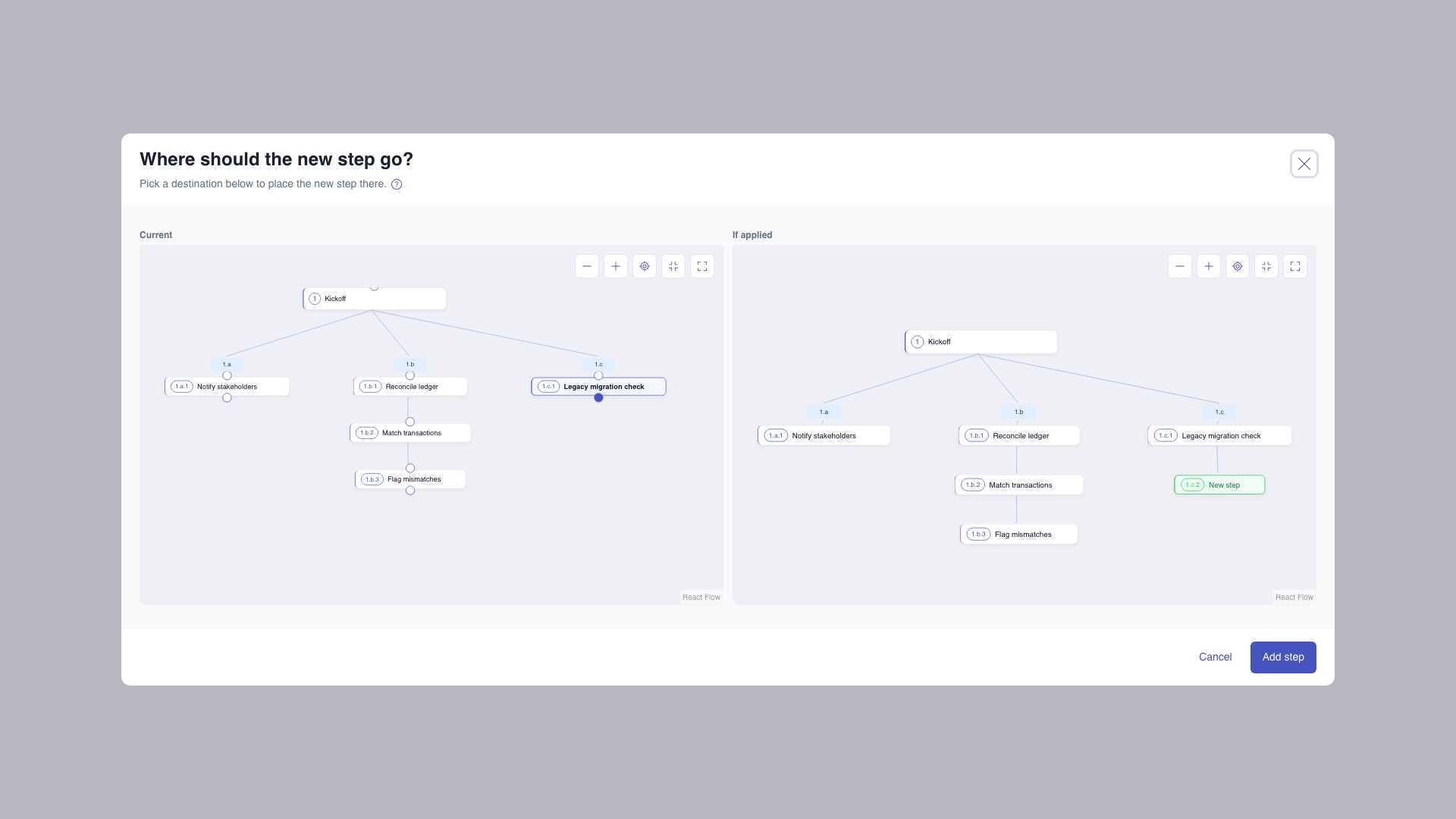 New step placement picker.
Adding a new branch
Click the Add new dropdown, then select New branch. A picker titled "Choose the parent step" opens. Pick the step the branch should run in parallel after, then click Create branch.
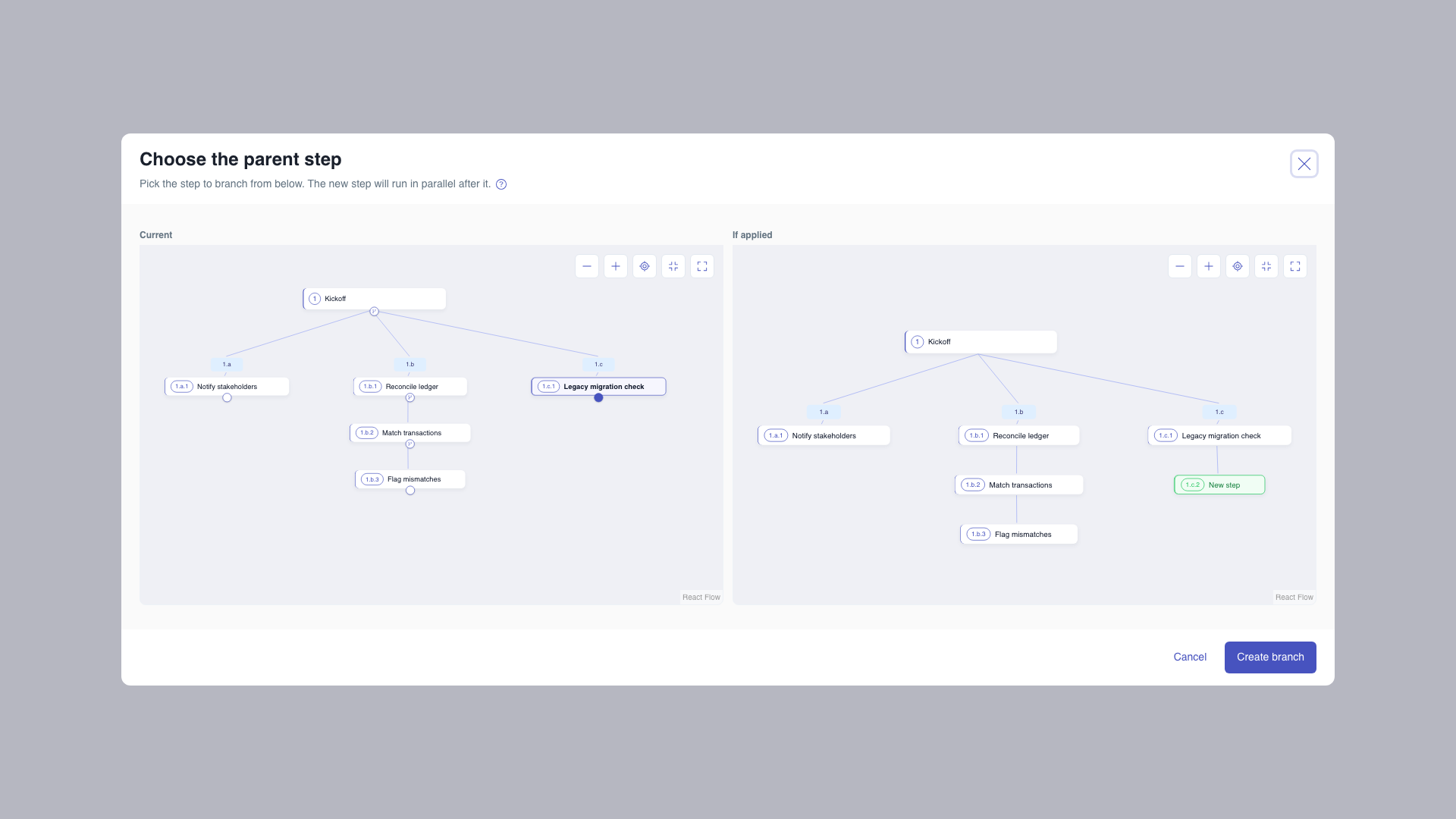 Branch placement picker.
Adding a new starting point
A new starting point is not a separate menu entry. It is one of the destinations offered inside the same New step destination picker described above: alongside the destinations attached to existing steps, the picker also offers a root level destination, with no parent line, that places the new step as an additional, independent starting point of the process.
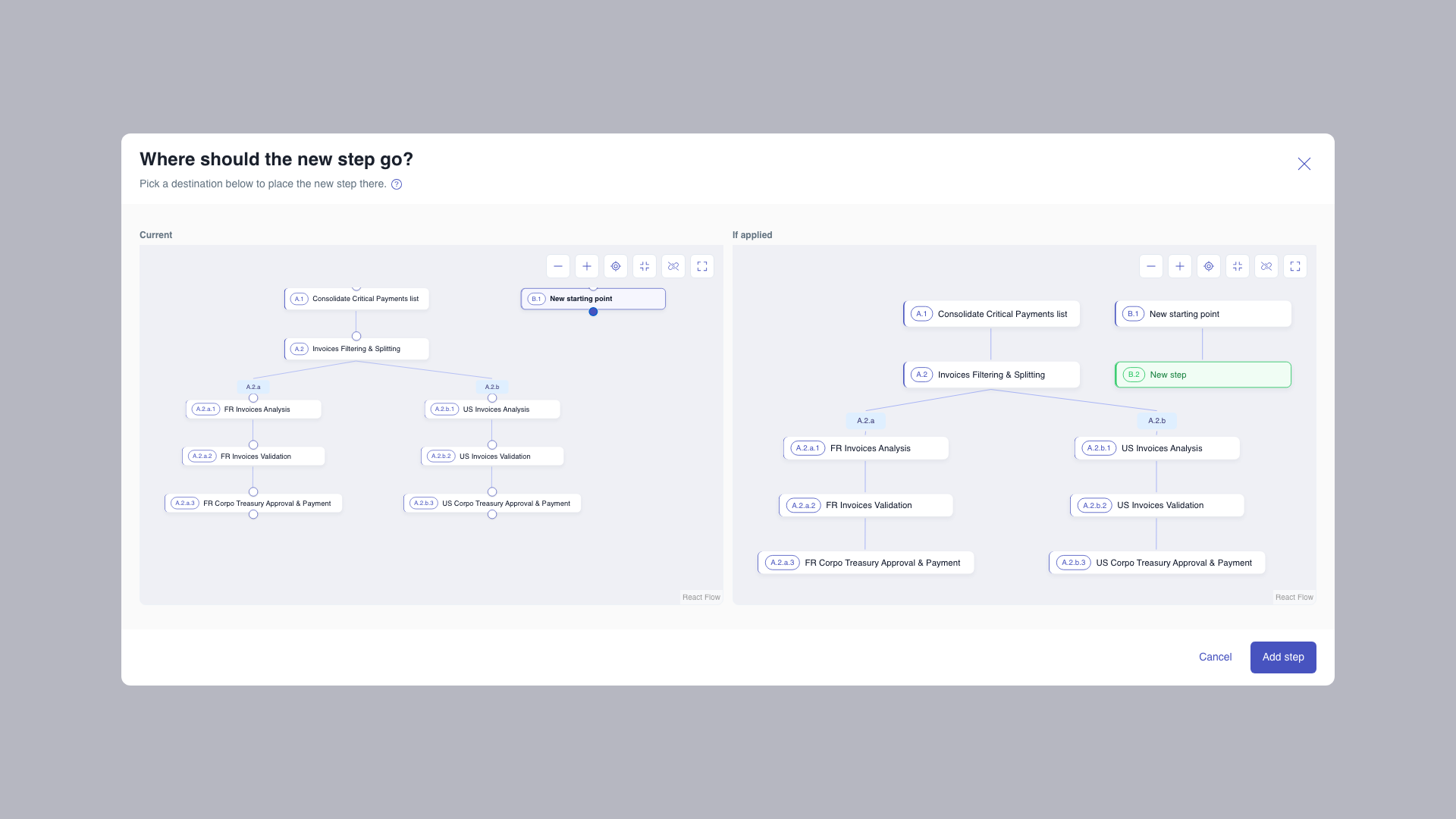 New starting point, shown as a separate root.
Moving a step
Open the step's ⋮ menu (list view) or click it in the graph, then select Move step. A picker titled Where should "<step name>" move to? opens, naming the exact step you are moving. A Select another step to move link lets you switch targets without closing the picker. Pick a destination, then click Move step.
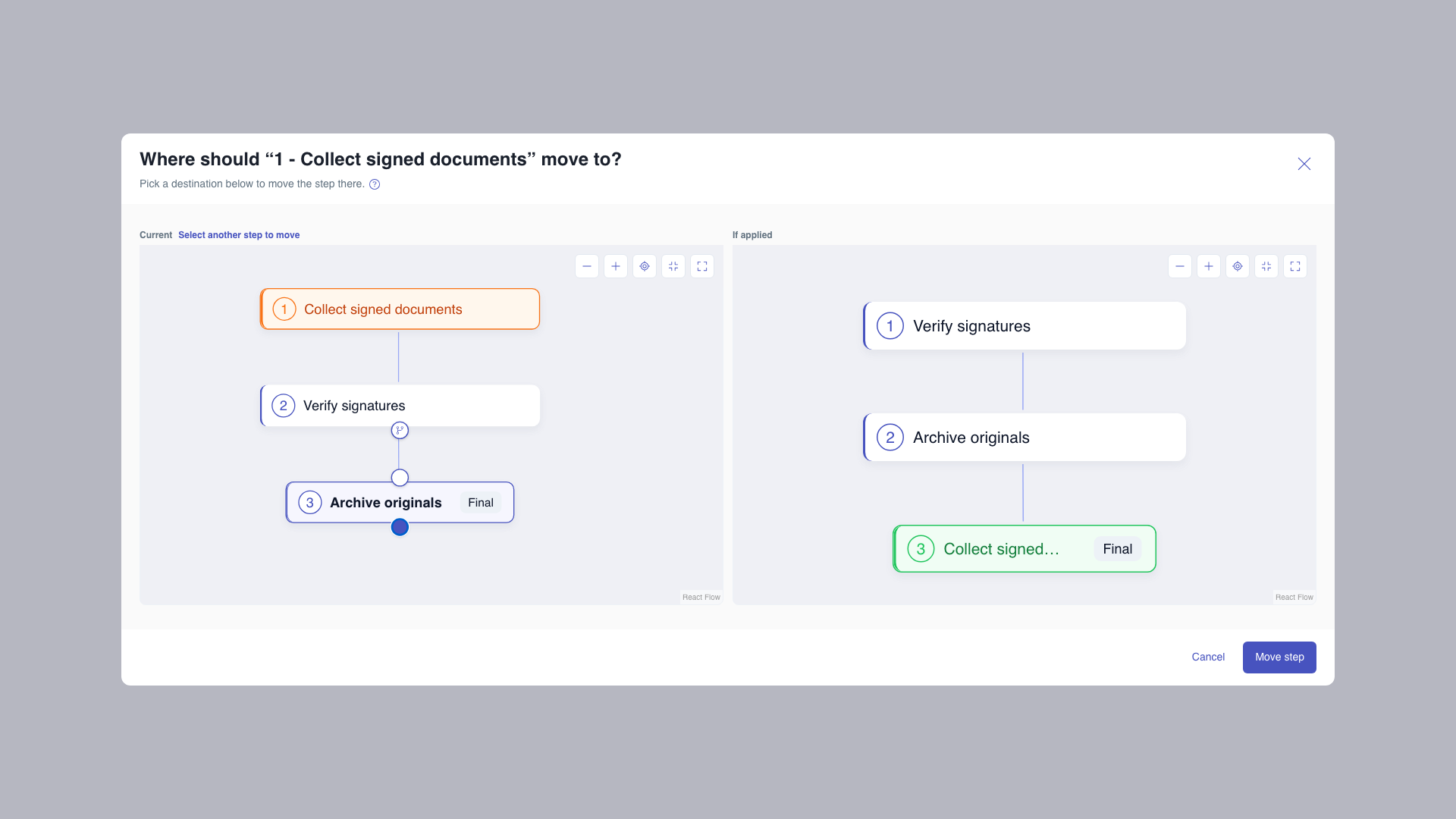 Move step destination picker.
Duplicating a step
Open the step's ⋮ menu (list view) or click it in the graph, then select Duplicate step. This opens the same kind of destination picker used for moving a step, titled "Where should the duplicate go?". Pick a destination, then click the confirm button to create the copy.
The destination picker
Whichever action opens it, the picker highlights clickable destinations directly on the graph as small circles:
- A plain circle marks a destination that places the step Before or After an existing one, extending a single chain.
- A circle with a branch icon marks a New branch destination, placing the step in parallel after the one it is attached to.
- On a step with no predecessor, a destination can also be labeled New start, making the moved or new step an additional starting point.
Moving a step that has steps depending on it adds two radio options above the graphs: Move just this step or Move this step and the N step(s) that depend on it. A link next to them, move it as a new starting point, sends the step to a root level destination directly.
With Move just this step selected, moving a step away from its dependents breaks the link between them: the dependent step loses its explicit dependency on the one being moved. When this happens, a warning banner appears below the graphs (This move has a side effect, listing exactly what breaks), and the confirm button turns red and reads Move anyway instead of Move step.
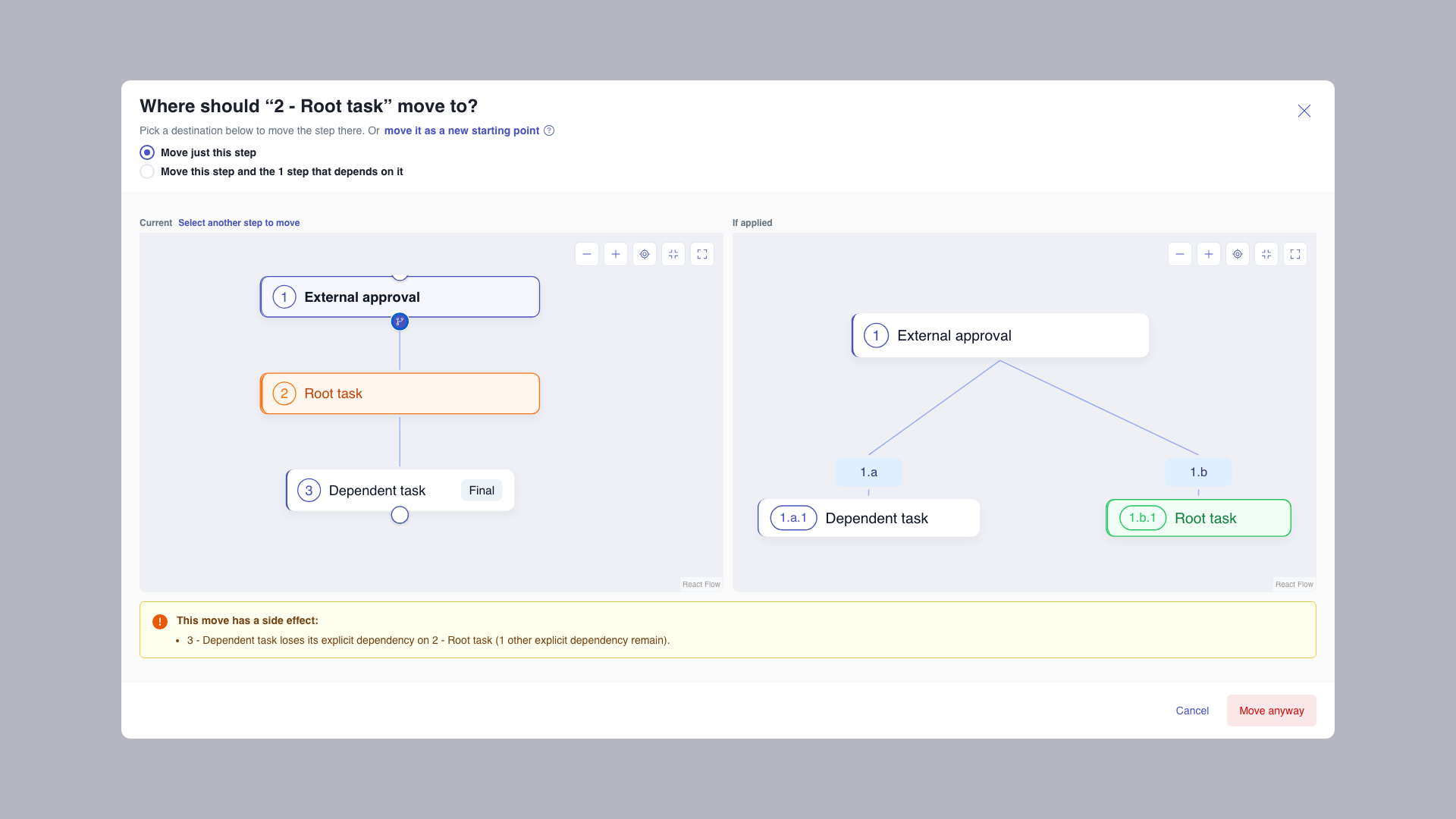 Moving just this step leaves its dependent behind, with a warning.
Selecting Move this step and the N step(s) that depend on it instead takes the dependent steps along, preserving the dependency and avoiding the warning.
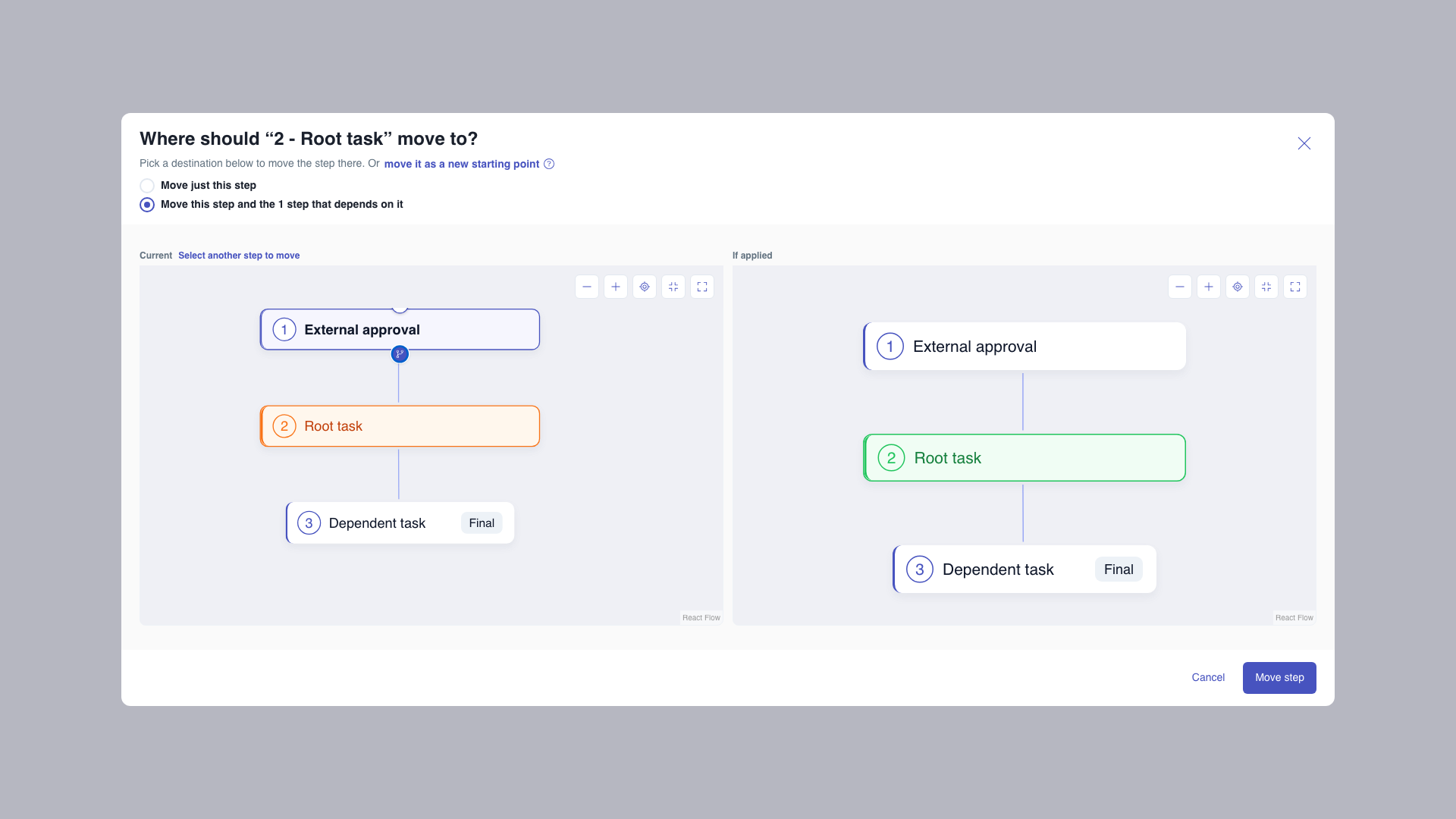 Moving the step with its dependent, no warning.
Deleting a step
Open the step's ⋮ menu (list view) and select Delete, or open the step editor and click Delete step in the Danger zone section of its properties. Either path opens a confirmation popover ("Are you sure you want to delete this step?") before anything happens ; deleting a step is not instant, you must confirm. Deleting removes the step and all its configured content (text blocks, forms, automations); this cannot be undone.