Text editor
Writing step content is part of editing a process and requires ck:GetKit and ck:UpdateKit.
Toolbar
Above the text area, a small toolbar gives you one click access to the most common formatting: Bold, Italic, Strikethrough, Insert code block, and Upload file. Every other feature described below (headings, blockquotes, lists, links, tables) has no toolbar button. Type its Markdown syntax directly in the text area instead.
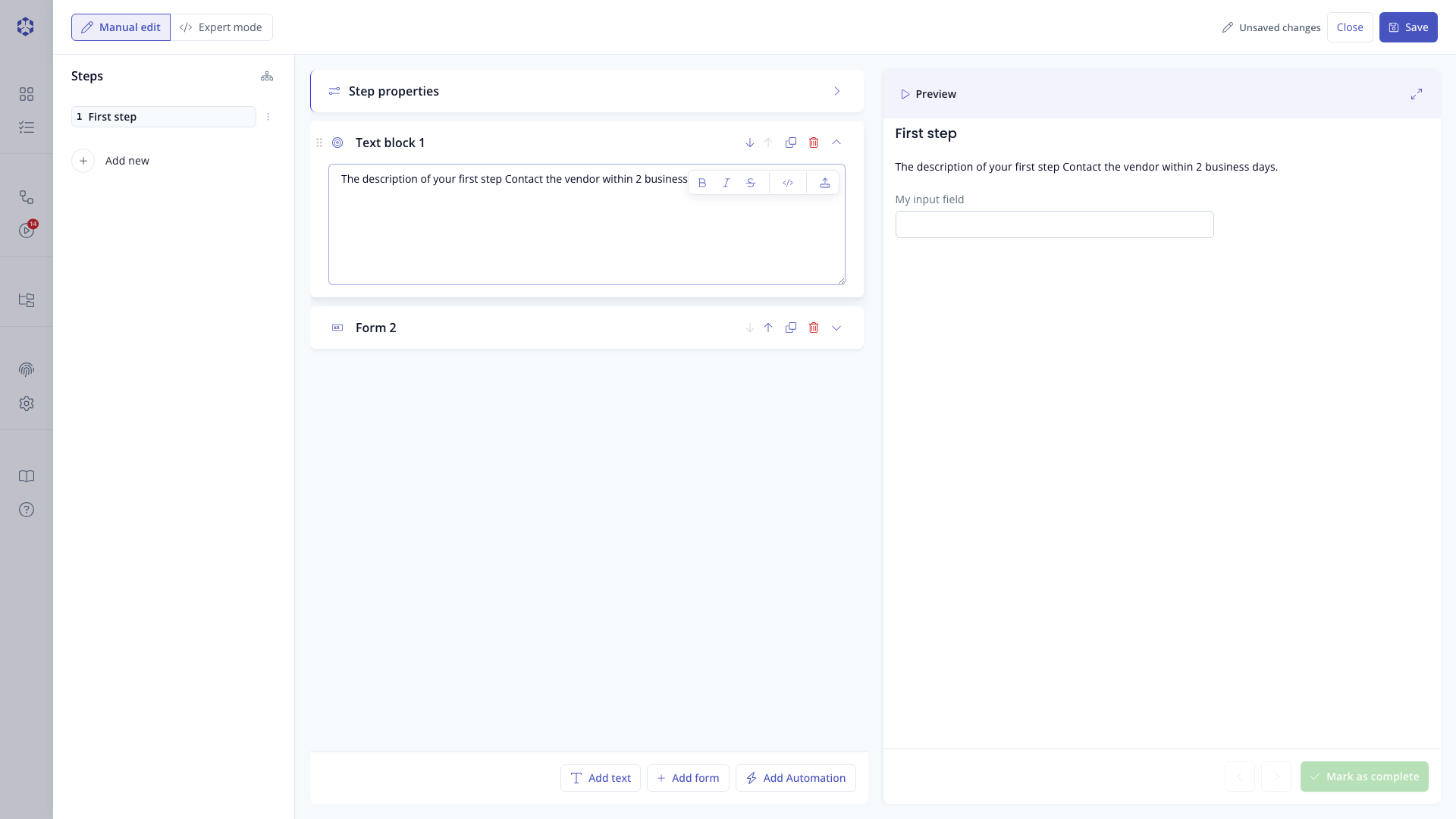 Floating toolbar above a text block, shown after selecting text inside it.
Markdown features
We invite you to check out the Official Markdown page to get more familiar with markdown.
The standard features mentioned below are supported.
The text area is a plain text field, not a rich text editor. Pasting formatted content (from a Word document, a web page, another app) always pastes as plain text, any formatting is stripped, and you get back the Markdown syntax below instead. Undo and redo (Ctrl+Z / Cmd+Z and Ctrl+Shift+Z / Cmd+Shift+Z) work using your browser's native text field history, scoped to that one text field.
Task list syntax (- [ ] item) is not specially rendered. It displays as a plain list item showing the literal [ ] text, not a checkbox.
Heading
# Header 1
## Header 2
### Header 3
#### Header 4
##### Header 5
These headers will render with different font sizes, where Header 1 is the largest and Header 5 is the smallest.
✅ Do this
# Here's a Heading
❌ Don't do this
#Here's a Heading
Bold
To create bold text, surround it with ** or __, e.g. **bold text**
✅ Do this
Love**is**bold
**Love is bold**
❌ Don't do this
Love__is__bold
**Love is bold **
Italic
To create italic text, surround it with * or _, e.g. *italic text*
Strikethrough
To create strikethrough text, surround it with ~~, e.g. ~~strikethrough text~~
Blockquote
Blockquotes are created by starting a line with >
e.g.
> blockquote
✅ Do this
Try to put a blank line before...

> This is a blockquote

...and after a blockquote.
❌ Don't do this
Without blank lines, the formatting may not render correctly.
> This is a blockquote
Don't do this!
Ordered List
Ordered lists are created by placing a number followed by a dot (.) at the beginning of each line.
1. First item
2. Second item
3. Third item
Unordered List
Unordered lists are created by placing a '-' at the beginning of each line.
- First item
- Second item
- Third item
✅ Do separate lists with blank lines before and after each list.
Inline code
Inline code is done using backticks
`inline code`
Horizontal Rule
Horizontal rules are created by placing --- on a line.
✅ Do this
Some content.

---

Some other content.
❌ Don't do this
Some content.
---
Some other content.
Link
Links are created using the following syntax: [Name of your link](https://url-to-your.link.ext)
Image
Images are embedded using the following syntax: 
Table
Simple tables can be rendered with the following:
| Syntax | Description |
| ----------- | ----------- |
| Header | Title |
| Paragraph | Text |
The rendering will have a similar appearance as the following table.
| Syntax | Description |
|---|---|
| Header | Title |
| Paragraph | Text |
Code Block
Code blocks are created using the following syntax. The language name (here json) is optional.
```json
{
  "firstName": "John",
  "lastName": "Smith",
  "age": 25
}
```
Astran features
Alerts
danger, warning and info blocks are created using the following syntax.
::danger
Danger alert
::
Replace ::danger with ::warning or ::info to change the alert type as needed.
✅ Do separate alert blocks with blank lines before and after.
Smart selector
You can trigger the smart selector by typing @ in the text area. The selector opens only when @ appears at the start of a word; if the character before @ is not a space, nothing happens.
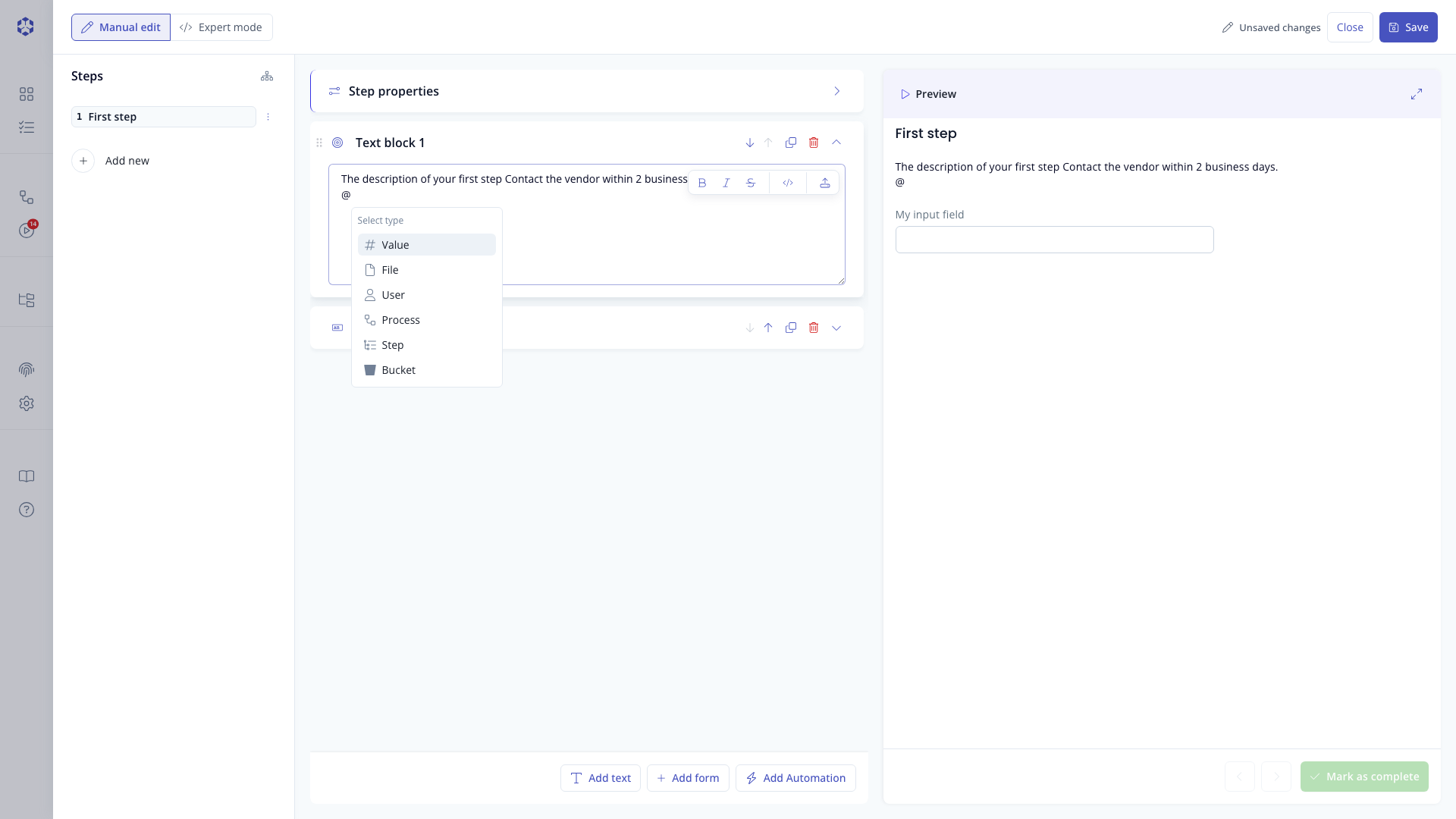 Smart selector dropdown triggered by typing @ in the text area, showing the available reference categories: Step, File, Process, Value, User, and Bucket.
Reference a step
Select Step to reference a step by its index. If you later reorder steps (for example, step 3 becomes step 1), the reference is not updated and will still point to the new step at that index.
If the referenced step no longer exists (for example, it was deleted), the reference chip still renders but its info icon's tooltip reads "Step <index> not found" instead of naming the step.
Referencing a user
Select User to insert a reference to a user by their username, written as @user:"username".
Link to internal documents
A text in the form @file:"/path/to/a/document/in/bucket.extension" is interpreted as an internal link.
We recommend naming your files and folders without quotes, as names containing quotes are not interpreted correctly as file links.
This link is clickable and opens the associated document for preview.
You can upload a file to your process by dropping it into the text area (one file at a time) or by clicking the Upload file icon in the toolbar. The file is uploaded to the /data prefix of the bucket associated with your process.
For backward compatibility, you can still use /path/to/a/document/in/bucket.extension to reference internal documents. These references are replaced automatically by the associated @file:"path/to/a/file.extension" form.
At execution time, access to a file referenced with @file: is automatically granted to all users assigned at least the Viewer role on the step; no separate S3 permissions are needed.
Referencing folders is not supported; you must reference a file directly. Referencing a folder would grant step users access to all files within it, including files they may not be authorised to see.
Embedding documents
Embed a document using the following syntax: .
The embedded document must exist at /link/to/document.pdf within the bucket associated with the process. It is rendered inline if its format is supported; otherwise a download link is shown. Documents larger than 5 MB are not rendered inline.
Referencing a file from another bucket
Reference a file from another bucket using @bucket:"bucket-name/link/to/document.pdf", where bucket-name is the bucket name and link/to/document.pdf is the path within that bucket.
Permissions to access these files are not granted automatically to Managers, Contributors, or Viewers. They must be granted explicitly through S3 policies. The user needs s3:ListAllMyBuckets, s3:ListBucketVersions, and s3:GetObjectVersion.
Referencing a process
Reference a process using @process:"kit-arn", where kit-arn is the ARN of the process. Use the smart selector to find and insert the correct ARN.
Clicking a process reference in a step opens that process in a new tab.
Referencing a value of the process
Reference a value from the process using @value:"value-name". If the referenced field name is modified later, the reference will break.
This feature lets you quote a value entered in a previous step directly in the text of a later step, so users do not need to navigate back to find it.